|
|
8
|
Working with Sets
|
|
In This Section:
|
Edit > New set
|
Creating Sets
|
|
|
|
|
Overview
A set is a collection of arbitrary selectable objects (DAG nodes, CVs, or cameras). Sets can be used to assemble "related" objects so that they can be picked and manipulated together more easily.
>
|
Note:
|
If an object has construction history, its CVs cannot become
members of a set. However, the object itself can be placed in
the set.
|
Creating a Set
-
1
-
To create a set, pick a collection of DAG nodes, CVs and/or cameras. The following example displays five primitive objects. From these objects, two sets are created.
-
2
-
Pick only two of the objects first (for example, the objects on the right of the screen), then select Edit > New set.
-
A new set is created whose members consist of all
currently picked items. The set of objects is highlighted in
white in the Set Lister window. To access the Set Lister
,
select Windows > Sets > Set lister. (See Windows > Sets > Set
lister for details). Or select Sets > Lister from the layers bar.
-
3
-
Unpick the first two objects and pick the remaining three objects (the objects on the left of the screen).
|
|
You can also create a set
from the Set Lister by
selecting Modify > Create
Set.
|
-
4
-
Now, select Edit > New set again and another set is created.
Deleting Sets
-
1
-
Open the Set Lister.
-
2
-
Select the set(s) you want to delete.
|
|
If you're deleting a set with
many members, you may
wish to turn off Picklist Auto-
update before selecting the
set, to avoid doing a
needless pick of the
members.
|
-
3
-
Select Modify > Delete Set to delete the set(s).
New Set Options
Select Edit > New set - to display the New Set Options window. to display the New Set Options window.
Exclusive
-
- Members of the new set are not allowed to be in any other set.
Multiple
-
- The picked elements are allowed to be in other sets.
|
|
See Windows > Sets > Edit
set for details.
|
>
|
Note:
|
After a set has been created, you can change its members'
state using the Set Editor window.
|
|
Windows > Sets
|
Creating and Editing Sets
|
|
|
|
|
Overview
Lets you list, add, or remove members from sets created using the Edit > New set tool and create a new set or delete existing sets.
How to Use
-
1
-
From the Window > Sets cascading menu, select
Set lister. A list of the existing sets is displayed. To open the Set Editor, select Edit set.
-
If there is a set contained in the current stage, a Sets
button
is listed on the layers bar.
-
2
-
Click the Sets button to display a list of all the set names.
-
This Sets item provides easy access to the sets contained in
the current stage.
-
3
-
Select Sets > Lister to open the Set Lister.
-
4
-
Select a set name to pick or unpick the related set members. A check mark 3 in front of a set item indicates that all members of this set are picked.
-
5
-
Select the option box of a set item to open its Set Editor.
|
Windows > Sets >
Set lister
|
Picking Sets
|
|
|
|
|
|
|
For more information on
creating Sets, see Edit > New
set.
|
Select Windows > Sets > Set Lister or select Sets > Lister from the layers bar to open the Set Lister window.
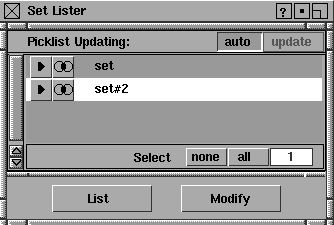
This window displays all sets of the current stage in the lister, by default. Sets can be picked or unpicked in either the SBD window, the modeling window, or the Set Lister window. You pick a set in the SBD or modeling window by selecting all members of the set.
To pick a set from the Set Lister window, click on the name of the set.
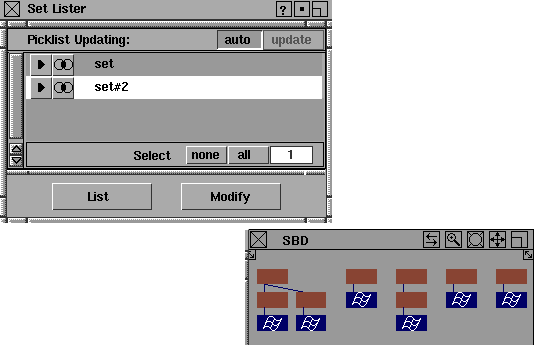
In the following example, two sets have been created. If you click set #2 in the Set Lister window, all members of this set are picked. You can see the picked objects in the SBD window.
If you unpick one of the set members, set #2 is un-highlighted in the Set Lister window since not all its members are picked.
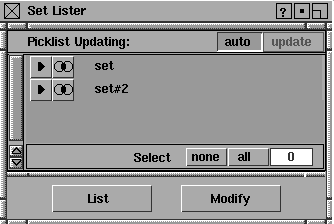
If you deselect one of the set names in the Set Lister, all members of the set are unpicked (and un-highlighted) in the modeling window.
Picklist - auto
If the auto button is highlighted (ON), selecting a set in the Set Lister window picks all its members in the modeling window. Also, picking all the members of a set in the modeling window selects the set in the Set Lister window. The auto button is on by default.
If the auto button is not highlighted (OFF), selecting sets in the Set Lister window does not affect the modeling picklist, and vice versa. This is useful if you want to invoke functions that act upon sets without changing the pick status of objects in the modeling world.
Notes:
- Unpicking a set will unpick all of its members in the modeling window if the auto option is toggled on.
- One common reason for set picking to fail occurs when some members of the set are invisible. If this is the case, turn auto off if you want to select the set in the lister (or set the member in the Set Editor).
Picklist - update
If auto is set OFF, the update button can be used to periodically change the picklist so only members of selected sets are picked in the modeling window. To update the picklist, click the update button. This causes all members of highlighted sets to be picked in the modeling and SBD windows.
Select
none
-
- All the sets in the lister are deselected.
all
-
- All the sets in the Set Lister are selected. Sets already selected remain unaffected.
The value at the far right indicates how many sets are currently selected.
|
|
You can also pick a set by
selecting its name on layers
bar > Sets.
|
>
|
Note:
|
Certain Set Lister buttons are grayed out in the option box
or when you enter a momentary or continuous function that
requires picking operations. This is to prevent simultaneous
execution of conflicting operations.
|
|
|
When these items are grayed out, you cannot select them. To
activate them, use one of the Pick options.
|
Set Lister "List" menu
List All
-
- All existing sets on the current stage are listed in the Set Lister.
List picked
-
- Only the selected sets are listed in the Set
Lister.
Remove
-
- All selected sets are removed from the Set Lister.
>
|
Note:
|
Remove does not delete the actual sets. They are no longer
displayed in the Set Lister, but the sets themselves still exist
.
|
Set Lister "Modify" menu
Add Members
-
- Currently picked objects in modeling window are added as new members to the selected sets on the lister.
>
|
Note:
|
An object that has an ancestor or descendent members of the
set, cannot be added to the set. CVs of an object with
construction history cannot be added to a set.
|
Remove Members
-
- Currently picked objects in the modeling window are removed from sets, if they are members of any selected sets in the lister.
Create Set
-
- A new set is created with the members of all picked objects in the modeling window.
Delete Set
-
- All selected sets are deleted, not just removed from the lister.
Editing Sets in the Set Lister
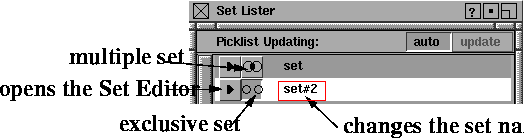
- To change the name of a set:
-
Double click a set name. Once highlighted, type the new
name in the field.
- To change the type of a set:
-
Click the toggle button with rings to the left of a set name.
This toggles the type of a set between exclusive and multiple.
Overlapping rings represents multiple sets. Separate rings
represents an exclusive set. See Edit > New set for more
information about set type.
-
Click the arrow button to the left of a set item. This opens
the Set Editor for this set.
Set Lister Options
Select Windows > Sets > Set lister - to display the Set Lister Options window.
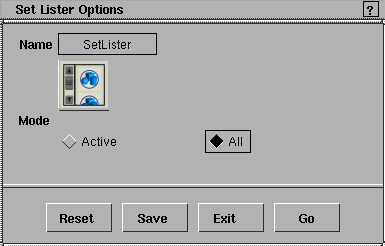
Mode
Active and All determine whether the lister will open with all its members listed, or only those that are active. A set is active if all its members are selected. The names of active sets appear highlighted in the Set Lister.
>
|
Note:
|
The names of all sets are listed in the Set Lister by default.
However, if the Mode option is set to Active, only active sets
are listed.
|
|
Windows > Sets >
Edit set
|
Editing Sets in the Set Editor
|
|
|
|
|
How to Use
Create a set by picking a collection of DAG nodes, CVs and/or cameras and then selecting Edit > New set.
To open the Set Editor, either:
- Select Windows > Sets > Edit set to open all Set Editors for those sets whose members are all picked.
- Select the set name - on the list of layers bar > Sets to open the Set Editor for this set.
- Click the > button at the left of a set name on the Set Lister to open the Set Editor for this set.
Set Editor Window
The Set Editor lets you add or remove members of sets, rename sets, and change the MULTI or EXCLUSIVE type of a set.
One set editor is opened for each set. You can open many Set Editor windows, each window serving one set.
In the following example, the Set Editor contains three members: a sphere, a cylinder, and a torus.
|
Tip:
|
If you don't need to see the list of current members, you can
add and remove them through the Set Lister (see Picking Sets
on page 277).
|
Set Name
The set name in this example is set. The set name can be changed by clicking on the name field and typing a new name.
Set Type
The default set type is MULTI. You define the Set Type using the Edit > New set - option box. You can change the Set Type in the Set Editor by clicking the EXCLUSIVE or MULTI button.
EXCLUSIVE
-
- None of the set members can belong to any other set.
MULTI
|
|
You can change a set type or
a set name in Set Lister if
you do not want to see
members of the set.
|
-
- Its members may belong to more than one set.
Picklist Updating
Controls whether or not set members are automatically selected and deselected when they are picked and unpicked in the modeling window. If set to auto, a set member is highlighted in the Set Editor when picked in the modeling window. Similarly, if a set member is selected in the Set Editor, it is picked in the modeling window.
Select - none/all
-
- The number next to the none and all buttons indicates how many items are selected in the Set Editor. all means that all the items in the Set Editor are selected, and none deselects all items in the Set Editor.
|
Tip:
|
In some cases, set members may not be pickable in the
modeling window (for example, if a member is invisible). In
this case, turn auto OFF to select the members in the editor
only.
|
Set Editor Buttons
Add
-
- All items that are currently picked in the modeling window are added to the set.
Remove
-
- All selected items in the set editor are removed from the set.
>
|
Note:
|
The CVs of an object with construction history can not be
added to a set.
|
|
|
If an object's ancestor or descendent are already part of the
set, it can not be added.
|
|
|
To delete a set, click all to select all members in the set, then
click Remove to remove the members. A set that has no
members is itself deleted.
|
|


