|
|
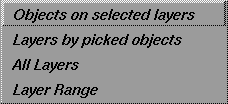
Lets you select layers.
It is useful for:
- Collectively setting the attributes of multiple layers with the Layers
menu, instead of using the Layers Bar menus for each layer.
- Receiving feedback about a layer. For example, you can find out which layer an object belongs to by selecting Layers > Select > Layers by picked objects.
Clicking on a layer button selects that layer and makes it the creation layer. Clicking on a layer button while holding the Shift key selects that layer without making it the creation layer. You can select additional layers by holding the Shift key and clicking with the left mouse on the layer buttons.
A selected layer is displayed with a white outline around its button in the Layers Bar.
Menu Choices
Objects on selected layers
Picks all the objects belonging to the selected layers.
-
1
-
Select the layers whose objects you want to pick.
-
2
-
Select
Layers > Select > Objects on selected layers.
Layers by picked objects
Selects all the layers containing the picked objects.
-
1
-
Pick the objects whose layers you want to select.
-
2
-
Select
Layers > Select > Layers by picked objects.
All layers
Selects all the layers. For example, you can use this function to set an attribute on all the layers.
Layer range
Selects a range of layers (for example, L1-L5) from the Layer Stats window and makes them active. You can type the "L" in either upper or lower case.
-
1
-
Select Layers > Select > Layer Range.
-
2
-
The system prompts:
-
Select Layer by Name, Number or Range (eg.
L123-L128):
-
3
-
On the prompt line, type the name, number or range of the desired layers. The following are all acceptable input:
-
my_layer
-
L* (all layers whose names start with "L")
-
l12 (lower case "L")
-
L2-L8 (the seven layers from L2 to L8)
>
|
Note:
|
You can enter either names or numbers. However, when you
use names to select layers, only the layers with those
particular names will be picked. For example, if you type in
"top-bottom," only the two layers named "top" and"bottom"
will be picked.
|
Warning on Shift + L Hot Key when Selecting Layers
Be aware that if you assign the Shift + L key combination as a hot key, problems may occur with layers.
For example, if you assign the key combination Shift + L as a hot key for locator toggling, problems may arise if you try to pick an assigned layer by default name. The default name for all layers starts with an uppercase L; therefore, instead of picking layers, you will be toggling locators on or off.
|


