|
|
Show > List
|
Keeping Track of your Files
|
|
|
|
|
How your files are organized
The UNIX operating system stores files in a hierarchy of directories, divided according to the user id, project name, and the type of information in the file.
For more information on the layout Alias uses to store its files, see Release Notes and Installation.
Using the File Lister
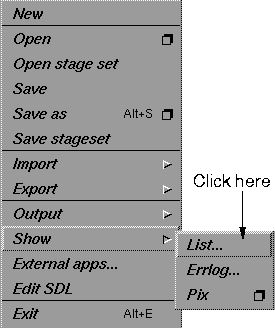
When you select
File>Show>List, the File Browser is displayed with a list of your files.
Use the menu buttons to perform operations. To exit, click the Cancel button. See the following sections for more details on the List function.
File Browser
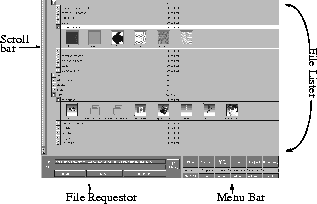
When you select an operation that acts on a file (such as storing, retrieving, or viewing), Alias displays the File Browser. The File Browser has several different components: the File Lister, the File Requestor, the Menu Bar, and the Scroll Bar.
|
|
|
Scroll Bar
If the directories and filenames or icons completely fill the window, you can scroll up or down through the files with the scroll bar. The scroll bar is the small rectangle inside the larger rectangle on the left side of the screen.
If you have many directories open, or many files showing in the directories that are open, you can only see a few files at a time, and the size of the scroll bar reduces proportionally to the amount of information you see. Click-drag on the scroll bar to to scroll up or down.
Window Arrows
|
|

|
There are two window arrows located under the scroll bar. Clicking the up arrow moves you up one unit through the file structure; clicking the down arrow moves you down one unit.
Directories
The File Browser
has several different displays, depending on whether you are showing your files with icons or with one of the text displays available. All of these displays show directory names on lines of text.
A directory name directly under another directory name means that the two directories are at the same level. A directory name indented from the name above it means that the lower directory is nested inside the higher one.
Directory Arrows
|
|

|
Each directory name is prefaced by a square button with an arrow. An arrow pointing up means the directory is open. If there are any files in the directory, they are displayed below the directory name line.
To close the directory, click the up arrow button. An arrow pointing down means the directory is closed. If you Shift-click on the arrow, the directory opens and fills the list area of the screen.
Identifying your files
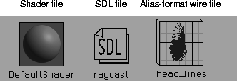
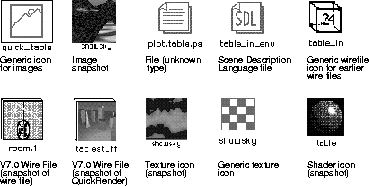
Thumbnail icons help you spot the different types of files:
- Wire files show the model as it appeared in the active modeling window when you saved the file.
- Pix files, shader files, and texture files all show the 2D file.
Selecting a file with the File Browser
In Alias, selecting any file operation opens the File Browser. Select a file in any of the following ways:
- Move the cursor over a filename or icon in the File Lister and click any mouse button. The filename or icon is highlighted to show it has been selected, and the filename appears on the File line in the File Requestor. To accept the file, click on the filename line and press Enter.
- Double-click on the file icon or name. The file is selected, the action you selected from the File menu is executed, and the File Browser is closed.
- Type the filename in the text block beside the File heading in the File Requestor. To accept the file, click on the filename line and press Enter.
Some file operations in the File Browser only accept multiple files (such as File > Show Pix). Press the Shift key while clicking on the files you want. As you select the files, their names or icons are highlighted. You can deselect highlighted files by clicking on them again. When you select more than one file, the phrase "n files selected" appears on the File
line to indicate that several files have been chosen. Press Enter to accept the list of files.
Moving files and directories with a mouse
You can move, open, save, and close files and directories using the mouse. Click and hold a mouse button on a file icon or name and drag it to the directory in which you want to place it. To open a directory, click the down arrow immediately before the directory name.
You can also drag a file into an open directory or a closed one. As the file moves over a directory name, the directory line is highlighted in white.
Tips:
- The File Lister automatically scrolls when a file is dragged to the top or bottom of the list area, so if the destination is scrolled off the lister, you can reach it by dragging to the top or the bottom of the lister.
- To move several files at once, use the Shift key to select a group of files, then click-drag the files to the desired location.
- Be careful when moving files and directories since Alias expects to find certain file types in a default location.
- You can move a directory the same way you move a file. Click and hold the mouse button on the directory name, and drag the directory into another one. You can move directories either up or down the file structure.
>
|
Note:
|
There may be limits on where you can move files and
directories-you must have read and write permissions if
you are trying to move files or directories outside your
account.
|
File Requestor Window
When you pick a file in the File Lister, its UNIX path and name appear in the File Requestor:
|

|
|
To change a file's name, select its original name, backspace, and type in the File cell. You can also type a name and/or a path without selecting anything in the window.
To execute the command on the lower right button (in this case, Open
), press Enter when the cursor is at the end of the filename in the File field.
To change the lister's directory, type a new path in the Path cell.
Tilde (~) and environment variable in File Paths
For fields requiring paths to files (in the file browser, for example), you can use the tilde (~
) and any environment variables you have set prior to invoking Alias.
The path fields can also accept environment variable expansion and a form of UNIX file completion. Any string prefixed by a "$
", up to the next "/
" or the end-of-line, is evaluated as an environment variable and, if resolved, is expanded as soon as the next "/
" is typed.
You can save typing time by using the Tab key to cycle through possible file names. If you type a partial file name, you can view each of the files sharing this partial name by pressing the Tab key repeatedly.
>
|
Note:
|
Alias uses the same file naming rules as the UNIX system it
is running under. In most versions of the UNIX operating
system, filenames and directory names must not contain
characters such as `$< >:?' or the space.
|
Using the clipboard
You can use the Alias clipboard for File > Retrieve or for the save operations. The clipboard file is /usr/tmp/ALIAS_WIRE_CLIPBOARD.username by default.
How to use the clipboard to import images from StudioPaint
-
1
-
Create a picture in Alias StudioPaint and copy an area using Edit > Copy.
-
2
-
In Alias, select File > Import > Image plane. The File Requestor is displayed.
|

|
|
-
3
-
Select the clipboard icon under the File heading. The image plane loads the copied area from StudioPaint into the active Alias window as an image plane.
How to use the clipboard to export images to StudioPaint
-
1
-
QuickRender a scene in Alias.
|
|
|
-
2
-
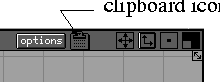
Select the clipboard icon in the QuickRender window title bar.
-
3
-
Open StudioPaint and select Edit > Paste.
-
The Alias QuickRendered image is pasted into
StudioPaint.
File Requestor Buttons
|
|
|
Show List/Hide List
-
- Use this button to show or hide the list of files and directories.
-
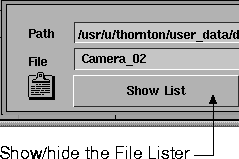
- The File Browser initially hides the list of files from view. To see the files, click the Show List button and the File Lister displays the files and directories. To hide the File Lister, click the button, which has toggled its name to Hide List.
>
|
Note:
|
The list of files must be showing to use any of the menu
functions in the File Browser. If the File Browser is accessed
using List, the File Lister is always open.
|
|
|
|
Cancel
-
- To return to the menu from which the command accessing the File Lister
was invoked, click the Cancel button.
-
- The File Browser window closes, and Alias returns to the previous function.
Open/Retrieve/Store/Show Wire/Anim/SDL/Pix
-
- Click on the rightmost button to perform an action on a file. The name of this button changes depending on which function you used to open the File Browser.
-
- Alternatively, press Enter or double-click on a file icon to perform the action and automatically close the File Lister.
|
|
|
Quick Render
-
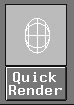
- If you are storing a wire file, an additional button appears between the File Requestor window and the Menu bar. This button shows a thumbnail sketch of the wire file as seen in the active window, and has a Quick Render button below it.
-
- If you click Quick Render, the thumbnail sketch is rendered and this rendered version is saved as the icon for the wire file.
-
- If you would prefer not to use the rendered icon, click on the thumbnail view. It is closed, the icon mode is turned off, and no icon is created. (To bring it back again, click on the Store Icon button that is displayed in its place.)
>
|
Note:
|
Performing any other operation while the QuickRender is in
progress terminates the QuickRender, and gives you a
partial view. A partial icon may result when the overwrite
confirm box obscures the icon.
|
|
|
|
|
|
|
File Button
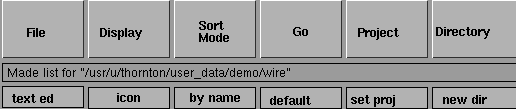
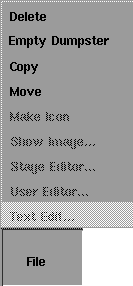
Use the File menu to perform various operations on your files.
The default (initially selected) menu item is Text Edit.
Stage Editor
-
- Invokes the Stage Editor on all selected stagesets. The contents of the Stage Editor reflect the first stageset in the list, with its path displayed at the top of the editor.
-
- For more information on stages and the stageset editor, see Using Stages on page 404.
Text Edit
-
- This button starts your text editor, as defined by the EDITOR
environment variable in the.AliasPrefs file.
-
- To edit a text file (for example, an SDL file or an animation parameter file), select a file from the File Lister and then select File > Text Edit.
-
- You can also open a text file by double-clicking on it if the File Browser
expects from its type that it is a text file. For example, if you select File > Edit SDL, the File Browser expects an SDL file, and thus opens the file with the standard SDL text editor.
-
- Attention: You must set up the text editor before you can use this button. To do this:
-
1
-
Select Preferences > User options > Alias preferences. The Alias Preferences window is displayed.
-
2
-
Click on the arrow next to the Editor Options
heading. An ASCII Editor pull-down list appears, from which you can select various editors. If you select CUSTOM, you can type in the editor of your choice:

-
(In this example, xterm -e vi sets the user editor
variable to use the UNIX jot editor.)
User Editor
-
- To edit a file with a text editor other than the SDL text editor, select a file from the File Lister, and then select File > User Editor. A shell window is provided using the text editor defined with EDITOR environment variable in the .AliasPrefs
file (see above).
Show image
-
- To view a pix file or a mask, select the file from the File Lister and
then select File > Show Image. The pix file or mask is displayed in a window. Click on the window to close it.
-
- Note that:
- You can also view a pix file (if pix is the expected file type) by double-clicking it.
- To view several pix files at once, select their icons and then select File > Show Pix.
Make Icon
-
- Use this choice to create icons for Alias pix files. Any wire, shader, and texture files created by Alias automatically have icons when you save the files.
-
- Select a pix file by highlighting its name or icon, or by typing its name in the File Requestor, then select File > Make Icon. You can select a group of files by holding down the Shift key and clicking or dragging the mouse.
Move
-
- Lets you move files from one directory to another in your account. Select the files by clicking on their icons or names. (For one file, you can also type its name in the File Requestor.) Highlight the destination (the new directory), and then select File > Move.
-
- Alternatively, you can pick the item you want to move and drag it to another directory.
-
- Important!
- The order in which you select the file, menu, and destination is important. The file must be selected first, the directory second, and the action (the menu) last.
- Do not use this choice to move directories. To move directories, you must drag them into the directory where you want them placed.
- This choice is not the same as the UNIX command mv. It does not rename files.
Copy
-
- To duplicate a file or files, select the file (or files) by clicking its icon or name, then select File > Copy. A new copy of the file is placed in the directory. The copy function keeps the name of the file, and adds a number to the end of the filename. If you want to create a copy of a file to a different directory, click on a directory after the file is selected and before selecting Copy.
Delete
-
- To erase a file or files, select the file (or files) to be deleted in the File Lister, then select Delete from the File menu. The file is moved from its current directory into the dumpster.
-
- The dumpster is located in the $HOME directory by default, but it can be modified by editing your .AliasBrowserPrefs file.
>
|
Note:
|
If you attempt to move a file into the dumpster that has the
same name as a file already in the dumpster, a confirm box
appears on the screen.
|
Empty Dumpster
-
- To erase files that have been moved to the dumpster directory, select File > Empty Dumpster.
Display Button
|
|
|
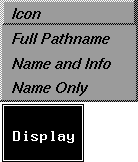
Use the Display menu to set how files appear or are organized in the
File Lister.
The default (initially selected) menu item is Icon.
Name Only
-
- Displays files by name only.
Name and Info
-
- Displays files by name,size, and modification date. It also lists information about the pix file resolutions for image files.
Full Pathname
-
- Displays the full UNIX path name of files.
Icon
-
- Changes the File Lister display from a text-based list of files to an icon display. Each file has its own thumbnail sketch or icon attached to it, as shown below.
|
|
|
Sort Mode Button
|
|
|
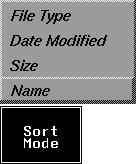
Use the Sort Mode menu to determine the order in which files are displayed in the File Browser window.
The default (initially selected) menu item is Name
.
>
|
Note:
|
Directories are always sorted alphabetically.
|
Name
-
- Lists files in alphabetical order, from top to bottom and (if applicable) from left to right.
Size
-
- Lists files in order of decreasing file size.
Date Modified
-
- Lists files according to when you last made changes to them, from the most recently changed to the last changed.
File Type
-
- Lists files by the type of information they provide, in the following order:
>
|
Note:
|
If you keep the File Type option selected while opening
directories, the directories take longer to open because of the
extra sorting that is required.
|
Go Button
|
|
|
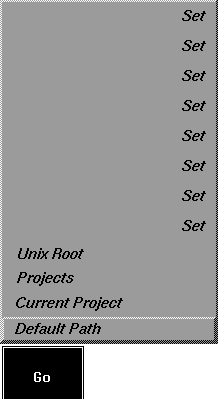
Use the Go menu for shortcuts to particular directories for display in the File Lister. This menu is especially useful if you are on a network.
The default (initially selected) menu item is Default Path.
Eight menu choices are available for you to preset so that you can go directly to a valid directory path of your choosing (including valid NFS links).
To change the directory that is preset for a particular choice, either:
- Select the directory you want in the File Browser and then click a Set button in the Go menu.
- Edit the .AliasBrowserPrefs file (located in the $HOME directory) and change the GO_DIR<#> path names in it.
Both methods customize the menu button for the current as well as future sessions.
Other options for this button are:
Default Path
-
- Returns to the UNIX path that was most recently opened in the File Lister. This choice is useful if you have been moving around in the UNIX directories and want to return to your starting point.
Current Project
-
- Displays the project you set in Project > Set Current (the Project button is located next to the Go button).
Projects
-
- Displays the directory containing all local projects. (By default, this directory is user_data.)
Unix Root
-
- Displays the topmost directory of your system, usually called root
.
Project Button
|
|
|
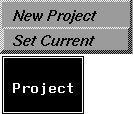
Use the Project menu to set the current project or create a new project. The initial default (selected) menu item is Set Current.
Set Current
-
- Sets a project as "current" (that is, the one Alias uses).
-
- Select the project you want to define as the current project and then select Set Current.
|
|
Tip: To view a list of your
local projects first, select Go
> Projects.
|
-
- The current project must contain all requested Alias default directories; otherwise, an error message is displayed.
New Project
-
- Creates a directory that contains the required sub-directories for a new project.
-
- Select the directory in which you want to create a new project and then select this choice. A project named new_project is created with the standard subdirectories: anim, mask, misc_data, option, pix, plot, sdl, shader, sla, texture, and wire.
-
- To rename the new project, double-click on its name and type the new name.
Directory Button
|
|
|
-
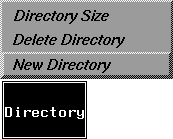
- Use the Directory menu to create and delete directories.
-
- The initial default (selected) menu item is New Directory
.
New Directory
Creates a new directory. Select the directory inside which you want to create a new directory and then select New Directory. An empty directory is created and named NewDir. To rename the directory, double-click on its name and type the new name.
Delete Directory
Moves a directory (and anything in it) to the dumpster. Select the directory you want to delete and then select this choice.
Directory Size
-
- Shows the size of the selected directory.
-
- A dialog box showing the size of the directory is displayed. Click OK to close the dialog box.
|


