|
|
File > Import >
Image plane
|
Importing Image Planes
|
|
|
|
|
Purpose
Adds a new two-dimensional pix image to a modeling window and its camera.
Overview
An image plane belongs to a camera. You use image planes for:
-
Rotoscoping - using live action footage in the background to which you can match your Alias models.
- Model Guides-you can set up three orthographic drawings as image planes to use for model building guides. For example, in scenes with particularly heavy objects, you can pre-render the objects you are not working on and use these renders as image planes.
- Sprite Animation-you can animate image planes like 3D models, to give a more detailed look to your wire model.
How to Use
-
1
-
Select File > Import > Image plane.
The File Requestor is displayed.
|

|
|
-
2
-
Click the Show List button to display the list of images you can use.
|
|
You can also load a pix file
by double-clicking on its
icon in the File Lister.
|
-
3
-
Click the filename of the PIX or TIFF image file you want to use as an image plane. If you prefer, you can type the filename and/or the path in full, without selecting anything in the File Lister.
-
The filename and its UNIX path appear in the Alias File
Requestor.
-
4
-
Click the Load Image button.
-
The image plane is displayed in a default position and
attached to the camera in the current window.
Image Plane Options
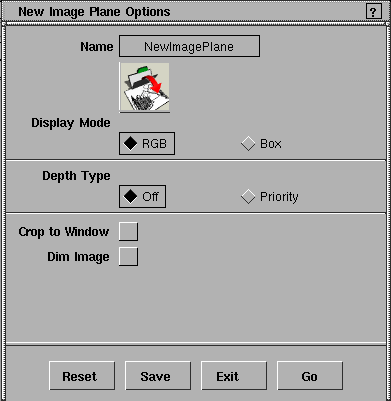
To view or change the Image plane options, select File > Import > Image plane- to display the New Image Plane Options window. to display the New Image Plane Options window.
You can set four of the more common image plane parameters in this option window.
|
|
For information, see the
section on the Camera Editor
in the Rendering in Alias
manual.
|
When you have read a pix image into a window, you can refine these and other image plane parameters in the Camera Editor.
|
|
For information on display
mode, see the Rendering in
Alias
manual.
|
Display Mode
-
- Defines how you want the image to appear in the modeling windows.
Depth Type
-
- Determines which image planes appear in front of each other and/or the wireframe model.
-
- This setting is Off or Priority.
-
- When set to Priority, a slider is also displayed, which determines which image planes appear in front of each other and/or the wireframe model.
-
- The order in which image planes get drawn is:
-
- 1. Image planes with Depth Type set to Off.
-
- 2. Image planes with Depth Type set to Priority and Depth values less than or equal to 0.0, from lowest to highest depth.
-
- 3. The wireframe model.
-
- 4. Image planes with Depth Type set to Priority and Depth
values greater than 0.0, from lowest to highest depth.
>
|
Note:
|
An image with depth greater than 0.0 appears in front of the
model, whereas other image planes appear behind the
model. Depth drawing is in sorted order so an image plane
with a depth of 2.0 appears behind an image plane with a
depth of 3.0, and an image plane of depth -3.0 appears
behind an image plane of depth -2.0.
|
Crop to Window
If toggled ON
(indicated by a check mark), the image is cropped to fit in the selected window. By default, this toggle is turned OFF
.
Notes
|
|
For information on the
camera editor, see
Rendering
in Alias
manual.
|
- All of the above options can be changed or refined using the camera editor once the image plane has been loaded.
|
|
See Displaying and Hiding
Image Planes on page 305.
|
- To remove an image plane, use Delete > Del image planes.
|


