 Previous Page |
Page 4 |
 Next Page |
| ||
Previous Page |
Page 4 |
Next Page |
| ||
Searching by File Type: Windows XP
In the older versions of Microsoft Windows that offer more advanced search options, you can also search by file type. For example, if you know the lost file is a Microsoft Word document, you can search for all Microsoft Word documents. In Windows XP, this is not an advanced option. In fact, in Windows XP you have to choose what to search for before you even start your search. As soon as you select Search from the Start Menu in Windows XP, you are asked what you would like to search for.
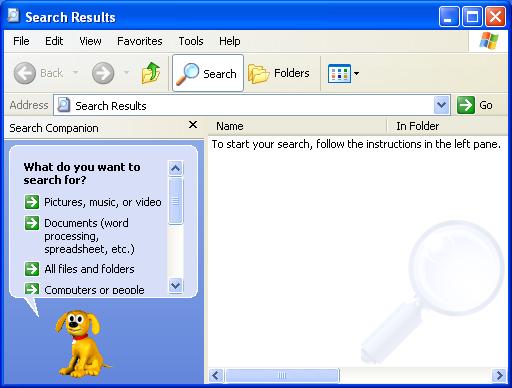
In Windows XP, left-click once on the type of file you want to search for, or on "All files and folders." This will bring you to the section where you can type the file name and/or choose other options.
Searching by File Type: Older Versions of Windows
To search by file type in the older versions of Microsoft Windows that offer advanced search options, click in the checkbox next to the word Type. This will put a checkmark in the checkbox and a drop-down box will appear.
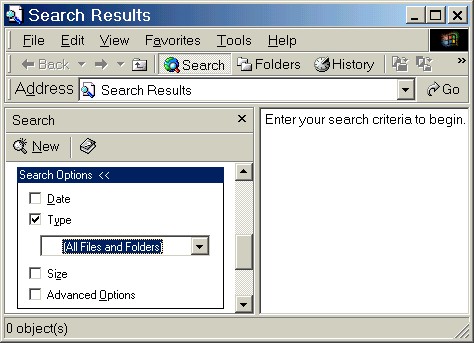
Click on the drop-down arrow and select the file type from the list. If you are searching for a Microsoft Word document, for example, you would select Microsoft Word Document from the drop-down list.
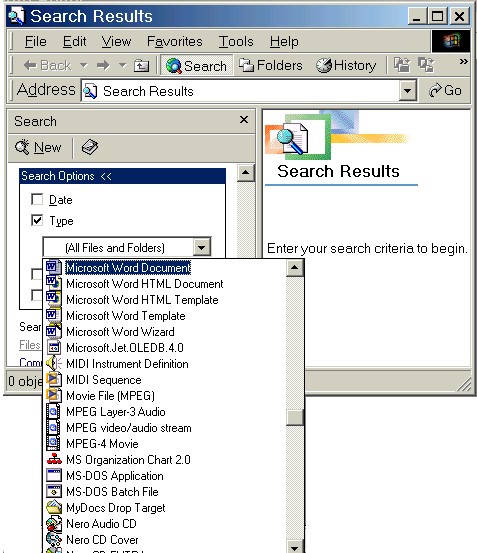
NOTE: When searching for lost files of any type (e.g., you don't remember what type of file it is), or for lost folders, make sure the File Type is set to "(All Files and Folders)."
Practice:
Read all instructions before starting.
| 1. | Resize this lesson window and move it to the top of the screen. |
| 2. | Open the Start Menu and then the Search (or Find) submenu. Select For Files or Folders (or similar command). |
| 3. | Resize the Search Results window and move it around on the screen so that you can still read the instructions in this lesson window. |
| 4. | In the Search Results window, if the Date and Type options are not showing, click on "Search Options >>" to open the search options section. |
| 5. | Click in the checkbox next to the word "Type." This will place a checkmark in the checkbox and a drop-down box will appear. |
| 6. | Click on the drop-down arrow, scroll down the list and select JPEG Image (or any other file type on the list). |
| 7. | Click on the Search Now button (which is above the "Search Options <<" line). |
| 8. | Look at the list of files that appear in the Search Results section of the window, if any. These are all of the files of that type on the computer. If the Search Results area is empty, there are no files of that type on the computer. |
| 9. | Click on the Close ("X") button in the upper right-hand corner of the Search Results window to close it. Return to this lesson window and click on the Maximize button to return the window to its full size. |
Previous Page |
Next Page |