 |
~Lesson 9~ |
 Next Page |
| ||
|
~Lesson 9~ |
Next Page |
| ||
Sometimes you may "lose" a file or folder on the computer - you know you saved it, but you cannot remember where. Microsoft Windows has a Search feature that will help you find those lost files and folders, as long as they have not been permanently deleted. (Note: On older versions of Windows, it is known as the Find feature.)
Search (or Find) is located on the Start Menu. To look for a lost file or folder, open the Start Menu, go to the Search (or Find) submenu, and select For Files or Folders (or just plain Files or Folders on older versions of Windows). (NOTE: In Windows XP, open the Start Menu and select Search; there is no submenu.)
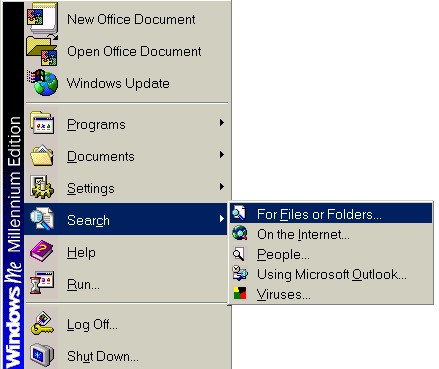
 Search For Files or Folders (Windows Millennium Edition)
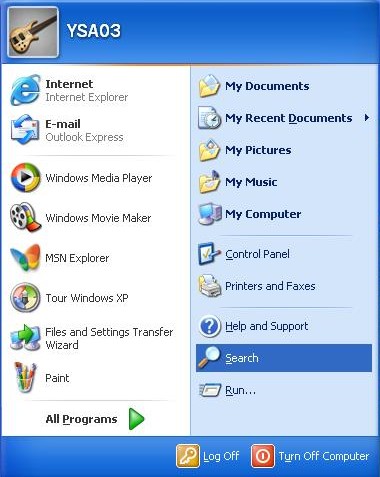 Search (Windows XP)
This will open the Search Results window, which is also where you start your search.
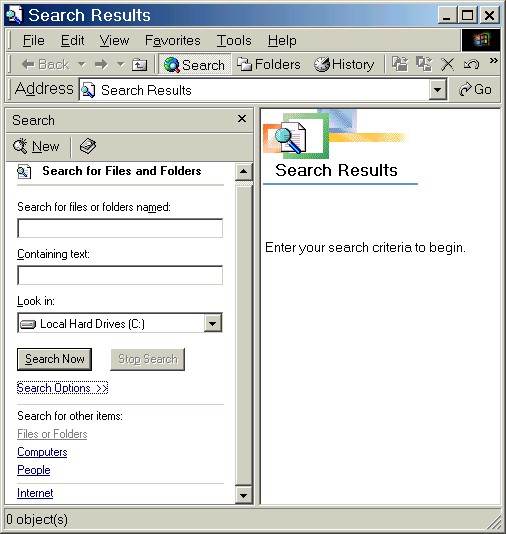
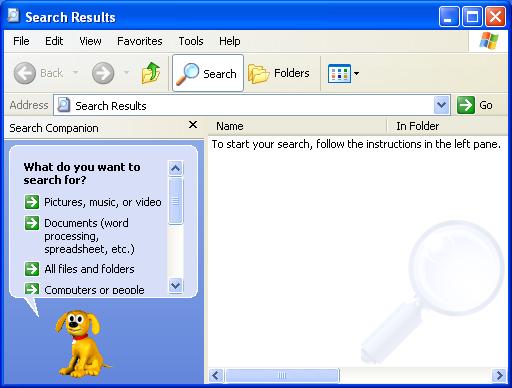
Searching by File Name - Windows 95, 98, 2000 and Millennium Edition
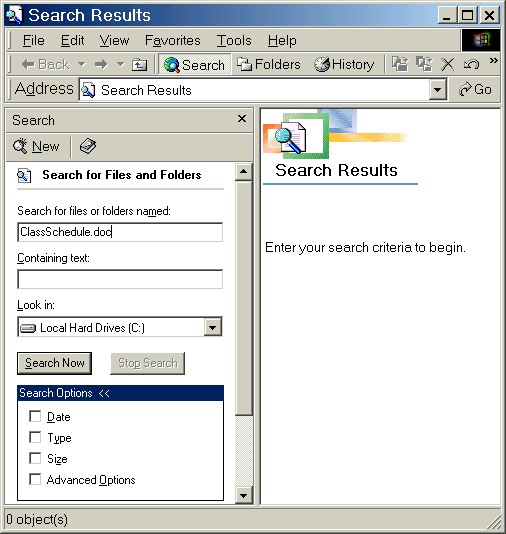
If you know the name of the file you're looking for, type the name in the box labeled "Search for files or folders named:" (or something similar). If you know only part of the name, type the part you remember.
After typing the information about the name into the box, click on the Search Now (or similar) button to start the search. The results will be displayed in the Search Results section of the window. Click the Stop Search (or similar) button to stop the search before it finishes.

Searching by File Name - Windows XP
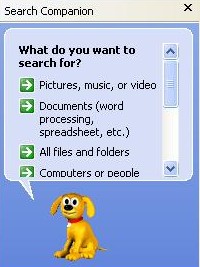
On the left-hand side of the window, where it says "What do you want to search for?", left-click once on the type of file you want to search for (e.g., pictures, music, video, documents, or all files and folders).
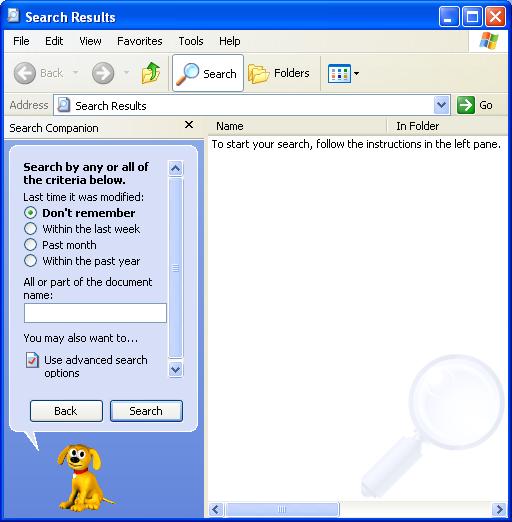
Next, click on the option button for when the file or folder was last modified and then type in all or part of the name. Click on the Search button when you are ready to search.
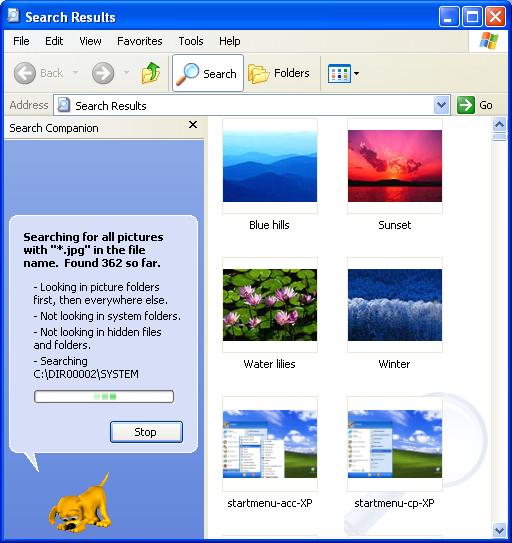
Search Results: Windows 95, 98, 2000 and Millennium Edition
If you left-click once on a file icon or file name in the Search Results section of the window, the information about that file will appear at the top of the window. If the Search Results window is in Details folder view, the Search Results section will show the names of the files found as well as the location on the computer, size, file type and last modified date for each file found. (To put the window in Details folder view, open the View menu and select Details.)
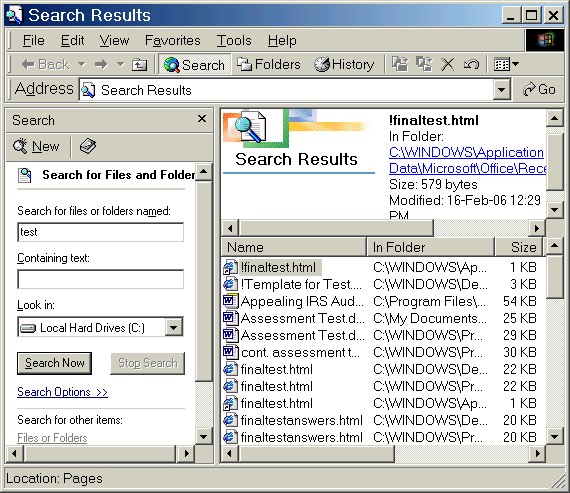
The column titles in the Details folder view (Name, In Folder, Size, Type, Modified, etc.) can help you sort the search results. Left-click once on Name (the column title) to list the results in alphabetical order by file name. To group all of the files by the names of the folders they are in, click on the In Folder column title. Clicking on Size will order the files by their sizes (smallest to largest), clicking on Type will organize the files by their file types, and clicking on Modified will sort the files by the dates they were last modified (oldest to newest).
Search Results: Windows XP
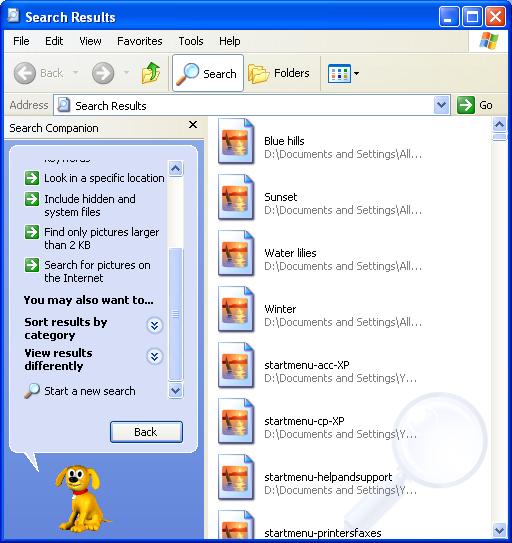
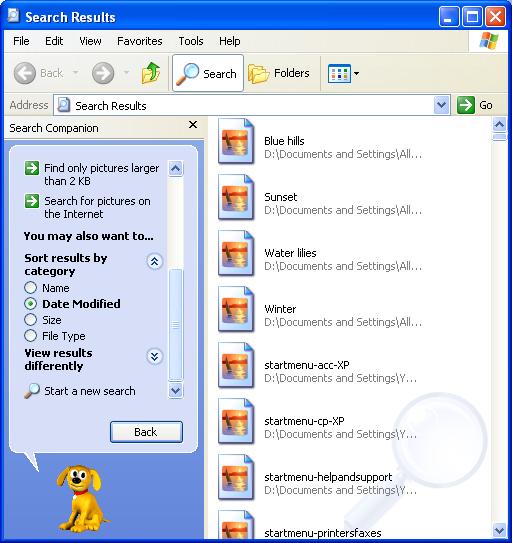
To sort search results in Windows XP, click on the downward-pointing arrows next to "Sort results by category" (under "You may also want to...").
Search results can be sorted by name, the date they were last modified, the file sizes, or file types. Click on which option you want to sort by.
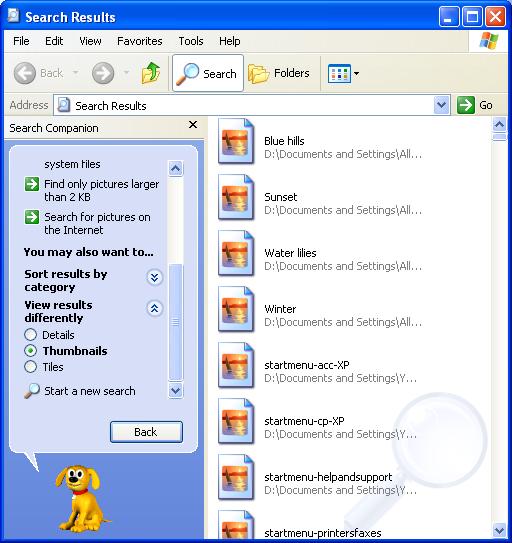
Search results can be viewed in different formats. Click on the downward-pointing arrows next to "View results differently" and choose which view you would like.
NOTE: If there are no results in the Search Results window after the search has finished, it means the computer cannot find any files or folders matching the information you have given. Check to make sure you have spelled everything correctly.
Practice:
Read all instructions before starting.
| 1. | Resize this lesson window and move it to the top of the screen. |
| 2. | In Windows 95, 98, 2000 or Millennium Edition, open the Start Menu and then the Search (or Find) submenu. Select For Files or Folders (or similar command). In Windows XP, open the Start Menu and select Search. |
| 3. | Resize the Search Results window and move it around on the screen so that you can still read the instructions in this lesson window. |
| 4. | In Windows 95/98/2000/ME, type word in the box labeled "Search for files or folders named:" (or something similar). In Windows XP, left-click once on All Files and Folders, click the Don't Remember option button and then type word in the box labeled "All or part of the name:". |
| 5. | Click on the Search, Search Now or other similar button. |
| 6. | If the search finishes and there are no files listed in the Search Results section, repeat steps 4 and 5 above using a different word such as test or the. |
| 7. | If the folder is in Details view there will be columns labeled Name, In Folder, Size, etc. If the folder is not in Details view, open the View menu and select Details. |
| 8. | Click on each of the column names to see how the files are sorted in the different ways (alphabetically, by date, etc.). |
| 9. | Click on the Close ("X") button in the upper right-hand corner of the Search Results window to close it. Return to this lesson window and click on the Maximize button to return the window to its full size. |
|
Next Page |