 Previous Page |
Page 2 |
 Next Page |
| ||
Previous Page |
Page 2 |
Next Page |
| ||
In newer versions of the Microsoft Windows operating system you can search for files and folders without knowing the names of the files.
Searching by Text
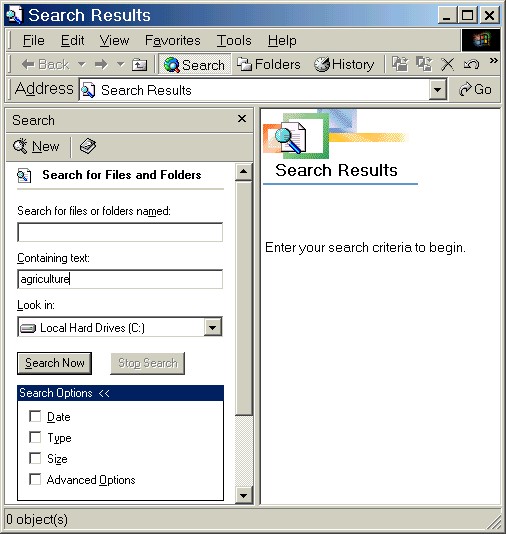
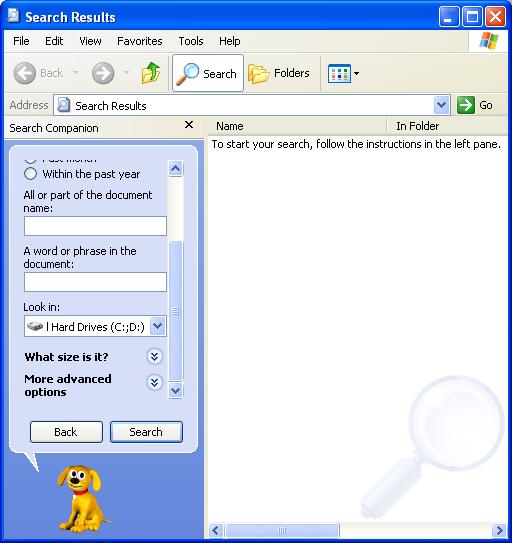
You can search for text files containing certain words or phrases, whether or not you know the name of the file.
In Windows 95, 98, 2000 or Millennium Edition, type the word or phrase you remember in the box labeled "Containing text:" or something similar.
In Windows XP, under "What do you want to search for?", you would left-click once on "Documents (word processing, spreadsheet, etc.)." Next, type the word or phrase in the box labeled "A word or phrase in the document:".
Check your spelling. The more unique the word or phrase, the fewer text files will be in the search results (and it will be easier to find the one you are looking for). For example, "Dear Mr. Peterson" will return fewer results than searching for all text files with "Dear." If your words or phrases are common, a lot of files may be on the search results list, making it harder to find the one you are looking for.
Searching by File or Folder Location
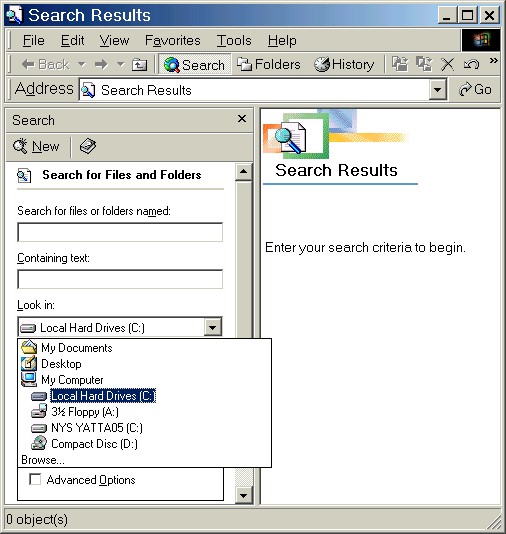
You can narrow the search if you know the approximate location of the lost file or folder. For instance, if you think the file or folder is in the My Documents folder, click on the "Look In:" drop-down arrow and select My Documents. If the lost file or folder is in another folder, select Browse and navigate to that folder. Next, type in the name of the file or folder (or the part of the name you remember) or the text you want to search for and click on the Search or Search Now button to start the search.
Previous Page |
Next Page |