 Previous Page |
Page 3 |
 Next Page |
| ||
Previous Page |
Page 3 |
Next Page |
| ||
Additional Search Options
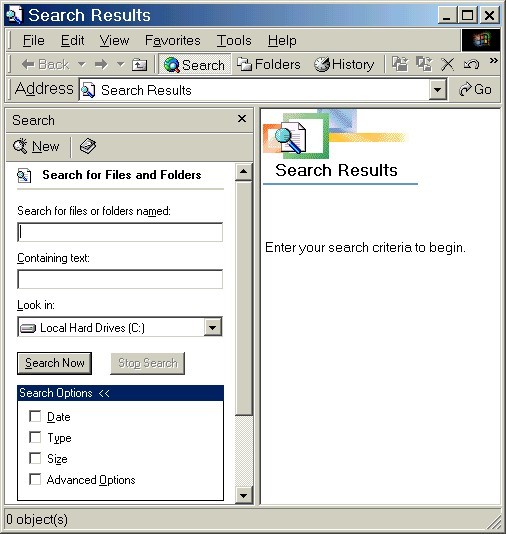
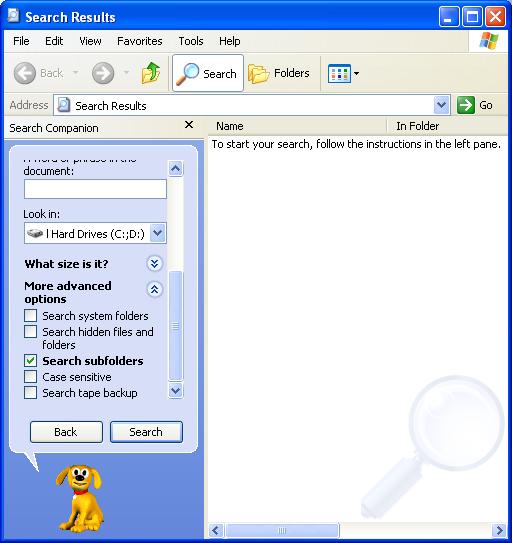
There are a few other options that can be used for searching. In Windows 95, 98, 2000 and Millennium Edition these are listed under the "Search Options" section in the Search Results window. If the window shows "Search Options >>", click on it to open the section and show the available options. (Clicking on "Search Options <<" will close that section.) In Windows XP, except for the searching by date option, the additional search options are under "More Advanced Options" and clicking on the downward-pointing arrows will open that section.
Searching by Date
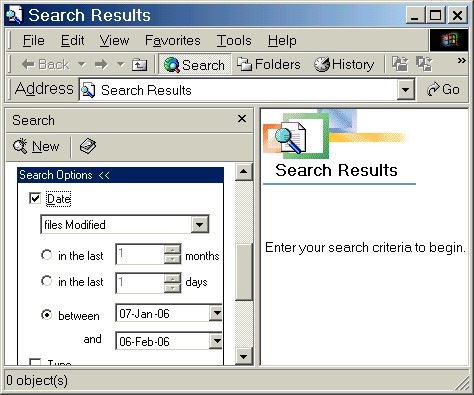
To narrow down a search of many files and folders, select the date to search by. This can be the date the file was last modified (changed), the date it was created, or the date it was last accessed (opened). You can enter the date either by the number of months or days or a range between two dates. You can use the date option with or without a file or folder name or the text it contains.
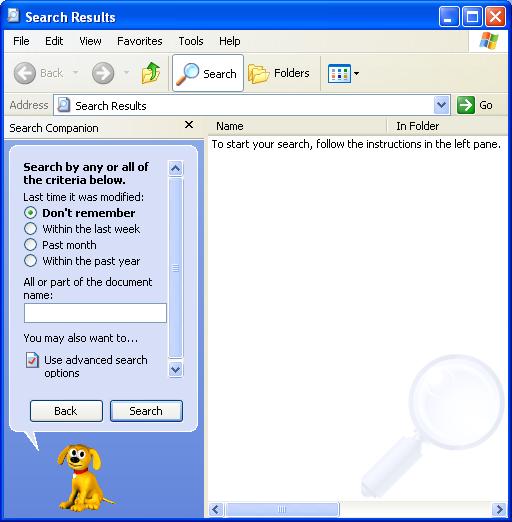
In Windows XP, you cannot search without giving a date, so the searching by date option is not a "more advanced option." Instead, it is the first option at the top. If you don't remember the date, click the option button for Don't Remember. Other date options available are within the last week, the past month and the past year.
Practice:
Read all instructions before starting.
| 1. | Resize this lesson window and move it to the top of the screen. |
| 2. | In Windows 95, 98, 2000 or Millennium Edition, open the Start Menu and then the Search (or Find) submenu. Select For Files or Folders (or similar command). In Windows XP, open the Start Menu and select Search. |
| 3. | Resize the Search Results window and move it around on the screen so that you can still read the instructions in this lesson window. |
| 4. | Windows 95/98/2000/ME: In the Search Results window, if the Date option is not showing, click on "Search Options >>" to open the search options section. Windows XP: Go to step #7. |
| 5. | Click in the checkbox next to the word "Date." This will place a checkmark in the checkbox and show the date options. |
| 6. | If the drop-down list box does not already say Files Modified, click on the drop-down arrow and select Files Modified. |
| 7. | Windows 95/98/2000/ME: Click in the circle next to the first box, for "in the last ______ months." There will probably already be a "1" in the box, which is fine. Windows XP: Click in the circle next to "Past month." |
| 8. | Windows 95/98/2000/ME: Click on the Search Now button (which is above the "Search Options <<" line). Windows XP: Click on the Search button (at the bottom). |
| 9. | Look at the list of files and folders that appear in the Search Results section of the window, if any. These are the files and folders on the computer that have been modified (changed) in the last month. If the Search Results area is empty, no files or folders currently on the computer have been modified in the last month. |
| 10. | Click on the Close ("X") button in the upper right-hand corner of the Search Results window to close it. Return to this lesson window and click on the Maximize button to return the window to its full size. |
Previous Page |
Next Page |