 Previous Page |
Page 5 |
 Next Page |
| ||
Previous Page |
Page 5 |
Next Page |
| ||
Searching by Size
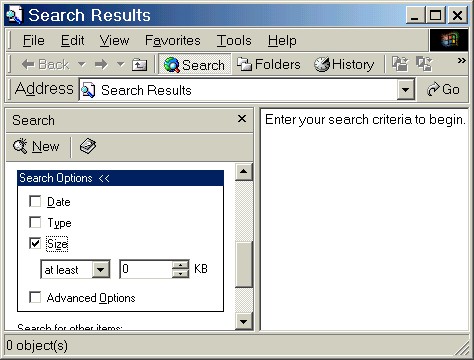
A search for files or folders can be further narrowed down by searching by file or folder size. With the older versions of Windows, click in the Size checkbox in the Search Options section. This will place a checkmark in the checkbox and the size options will appear. The two size options are "at least" and "at most." Choose one and then enter the size in kilobytes (KB). Click on the Search Now button to start the search.
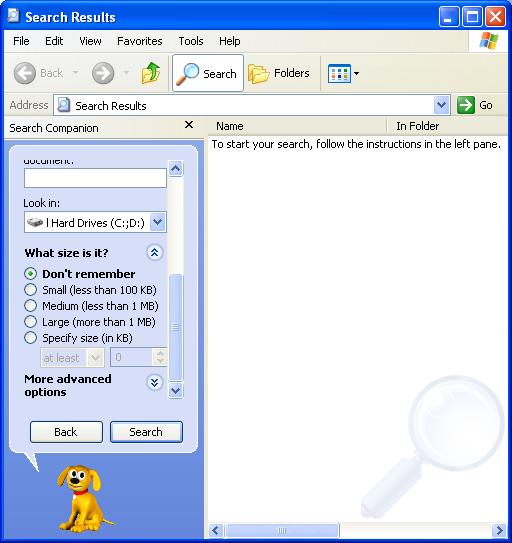
In Windows XP, if there are downward-pointing arrows next to "What size is it", click on the arrows and the size options will appear. Click on the option that describes the size of the file or folder you are searching for. If you don't remember the size, or you don't want to use the size search option, click on Don't Remember.
Searching with Advanced Options
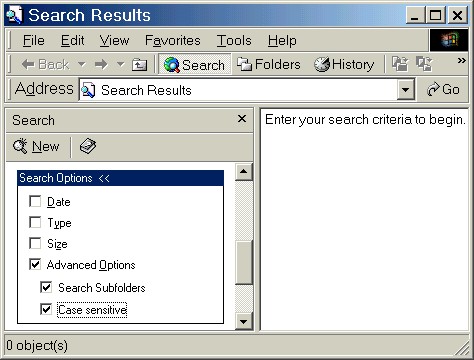
In the older versions of Windows that offer more search options, the Advanced Options section contains two more options: Search Subfolders and Case Sensitive. For most searches, the Search Subfolders option should be on (with a checkmark in the checkbox) and the Case Sensitive option should be off (with no checkmark in the checkbox). With the Search Subfolders option on, the computer will search folders within folders. For example, if the file you are looking for is within another folder inside of the My Documents folder, the computer will search inside all of the folders in the My Documents folder if the Search Subfolders option is on. If the Search Subfolders option is not on, the computer will only look for the file in My Documents and will not look into any of the other folders that are contained within My Documents.
"Case sensitive" means the computer will pay attention to capital and lowercase letters. If the Case Sensitive option is on and you type "Test" as the file name when you do your search, the computer will only look for files that have "Test" in the name (with a capital "T"). Files that have "test" (with a lowercase "t") in the name will not show up on the Search Results list.
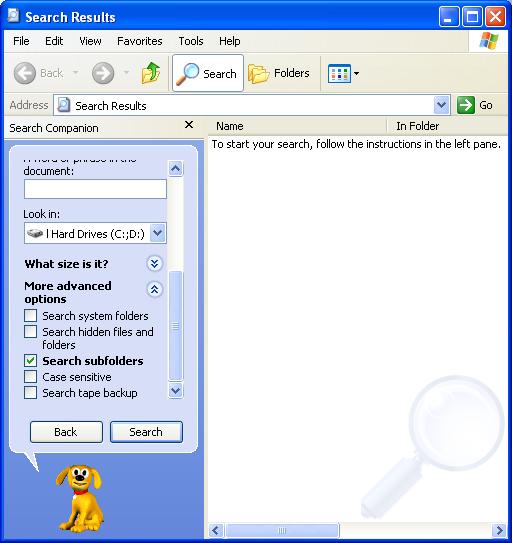
In Windows XP, the Search Subfolders and Case Sensitive options are still there, but you also have the option of searching in system folders, hidden files and folders, and on a tape backup (if your computer uses a tape backup). System folders are folders that the computer uses to store files that it needs to use. Click on any of the options that will help you search for your lost file or folder.
Previous Page |
Next Page |