 Previous Page |
Page 3 |
 Next Page |
| ||
Previous Page |
Page 3 |
Next Page |
| ||
Restoring Files & Folders
Files and folders moved to the Recycle Bin can be restored, or put back, if you decide later that you don't want to delete them. You can restore files and folders that are in the Recycle Bin either one at a time or all of them at once.
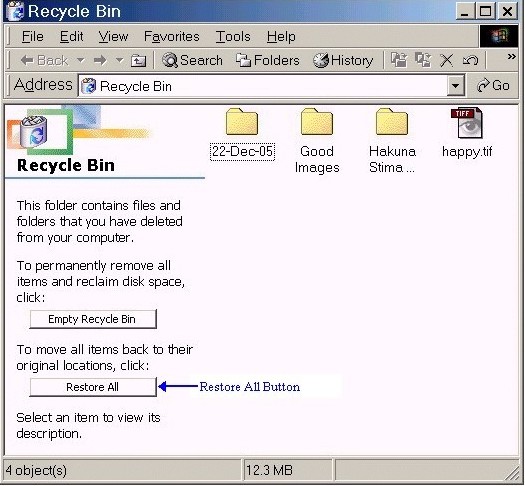
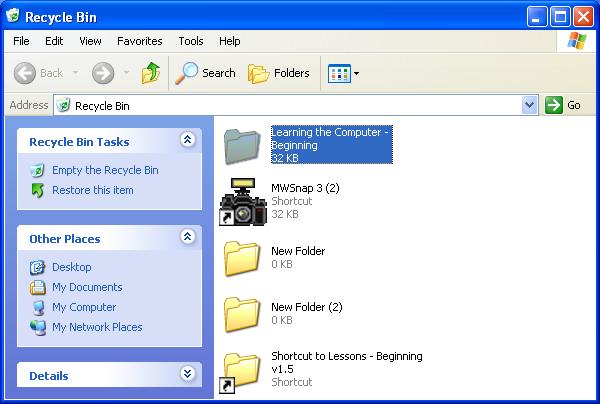
To restore all of the files and folders that are showing in the Recycle Bin window, just click on the Restore All button at the bottom left of the Recycle Bin window in older versions of Windows, or on the "Restore all items" line under "Recycle Bin Tasks" on the left side of the window in Windows XP.

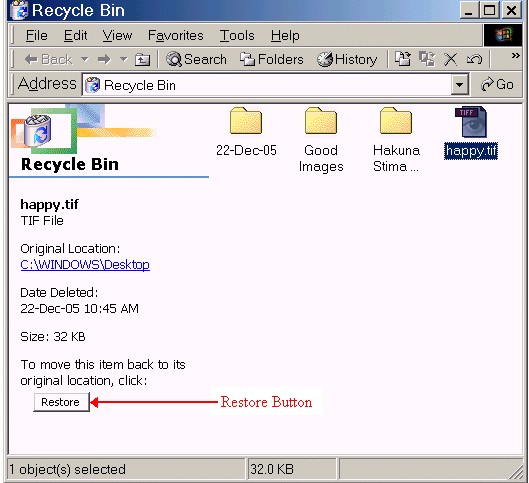
To restore only one file or folder, click on the icon for that file or folder. The information in the window will change to show the original location of the file, the date it was deleted, and other information. To restore this one file - to place it back in its original location - click on the Restore button in older versions of Windows, or on the "Restore this item" line under "Recycle Bin Tasks" in Windows XP.
Practice:
Read all instructions before starting.
| 1. | Resize this lesson window again so that the Desktop is showing underneath it. If necessary, move the window around on the screen until you can see the Recycle Bin on the Desktop. |
| 2. | Open the Recycle Bin by either double-clicking on the icon or right-clicking over the icon and selecting Open from the shortcut menu. |
| 3. | Inside the Recycle Bin should be the two folders you just created. There may be other files and folders in the Recycle Bin as well. Look at the two buttons available on the bottom left-hand side of the window, the Empty Recycle Bin and Restore All buttons. Because of the danger of deleting the wrong files and folders, do not click on the Empty Recycle Bin button during this lesson!. |
| 4. | Close the Recycle Bin window by clicking on the Close ("X") button in the upper right-hand corner of the window. |
| 5. | Re-open the Recycle Bin using the right-click method: Right-click over the Recycle Bin icon and select Open from the shortcut menu. |
| 6. | Close the Recycle Bin window by clicking on the Close ("X") button in the upper right-hand corner of the window. |
| 7. | Return to this lesson window either by clicking on the lesson window or by clicking on its Taskbar button. Click on the Maximize button in the upper right-hand corner (the middle button of the three) if you want the window to fill the screen again. |
Previous Page |
Next Page |