 Previous Page |
Page 4 |
 Next Page |
| ||
Previous Page |
Page 4 |
Next Page |
| ||
Permanently Deleting Files & Folders/Emptying the Recycle Bin
Space is not freed up in the computer's memory until files and folders are deleted permanently. This happens when the Recycle Bin is "emptied." There are two ways to empty the Recycle Bin.
The first way to empty the Recycle Bin is to open the Recycle Bin and click on the Empty Recycle Bin button in older versions of Windows, or on the "Empty the Recycle Bin" line under "Recycle Bin Tasks" in Windows XP.
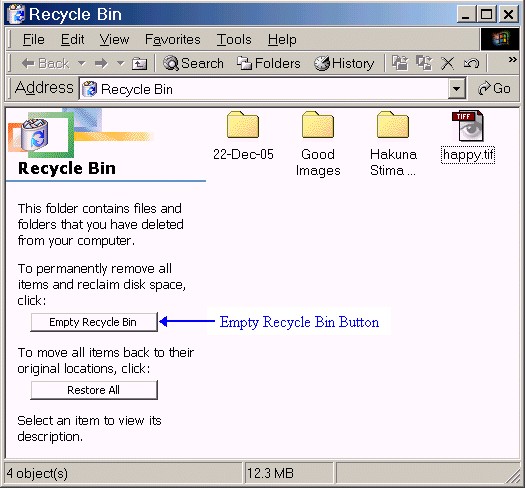

Clicking on the Empty Recycle Bin button will permanently delete everything that is in the Recycle Bin window. There will be no way to get these files and folders back after they are deleted permanently.
The second way to empty the Recycle Bin is to right-click over the Recycle Bin icon and select Empty Recycle Bin from the shortcut menu.
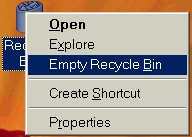
Again, selecting Empty Recycle Bin from the shortcut menu will permanently delete all of the files and folders currently in the Recycle Bin.
Important Note:
It is important to be careful when deleting files and folders. For instance, never delete a file or folder when you don't know what it is used for. The computer has thousands of files and folders that don't seem to make sense, some with very strange names. However, if you delete any of these strange files or folders, that part of the computer may not work again. Once the Recycle Bin is emptied, all of the files and folders are permanently deleted and cannot be restored. Because of this, the computer gives you one final chance to decide if you really do want to empty the Recycle Bin:
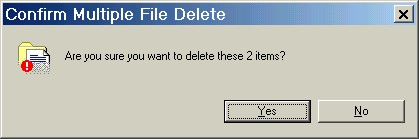
If you are sure you want to delete these files and folders, click on the Yes button. If you are not sure, click on No.
Previous Page |
Next Page |