 |
~Lesson 22~ |
 Next Page |
| ||
|
~Lesson 22~ |
Next Page |
| ||
Unwanted files and folders should be deleted occasionally, to keep your computer organized and to free up space in the computer's memory.
The Recycle Bin
On most computers, deleted files and folders first go to the Recycle Bin, which is located on the Desktop. The Recycle Bin is a folder that holds files and folders until they are ready to be removed from the computer permanently (erased).
The Recycle Bin has two icons. One icon shows the Recycle Bin as empty and the other icon shows it with trash in it. The empty Recycle Bin icon means that there are no files or folders in it at the moment. The Recycle Bin icon with trash in it means there is at least one file or folder in the Recycle Bin at the current time.
 Empty Recycle Bin Icon |  Full Recycle Bin Icon |
Since files and folders permanently deleted cannot be recovered, the Recycle Bin gives us time to think about whether or not we really want to delete these items.
Opening the Recycle Bin
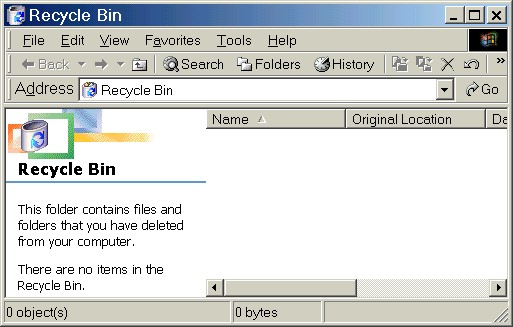
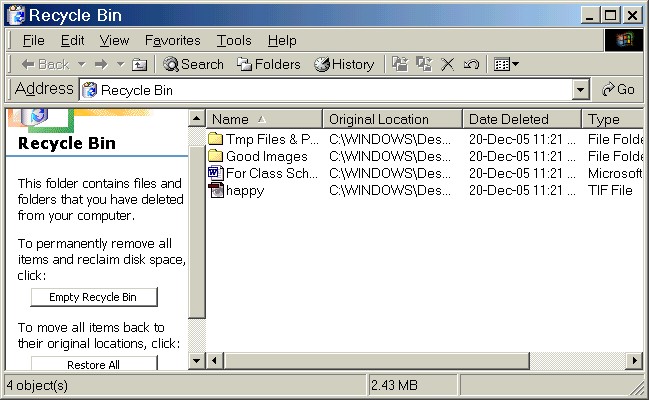
The Recycle Bin can be opened just like any other folder, by double-clicking on the icon or by right-clicking over the icon and selecting Open from the shortcut menu. The Recycle Bin window will look different depending on whether or not there are files or folders in it at that time.

Closing the Recycle Bin
To close the Recycle Bin, click on the Close ("X") button in the upper right-hand corner of the window, or open the File menu and select Close.
Practice:
Read all instructions before starting.
| 1. | Using the instructions in "How to Show Two Windows at Once," resize this lesson window so that the Desktop is showing underneath it. If necessary, move the window around on the screen until you can see the Recycle Bin on the Desktop. |
| 2. | Look at the Recycle Bin icon. Does the icon look like an empty Recycle Bin or a full one? |
| 3. | Double-click on the icon of the Recycle Bin to open it and see if the inside of Recycle Bin is the same as its icon. For example, if the icon shows an empty Recycle Bin, there should be no files or folders in the window. |
| 4. | Close the Recycle Bin window by clicking on the Close ("X") button in the upper right-hand corner of the window. |
| 5. | Re-open the Recycle Bin using the right-click method: Right-click over the Recycle Bin icon and select Open from the shortcut menu. |
| 6. | Close the Recycle Bin window by clicking on the Close ("X") button in the upper right-hand corner of the window. |
| 7. | Return to this lesson window either by clicking on the lesson window or by clicking on its Taskbar button. Click on the Maximize button in the upper right-hand corner (the middle button of the three) if you want the window to fill the screen again. |
|
Next Page |