"I Share For The Better"
Things to remember:
1. You must have an application of Adobe photoshop, any version can but better to use the latest.
2. Gather the informations and the images so that you won't forget anything when working.
3. Patience is the key to success.
4. Learn to follow the steps.
5. Be creative enough.
Lesson 1: Vegeman
-
Steps:
- Open Adobe Photoshop Cs 3 (or any version will do).
- Create a new canvas. Go to the Application bar.You can see first the "File" button. Click the file button then there will be a pop-up menu.When the pop-up menu appears click the "New" button.
- After clicking the New button, the customizing canvas will appear use 72pixels as your resolution and the size will be width ="4" height ="5". Name it as Vegeman. Then click "OK".
- To open the images that you will need, again go to the Application bar then click the file button. When the pop-up menu appears click the "Open" button. Open the neccessary image such as the finished product and the original image.
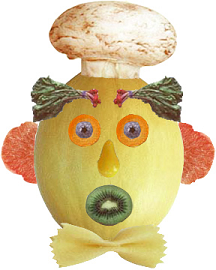
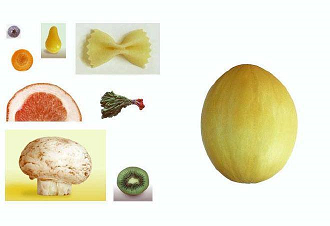
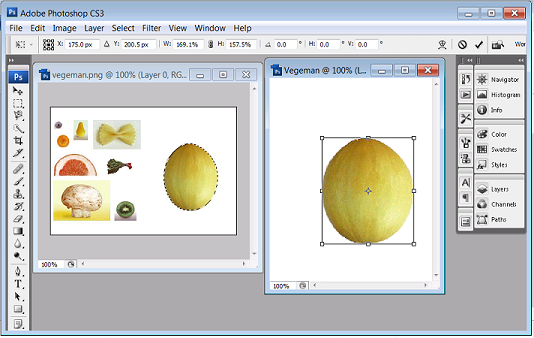
- Use the magnetic lasso tool on selecting the head or the potato. Patiently, select the outline of the potato.Using the move tool drag the selected pixel into your canvas. If there are white spaces use the magic wand to select these spaces then delete it.
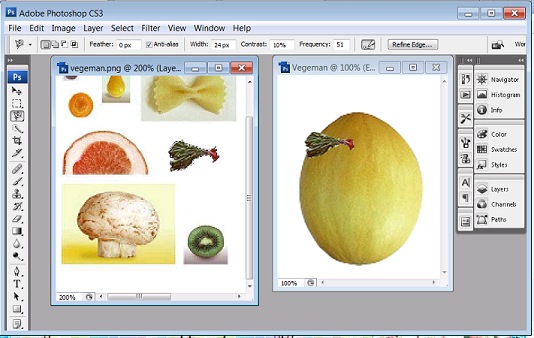
(Peeled Sticker)
(Futuristic Grunge)
(T-shirt)
(Hair Color)
6. When you already drag the head resize it by pressing Ctrl+T for transforming.
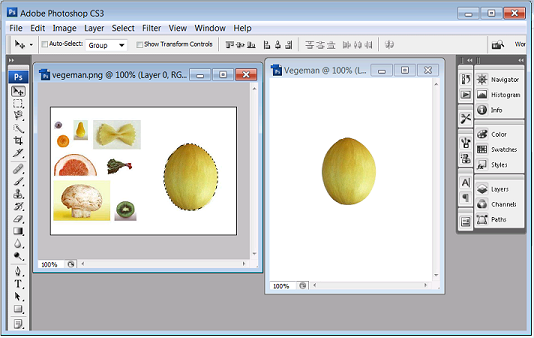
7. Next, use again the magnetic lasso tool on selecting the eyebrow or the leafy vegetable. Then
select the outline of the leafy vegetable. Using the move tool drag the selected pixel into your
canvas. If there are white spaces use the magic wand to select the spaces then delete it.
8. Now its time to select the eyes. Using the magnetic lasso tool select the outline of the chopped
carrot. Then drag it to the canvas. Duplicate the layer to produce another eyeball so that they
will be a pair. And for the iris of the vegeman repeat the step on the circular raisin. Use
transformation to make it proportional to the eyeball
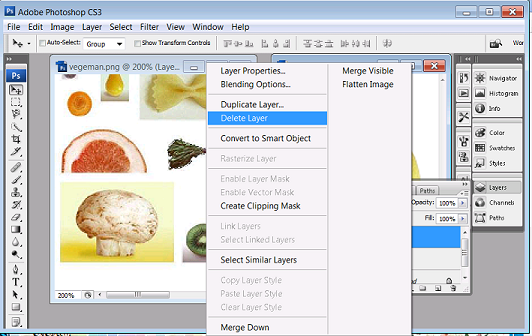
9. Do these process for the remaining parts such as for the nose and mouth.
10. For the bow tie which is the macaroni use the magnetic tool then move it to the canvas. Use
tranformations if neccessary.
11. For the ears, select only the outline of the red parts.Then transfer it to your canvas. Use
transformation if needed. Then put it one the side of the head.
12. Always remember that if there are some white spaces, use magic wand to select then delete.
13. Lastly for for the cap, select the mushroom then drag to your canvas and put it on the top of
the head.To make it the same as the finished product of the author select only the parts that will
fit onto the head or another technique is to arrange the layer of the cap beneath the layer of the
head in the layer.
14. Save your work as Vegeman_(your name).psd. Then you can also save it as a jpeg file or png
file (eg.Vegeman_(your name).jpg,Vegeman_(your name).png)
15. Congratulations now you have learn another use of Adobe Photoshop!