This first page is about the basics of home pages, and how to upload them to a server. Continue with this first page if you are totally lost and unsure of what to do next. Not that it will help too much, but hey ya gotta start somewhere...
Step One: Go for the Gold! (or puce, or cerise or whatever...)
Actually, the first important step in getting a cool-looking home page is to get a fancy background. (You noticed, no doubt, the very tasteful and elegant background on the first page, no? No? Go back and look!)
After you do that, run, do not walk, straight to
GRSites.com which offers to you a HUGE collection of Free Backgrounds and Graphics. After you find your cool background, then you will be ready to knock 'em all dead with your incredibly good taste in fine art. You will learn how to use this fine background a little further down the page, so calm down. In fact, I'm gonna give you ALL KINDS of strange pieces of information further on down the page. "But, goooooollllllly Wally," said The Beaver, "I don't even know how to write HTML." No problemo. It really isn't hard - your psuedo friends just want you to THINK that it's hard.
Stop whining! Use your web-browser search engines to look for sites with HTML info. Type in "HTML" on Google or Yahoo or someplace like that and they'll send you a humungous list of stuff!
Or, you can take a look at The HTML Primer which has everything that you ever wanted to know about HTML, but were afraid to ask.
Other basic HTML information is available at:
A very good commercial web page program, which is easy to use and also rather moderately priced (thank heavens for small favors!) is Visual Page by Symantec. I really do not recommend that you invest in expensive HTML programs (ie:MoneyMill). If you really want to spend a couple of hundred bucks, send it to me.
Several shareware and freeware programs are available for creating HTML documents. One excellent shareware program is PageSpinner, which gives good results and is easy to use. PageSpinner is distributed via the shareware system, allowing you to use the application on a trial basis for up to 30 days. If you wish to continue using the product beyond that period, you must register by paying $24.95 in U.S. currency or remove it from your computer storage medium. Not a bad deal.
If you download Netscape Communicator, (it's FREE! ) it comes with HTML Composer, with which you can create web pages. Netscape has all kinds of online instructions for making web pages.
If you know the name of a freeware or shareware HTML program you can look for it at Shareware.com.
![]()
Finding Out About HTML (Hypertext Markup Language)
HTML requires the use of "tags" to specify what's happening on the page. There are only a few basic tags that you need to learn to start with.
Yet another little-known fact: go to the top menu bar if you are using Netscape, and choose View. Then choose Page Source. Viola! Up pops the HTML code of the very page you are looking at! Go to your friends pages, see how they made their pages. They'll be so ticked!
If you are interested in the above approach (just blatantly stealing source code) click here, and you will find your self plunked into an HTML tutorial - each page has different things on it that you might like to "borrow" - including anchors, forms, and tables - all you have to is look at the page source. Don't worry...it's not copyrighted. Trust me. Do I look like a used car salesman or something? Pushing used HTML is an entirely different sort of thing than pushing used cars.
If you are a fan of ClarisWorks, you probably know that it used to come with HTML templates. While you can save word processing documents as HTML, I don't know if templates are still being included now that ClarisWorks has transmogrified back into AppleWorks. That was the original name the program used to be called back in the old days when the whole darn thing could fit on one double-density floppy disk, a mysterious and legendary item from the past (and heretofore not known to even exist by those born around the same year that the Mac was created.) (Kids - return to those thrilling days of yesteryear and ask your grandparents about double-density disks right now!)
Microsoft also has a couple of web page programs, but I would not be caught dead recommending that anyone put any more money into Bill Gates' pockets.
(Interesting trivia: The word "microsoft" has been explained to me as a descriptor for a certain part of Bill Gate's anatomy, but I guess that this is probably not the place to get into discussions like that, and anyway, only his wife and his urologist know if that rumor is really true...)
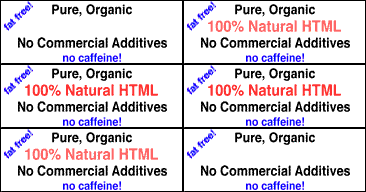
I don't use HTML programs. All of my pages are :
![]()
and yours can be too. It's not that hard to do.
Making Your Pages:
Important: If you only have ONE single page, your page needs to be named index.html, and at many locations the server will need an exact duplicate of it named index.shtml.If you are going to have more than one page with links between the the pages, your MAIN page needs to be named index.html, and (probably) the server will need an exact duplicate of it named index.shtml.
Also Important: Both pages named index must be on the server together in the same directory (folder). (We won't even think about what they must be doing in there together) I have been told that if you have a PC you will have to upload the file as index.htm and rename it after you upload. There is an option on both of the ftp programs described below to perform this task.
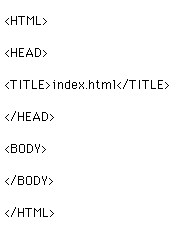
Follow this fabulous example for your basic format for individual pages:
The / (slash) indicates the end of a section, so all the information that you want to appear on the page would go between BODY and /BODY. (Slashed body? yech!) The /HTML goes at the very very very end of the page, when you are sure that you want nothing else in there.
A basic page set up on the above format with no background and no font color (we'll get to those below) will look like
This The title of a page, and the name of a page should be the same thing unless you are an anarchist or thirteen years old, and if that's true you won't be following directions anyway.
Generally, the only exception to the title/name rule (which just helps you keep track of things) is the page named "index.html." The title on it can be something different. For an example, the main page for the HTML Wizard web site is named "index.html" but the titleis You Can Be An HTML Wizard. When someone makes a bookmark, the bookmark records the title of the page, not the name. What the heck good is a bookmark that says "index.html?"
All page names, and all graphics names MUST be names with no spaces, and should be completely in lowercase letters. Spaces completely freak out some servers. If you put spaces in the names, the server gets really really upset, and will do something AWFUL to your files. I've seen it happen, and it's not a pretty sight.....blood and page guts splatted everywhere. (Unix servers are particularly fussy, but I guess that's understandable - they probably get tired of being referred to as "eunuchs.") Examples of names could be something cute and quaint like "schistosomiasis.html" or "psoriasis.gif."
If you have a PC, you'll have to give your pages and graphics short little stupid 8-character stubby names like "schist.htm" or "psor.gif."
If you want a space in the name, you'll have to do it with an underline or hyphen, like this: "Billy_loves_Susie.html" or "bug-ugly-page.html" or something like that.
OK..now the moment that you have been waiting for: How to use that exquisite background you found earlier today! Drum roll, please!
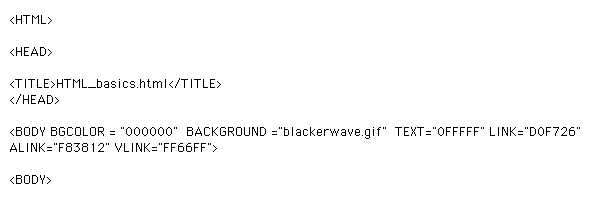
This used to be the basic HTML information from the very page that you are looking at this instant! WOW! Historical documents are fascinating, no?
You can see that more information has been added to the basic headings that you started with. The background graphic for this page was "blackerwave.gif." However, I took it out because after a while I got annoyed with it. (Sometimes it's hard to practice what you preach.) The letter and number combinations are called "hex numbers" and refer to the color of the background of the page (BODY BGCOLOR) and the colors that the text and links will have. To find out all about those, go to "Using C O L O R on your web page."
Changing Font Sizes:
You will probably want larger text on your page than the default font size, seen here.
gives you text this big.
and so forth.....I bet you can figure out what putting a minus instead of a plus sign does to the text size.
You're absolutely right! It Microsofts it.The pointy brackets <> are found around commands called tags. There's more about tags on the (duh) Tags Page . Using this information does not make you a tagger, but may cause you to fall under suspicion of being one.
Graphics that you want to use must be in gif or jpeg format. Some browsers and graphics software can cope with a type of graphic file called a "png" ("ping") which combines the best features of gifs and jpegs.
Links:
Looking for excitement? Follow these examples for creating links! You might even find The Missing Link!
(Is"A HREF "= what Orphan Annie's dog says? Find out below!)
For links going between pages that you have made within your own site, this is what you would type:
This is what you would get: Back to HTML Wizard
For links to other URLs:
This is what you would get: San Francisco Chronicle Unless of course you prefer the National Enquirer, and in that case there's really no hope for you.
Keeping Your Site Up To Date:
To set up a site, contact your internet provider. Some providers provide free space on their server for homepages, provided that they are non-commercial, and not used for lewd and lascivious purposes, such as for distributing erotic nude photos of Barney, or discussing Bill Gates' Microsoft.
To send your fabulous HTML documents to the server electronically, you will need an ftp ("file transfer protocol") program.
For Macintosh, highly recommended is Fetch 3.3, a nifty little program from Dartmouth University. WSFtp is recommended for Windows. . (Sorry - I don't do Windows, not even with Windex, so I can't tell you anything about it.) You can find these programs at Shareware.com.
To update your documents, you will need a password, so talk to tech support at your Internet provider.
Fetch is very easy to use. I even know adults who can use it without asking for help from the 8-year-old.!
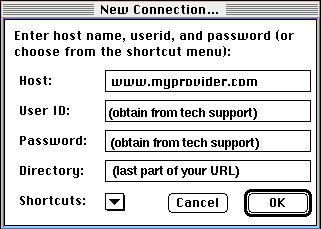
Open Fetch, and after "host" type the URL for your provider, "user I.D." is your user name, your password, along with your directory name (where your file is located: comes after "yourprovider.com/" in your URL).
Shipping The Stuff To The Server
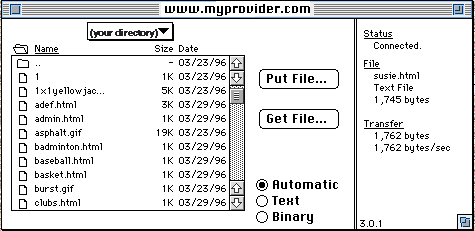
To put a file into your directory on the server, simply select "put file." Duh.
You will then be given a choice of formats.
If you have Macintosh:
For an HTML document, choose "text."
For a gif or jpeg, choose "raw data." If you have a PC:
Upload text files as "ascii files."
For graphics (gif or jpeg) choose "binary." After you OK the choice of formats, the file will then automatically be transferred to the server. Watch the cute little Fetch doggy wag its tail as it works hard for you.
To upload a whole bunch of files to the server all at once, do a "select all" your whole list of them, and drag them into the Fetch window. This won't work unless you have saved your settings (see the next thing that I am going to nag you about, below.)
After you have selected your settings, tell the program to remember them. Choose "Customize" in the top menu bar, select "Preferences," and then "upload." Enter the appropriate files types.
Getting Your Stuff Off Of The Server
Now boys and girls, can you guess how to get a file from the server? That's right! Choose "get file." Very good. You catch on fast. You get a gold star!
You should also save your settings under "Preferences." This time choose "download," silly.
OK - This one is trickier. To remove a file from the server, what do you think you should do? No....sorry.....Hydrochloric acid is not generally approved of for such purposes. Instead, select "Delete Directory or File"under "Remote" in the top menubar.
Now, if you have figured all this stuff out, then you are truly an HTML wizard!
(And if you do not fully understand how to carry out the above directions, oh well....back to the Commodore 64...)
![]()
Back to
HTML Wizard
web pageUse cool
graphics
on web pages.Use
C O L O R on web pagesMake animated gifs
on the Mac.Put
midi music
on web pagesLearn about
HTML tags
on web pages
![]()
![]()
![]()