| Windows Basics |
| ICONS |
| What are icons? Icons are small symbols that are designed to reflect what they represent. e.g. The Recycle Bin icon which resembles a trash bin! Basically, icons are there to replace what would otherwise be a boring list of words. |
 |
| TITLE BAR |
| The title bar is the strip along the very top of a window. For example, look at the top of this window. It says "Windows Basics - Microsoft Internet Explorer". Often, the title bar can give you information on what is contained in the web page, without you having to scan the text on the page. Incidentally, It says Microsoft Internet Explorer because that is the piece of software you are using to view web pages with. Note: If you use a different piece of software e.g. Netscape Navigator, it will say Netscape Navigator in place of Microsoft Internet Explorer. |
| MENU BAR |
| The menu bar can be found below the title bar. It has pull down menus labelled File, Edit etc. These menus allow you to a variety of actions with that web page. For example, clicking 'File' then 'Save as' allows you to save that particular web page and put it onto your computer hard drive. |
| TOOL BAR |
| The tool bar can be found below the menu bar. It has buttons such as Back, Forward, Print etc, which allow you to move easily back and forth between visited pages or print the open page etc. You can add and remove various buttons by right-clicking on the tool bar and choosing 'Customize'. I recommend that you only put buttons that you use often on the tool bar. |
| MINIMIZE, MAXIMIZE, RESTORE & CLOSE |
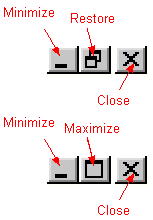
| These buttons can be found at the top right side of the window. |
| The 'Minimize' button will send the whole page to the task bar which can be found at the bottom of the screen. To bring the page back up again, click the button on the task bar. It should blow up to the size it was earlier. Clicking 'Restore' will switch the window to it's original size when the computer was started. |
| The 'Maximize' button will make the window full screen, meaning that it will cover the entire monitor screen. The 'Close' button allows you to exit that page. |
 |
| SCROLL BAR |
| The scroll bar is situated on the right hand side of a page. It allows you to move the page up or down, allowing you to read pages with a lot of content. There are 2 ways to manipulate the page: (1) to click the up or down arrows found at the top and bottom of the scroll bar (2) to click and drag the scroll bar up or down. Either of these 2 methods should enable you to slide the page up or down. |
| DESKTOP |
| The desktop is like the starting point of your computer. From the desktop you can access everything within the computer. It is also a great place to save files that you want quick access to. When you boot your computer, it will automatically take you to the desktop. On it, there will be icons such as My Computer, Recycle Bin, etc. These are useful tools to manage your computer. My Computer allows you to explore the depths of your computer e.g. what programs you have installed, where they are located etc. Wallpaper You can make your desktop interesting by 'wallpapering' it with different designs. There are designs already included in your Microsoft Windows that you may like. Additionally, there are websites where you can choose from a variety of different pictures to brighten up your desktop. A good place to start is www.webshots.com where they have hundreds of pictures in categories e.g. spring, winter, etc. Pictures or backgrounds that you like on the web can be wallpapered to your desktop. Simply right click on the picture or background you like and choose 'set as background'. If you want to collect wallpapers, its a good idea to keep them in a folder somewhere (My Documents)so that you can find them again easily. If you have a picture saved to your hard drive that you want to use as a wallpaper, right click on the desktop and choose Properties. Then choose the Background tab and browse for the picture. Saving to Desktop The desktop is an ideal place to save important documents that you want to have quick access to again in the future. Or you can save your files to My Documents for example, which already has a shortcut button on the desktop. By clicking it, you will have access to all the files you have saved in My Documents. |