| File Management Guide |
| WHAT IS FILE MANAGEMENT In order for you to easily find different files that you have saved to your computer, good file management is essential. A well-organized computer enables you to browse and locate your files much easier and quicker than if your files are randomly scattered all over your computer. 1. USE MY DOCUMENTS FOLDER My Documents is a directory found on the C:\drive that Windows has designated as the place where you should save all of your own personal files. You don't have to use this folder but various shortcut options are set up specifically for the My Documents folder e.g. right clicking a file and choosing 'Send To My Documents' is much simpler and requires fewer mouse clicks than having to cut the file out of one place, locate its destination directory and then paste it in. 2. DIVIDE MY DOCUMENTS FOLDER UP Within My Documents, it is a good idea to create other folders that are relevant to all the different files that you have. For example, if you have pictures, create a folder called 'Pictures' and place all pictures into it. The 'Pictures' folder would then be a sub-directory of the 'My Documents' directory. It is optional but you can create sub-directories within sub-directories for an even better organized computer e.g. say you had pictures of yourself as a baby and pictures of you on vacation. Within the 'Pictures' folder, you could create a folder called 'Baby Pictures' and a folder called 'Vacation Pictures' and place all relevant pictures within the folders. This highly organized layout makes finding pictures much easier in the months to come. It is up to you how you divide your folders up. Find a method of organization that works for you. SAVING FILES Let's say that you have created a file using WordPad and you now want to save it. Click File > Save As. A dialogue box will appear allowing you to choose (1) what the file should be called and (2) where the file should be saved to. Note: It doesn't really matter which program you use, when you choose to save a file, the same dialogue box will appear. It looks a lot like this: (note how it automatically opens in MY Documents) |
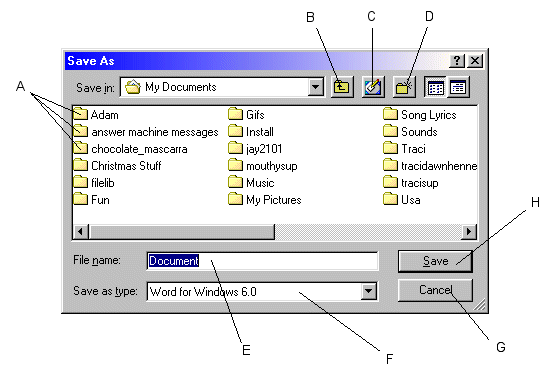 |
| A - folder names (sub-directories of My Documents) B - this button will take you up a level. The hierarchy is as follows C:\ > My Documents > sub-directories therefore, by clicking B it will take you back to C:\ C - will take you to the desktop note: the buttons will open inside the dialogue box, therefore if you click C, the desktop icons and files will appear in the dialogue box. D - allows you to create a folder in the directory that is opened (in this case, My Documents). If you decide you want to create a folder in a directory within My Documents (e.g. Adam), double click on that folder and then choose button D and name the folder. E - type the name you want the file to be called F - Save as type: means that you can choose what kind of file it is (e.g. word file, .txt file etc) G - allows you to exit the dialogue box H - after you have chosen the name and destination of the file, click Save. BROWSING Very similar to the skill mentioned above. Browsing for files is typically used when you are adding attachments to emails or trying to upload a file from your computer to the web. A similar dialogue box appears and you will need to navigate your way through your computer to find the file. FINDING A LOST FILE Somestimes you will forget the place where you saved a file to, or you will accidentally save it to some dark region of your computer that you have never been to before. If this happens, don't panic, you can find your file using a simple search. Click the Start button (bottom left) > Find > Files or Folders This will open a dialogue box where you can then type in the parameters of the search |
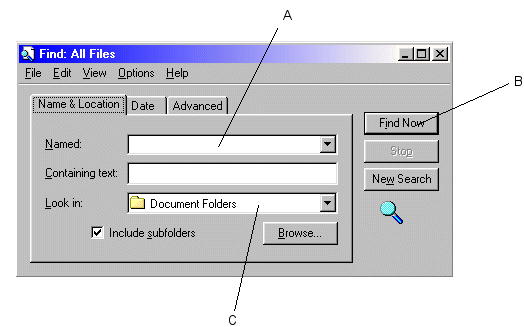 |
| If you know the name of the file, simply type it in field A and make sure you choose C:\ for field C. Then start the search by clicking B. If you don't know the name of the file, then locating it may be more difficult. Click on the Date bnd type in the date you think you created the file. Sometimes you still may not be able to locate your file. Try looking in the directory of the software that you used to create the file (go to C:\ > Program Files > name of the software). Often, the software directory will have a place where all created files have been saved. MOVING MULTIPLE FILES |
| Say you have 20 files that need to be moved to a different folder. It would take quite a while to move each file individually. Luckily, there is a short-cut enabling you to move multiple files at once. If you left click on the first file you want to move and then hold down shift and click on the last file you want to move, all the files in between should become highlighted. You can then copy and paste them or drag them into their new folder all at once. Another way to highlight multiple files is to left click, hold it down and move the mouse around. You will see a dotted rectangle appear. Move that rectangle so it covers the files you want to move. Release the button and you will see that the files are now highlighted. They are ready to move. However, what if there are files highlighted that you dont want to move? What do you do then? Simple! Instead of using Shift, you use Ctrl. Each file you click will be selected as part of a group but the rest of the files will be left alone. |