| The Mouse |
| WHAT IS A MOUSE? |
| Before the mouse was invented, you had to use the arrow keys to navigate your way around. The mouse is a clever piece of hardware that allows you to move and access things anywhere on the page. When you move the mouse, a little arrow or crosshair (depending what you have chosen to represent your movements) moves with you. That is your pointer. A mouse makes navigation much easier. A mouse button usually has 2 buttons (a left and right button). The left button will select the file/icon. The right button will bring up a menu of various options. |
| SELECTING |
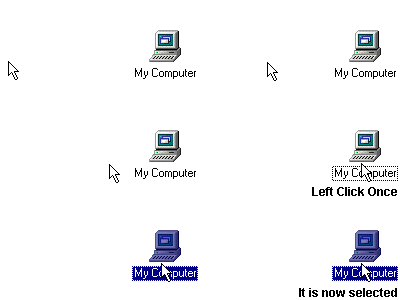
| You can select an icon/file by moving the pointer on top of it and left clicking once. After left clicking once, the icon should be highlighted. It is now selected. There are a number of options that you can chose to manipulate the selected file. We will come on to those shortly. |
 |
| RIGHT CLICKING |
| To use the right click menu function, you need to select the file. You can do this by left clickong once on it, or simply right clicking it directly. There are several different menus that will be brought up when you right click the mouse button. It all depends on where you right click. Right clicking a File Will bring up a menu like this: |
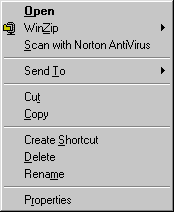 |
| Open will open that file WinZip may or may not be an option, depending on whether you have that program installed on your computer. It allows you to make the file smaller if you wish. Scan allows you to scan the file for a virus. Send To will enable you to send the file to a location of your choice e.g. desktop. Cut and Copy are explained here. Create Shortcut will put a shortcut to the file on the desktop. This is useful if your file is in a place that is hard to remember and you want easy acces to it. Delete will delete the file. Rename will let you change the name of the file. Properties gives you information such as the file's size. |
| Right clicking a web page will bring up this menu: |
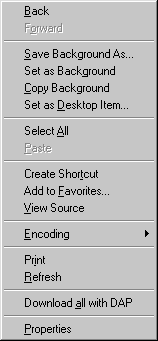 |
| Note: sometimes choices will be grayed out, meaning they are unavailable for selection. This often depends on whether it is actually possible to, for example, go back to a previosuly visited web page. It may be that this is your first web page visited. Back will take you back to your previously visited page. Forward will send you to the page you visited after this one. Save Background As will allow you to save the web page background to your hard drive. This is useful for when you create web pages of your own. Set As Background lets you set the web page background as your own desktop wallpaper. Copy Background will place it into your copy and paste memory. Set as Desktop Item will let you set that web page as your desktop wallpaper. Select All will select all text, ready for copy and paste. Paste will paste text. Note how you cannot paste text into a web page. That's because the web page is fixed and cannot be manipulated. Create Shortcut sends a shortcut icon to your desktop. If you open the shortcut icon, it will take you to the web page. Add to Favorites allows you to add the page to your list of favorite pages. This makes finding those pages in the future much easier. View Source lets you read the coding for that web page. Encoding lets you select the language for your web pages if available. Print will print the web page. Refresh is useful and can be found on the tool bar. This button will update the web page to take into account any recent changes. If you are having trouble accessing a page, hitting refresh will often do the trick. Download with DAP lets you download the web page faster. This option may or may not be present in your own menu. Properties will give you rleevant information about the web page. |
| DOUBLE CLICKING |
| You can open a file or directory (My Computer) by either right clicking and choosing open, or by double clicking on it. This is the simplest way to open a file. You can change the speed requirement of the double clicks by going to My Computer > Control Panel > Mouse and selecting the Button tab. If you double click a file, it will open it in the default software. For example, if you double click on a .txt document and the default software is Wordpad, the file will be opened in Wordpad. You can change the default software by left clicking the file once, holding down SHIFT and right clicking on it. The menu will open and a new choice will be visible called Open With. Choose this and then scroll down the list of programs until you find the software that you want to open all .xt files with e.g. Microsoft Word. |
| CLICK AND DRAG |
| This is an extremely useful technique to master. It enables you to bypass the long-winded process of selecting a file, cutting or copying it and then going to the destination and pasting it there. It also makes saving files to floppy disk much easier. To click and drag a file, you simply left click it once, to select it, and hold the button down. Then move your mouse around. The file should appear to be stuck to your pointer. To release the file, just let go of the button at the point that you want to release the file to. With this technique you can easily move files from directory to directory. e.g. moving a file from desktop to floppy disk drive. (1) open My Computer and access the floppy disk drive ( ) (2) re-size the floppy window so that it fits within the desktop pane (3) select and drag the file to be moved from the desktop to the floppy drive (4) release the mouse button (5) the file should now be located in the floppy disk and not the desktop. |
 |