Dock Improvements
First and foremost the dock should not try to replace the apple menu, the application switcher menu and windowshade(collapse), these features should be used in tandem with the dock in order to take full advantage of OS X. Now here are some dock improvements that I came up with:
Dragging and dropping items from the dock while holding the option key should create an alias of that item.
Pinstripes/No Pinstripes


Users should be able to choose between showing or not showing the pinstripes in the dock in the dock preferences.
Minimized Windows
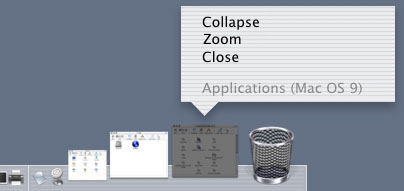
Selecting Collapse Maximizes the Window and collapses(windowshade) it into a smooth horizontal titlebar; zoom maximizes the window(unminimize); close, nuff said.
Dock Preferences
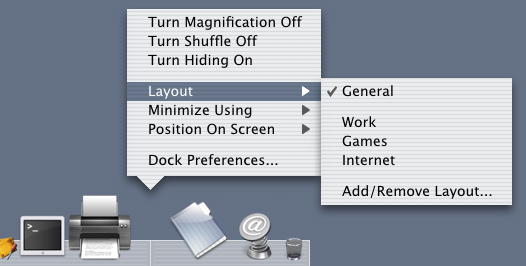
Notice the new shuffle item and layout submenu (see below). Note the Dock submenu under the apple menu is the same.
Layout
The Layout submenu allows you to have multiple dock settings, (in other words multiple docks) you can have all the applications that you use for work in one layout 'work' all your 'games' in another, 'internet' apps in a third, and etc... layouts can be created and removed.
As applications open they move to the left with the shuffle option, then they move back to their original position after quiting them. Makes switching between applications a little easier with the Dock. Use the application switcher menu for the most efficient switching and when the dock gets in the way even when hidden!(ex. editing in fullscreen mode in Photoshop with the lasso or path tool)

Shuffle Off: Normal Behavior

Shuffle On: Applications move to the left(or right or center; Depends on preference) as they are opened

Application's return to their original place after quiting them
Turn Shift On/Off
Allows the dock to sort recent applications. Kind of like the shuffle feature except that once applications are quit they do not return to their original position, the most recently used application are placed on the left and so on. *Note not shown above in the dock submenu(yet)
Application Icons/Behavior
If an application is hidden the icon should appear semi-transparent, application icons should pulse(fade in/out), change colors, bounce, or make a noise/alarm(repeating; just in case the user is asleep) when the application needs the user's attention. The Application should not become active(pop up in front of the current application) automatically when it needs the user's attention, it should wait for the user to respond to that application. Behavior can be changed in dock preferences on a per application basis or for all.
Application/Document Based Switching
There should be a dock preference that lets the user choose which metaphor to use either Switch By Application(current design) or Switch By Documents(see below).

Using Word

Switching from Word to Excel
When the "Switch by Document" preference is set, all documents that belong to the application appear to the right of it minimized documents look like minimized windows other non-minimized documents appear with their icon(guess what happens when the user maximizes the minimized window; the icon changes to its document icon ). When the user switches to the next application(Excel) then the previous application's(Word) window's become hidden and then the other application's(Excel) windows appear to its right and so on. Current document is indicated by a black box. If the application only has one document open then one document is shown. Once the document is closed it disappears from the dock(a nice fade out effect comes in handy here) and the other documents slide/shift to the left. Also see the application switcher menu and its new documents switch feature which functions in the same fashion.
When the "Switch by Applications" preference is set current behavior remains.