Disabling Scripting and Java in Internet Explorer Active Scripting in Internet Explorer ("Active X") will run programs on your computer that have been prepared by someone else on another computer. This can sometimes be useful, but some of these programs may be hostile. It is best to disable Active X. Note: another nice benefit when you disable scripting is you will no longer get any annoying pop up ads.
To disable scripting:
- First Open Internet Explorer (which you may already have on reading this page).
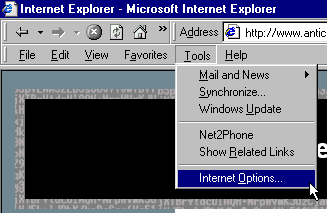
- Click onto 'Tools' then 'Internet Options'.
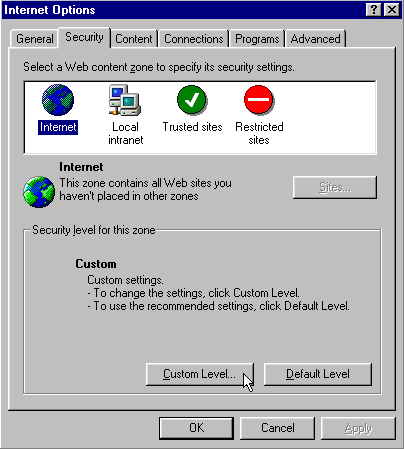
- Click onto the 'Security' tab.
- Hi-light 'Internet'.
- Click 'Custom Level'.
- Let the disabling begin.
- Disable, disable, disable.

In Review:
- Download signed ActiveX controls
[disabled]
- Download unsigned ActiveX controls
[disabled]
- Initialize and script ActiveX
controls not marked as safe [disabled]
- Run ActiveX controls and plug-ins
[disabled]
- Script ActiveX controls marked safe
for scripting [disabled]
- Allow cookies that are stored on your
computer[disabled]
- Allow cookies per-session cookies (not
stored) [enabled]
- File download
[disabled]
- Font
download[disabled]
- Java
Permissions[disabled]
- Access data sources across domains
[disabled]
- Drag and drop or copy and paste files
[disabled]
- Launching programs and files in an IFRAME
[disabled]
- Software channel permissions
[high safety]
- Submit non-encrypted form data
[disabled]
- User data persistence
[disabled]
- Active scripting
[disabled]
- Allow paste operations via script
[disabled]
- Scripting of Netscape
[disabled]
- User Authentication/Logon
[prompt for user name and password]
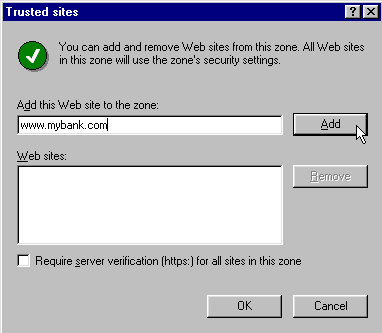
The majority of sites I visit, may be browsed with disabled Active Scripting. You may lose some features, but they are not important. If there are web pages that you must visit with various scripting enabled, for example on-line banking or www.microsoft.com for security updates, you can add these pages in your trusted sites.
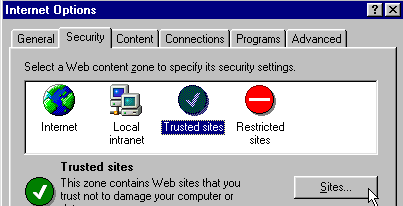
- (From the same 'Security' tab) hi-light 'Trusted Sites'.
- Then click 'Sites'.
- First uncheck 'Require server verification....' at the bottom.
- Add in the URL.
- Then click 'Add' then 'OK'.
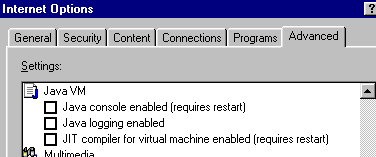
- Now go to the 'Advanced' tab.
- Uncheck the three boxes under Java VM.
- Click 'Apply'.
 |

 Internet Explorer