A Windows filename has two parts:
- The main filename -- e.g., example1.jpg
- The filename extension -- e.g., example1.jpg
Windows uses the extension to determine what the default action on a file will be when, for instance, you double-click on its icon. For example:
| .doc |
Opens in MS Word |
| .jpg |
Opens an image viewer (by default Internet Explorer) |
| .html |
Opens default browser (such as Internet Explorer) |
| .txt |
Opens in Notepad |
| .exe |
Runs an executable program |
| .vbs |
Runs Visual Basic Script using Windows Scripting Host |
| .js |
Runs a Javascript script |
By default all Windows operating systems hide the known file extensions in Windows Explorer. This feature can be used by virus writers and hackers to disguise malicious programs as some other file formats, such as text, video or audio files. The first major attack incorporating an element of file extension vulnerability was the VBS/LoveLetter worm which contained an e-mail attachment named "LOVE-LETTER-FOR-YOU.TXT.vbs". And if you had extensions turned off you would have seen the attachment as "LOVE-LETTER-FOR-YOU.TXT" which, to the average user, looks like a harmless text file. Other malicious programs have since incorporated similar naming schemes, for example, a malicious program file named "example1.jpg.exe" is displayed as "example1.jpg" in Windows Explorer (or when you save an Outlook Express attachment). Therefore users are often tricked into clicking the "jpeg" file and then into inadvertently running the malicious file. 
To avoid this confusion, you are recommended to change the Windows Explorer setting to not hide the file extension of known file types.
- First open Explorer.
- Then go to 'View' then 'Folder Options'.
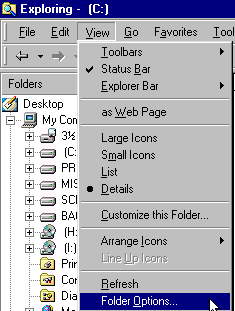
- Then go to the 'View' tab.
- Then uncheck "Hide file extensions for known file types".
- Click 'Apply' and you're done.

There are two file extensions, .SHS and .PIF, that are never visible in the filename -- even when you have unchecked "Hide file extensions for known file types" as in above. So this means a text file that ends in both the .txt file extension
and the .SHS file extension e.g, example.txt.SHS will appear to be a harmless text file e.g, example.txt. The same goes with the .PIF extension (I will show you how to remedy .PIF after .SHS).
In order to better protect yourself against viruses using the .SHS extension
(such as the Stages virus) you should consider removing the .SHS file extension from Windows. Once that is done, Windows will not be able to determine what to do with any .SHS file, so the .SHS file will not execute and will not work. NOTE: .SHS files are "Scrap Object" files. They are usually only created when you highlight text in Microsoft Word
or Excel and drag the highlighted text to the desktop, where it becomes
a "scrap" that you can insert anywhere in the current document or another
document multiple times. Since Office 2000 comes with the ability
to store 12 items in the clipboard, this scrap function is no longer necessary.
To remove the .SHS extension:
- First open Explorer.
- Then go to 'View' then 'Folder Options'.
- Click on the 'File Types' tab.
- Hi-light 'Scrap object'.
- Click the 'Remove' button.

- When the confirmation box pops up click 'Yes'.
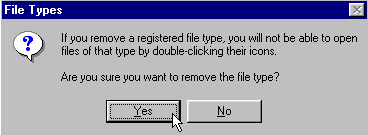
Since Windows needs to use .PIF to start DOS programs you can't delete the association as you did with the .SHS extension. In order to protect yourself from viruses using the .PIF extension (such as the MTX virus) we will force Windows to show us the extension in the event that you receive an e-mail with the hidden extension.
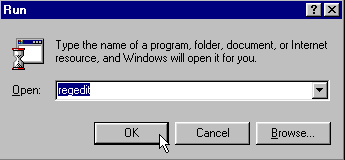
- First click the 'Start' button then 'Run'.
- Type in "regedit" - without the quotes.
- Click 'OK'.
- Open the 'HKEY_CLASSES_ROOT' folder.
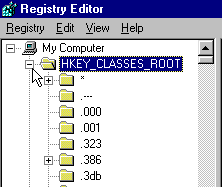
- Scroll down until you see the 'piffile' and open.
- In the right pane right click 'NeverShowExt' and click 'Delete'.
- Click 'OK' when the confirmation box pops up.
- Reboot your PC. Now the .PIF extensions will be visible.
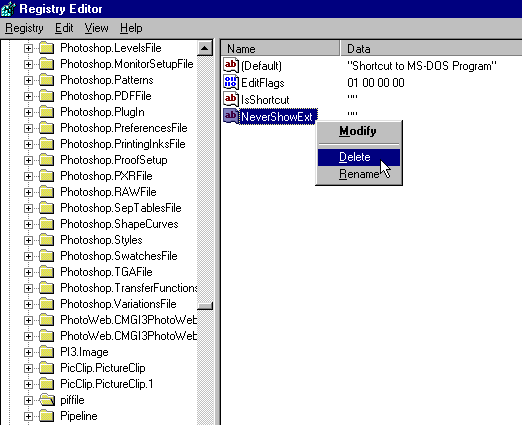
- Note: be very careful in RegEdit. Although the above instructions are harmless if you do not have experience using RegEdit you shouldn't change any other settings until you are familiar with it.
|
 File Extensions