 |
Photoshop 6.0 Tips & Tricks: Layers and Channels |
|
|
|
|
Layers and Channels allow the user to create unique work that can be brought together from a number of sources. Layers allow for ordering, arrangemet and placement of objects. |
|
|
|
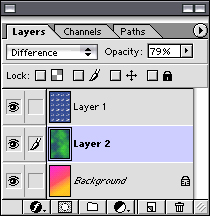
Layers Images and objects can be stacked like pancakes in Layers. Their stacking order can be changed to place one object in front of another and can be named to refer to the Layer's contents. Layers can be turned on/off to be made visible and locked to prevent work from being done to them. Layer Styles, Masks, Sets, Adjustments Layers can be controlled, new layers can be created and existing Layers can be deleted using the icons along the bottom of the palette. In our example, the user is working on Layer 2, all Layers are visible, but the Background Layer is locked so the gradient is not altered in any manner. Layer 2 has been made 79% Opaque, and is in Difference Blending Mode. |
|
|
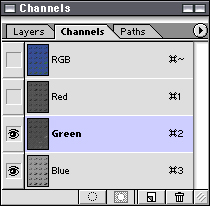
Channels The Channels Palette breaks your image down into the primary print or screen colors. This allows the user to ecamine individual colors for adjustment and image quality. Heavily compressed JPEG's can sometimes be toughed up by blurring a channel that has been compressed too severely. Magazine prints can sometimes show a Moire Pattern from the screen printing process. By blurring the dots in the different Channels, the user can sharpen the image. The user is currently viewing the Green and Blue Channels while working on the Blue Channel. |
Copyright 2001, page 5, Inc. All Rights Reserved |
Last updated July 26, 2001, 2:13pm |