
Photoshop 6.0 Tips & Tricks, Info & Info & Navigator
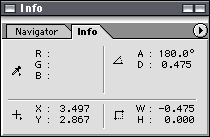
The information palette can provide technichal and detailed information on line, angles, color, and distance for objects.
Color Information
The line information palette can display (A) angle and (D) distance details in the upper-right quadrant.
The (W) width and (H) height can also be drfined as shown in the lower-right quadrant.
Coordinates are listed by X,Y coordinates in the lower-left corner.
Color Information
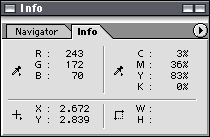
In the upper-left corner, the color information palette can display selected color in terms of the amount of each hue used, in this case (R) red, (G) green and (B) blue.
The upper-right corner defines the color in (C) cyan, (M) magenta, (Y) yellow and (K) black.
Coordinates are listed by X,Y coordinates in the lower-left corner.
The Navigator
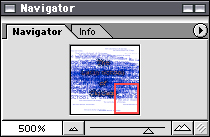
The Navigator palette helps you see where in the image you are working. When the entire image is not visible, you will see a red box identifying the section visible on screen you are working in. In our example, we are working in the bottom right-hand corner of the image.
By dragging the red box, you can move to another location in the image. By dragging the arrow along the bottom of the palette, you can zoom in and out of the image.
In the lower-left corner you can see that the image was enlarged to 500%