Table of Contents
· Saving,
opening, and creating a new document
·
Change
a font type, style, or size
·
Cut,
copy, paste, or delete text
·
Create
a bulleted list
·
Inserting
a picture
·
Inserting
time and date
·
Find and Replace
dialog
·
Printing
·
Switching
between modes
·
Thesaurus
·
VoodooSpell"
Spell Check feature
·
Deja
Vu™ Automated Document Recovery
·
Configuration
options
____________________________________________
Saving,
opening, and creating a new document
Shortcuts:
New: Ctrl + N
Open: Ctrl + O
Save: Ctrl + S
Save As: F12
This is the most basic function every man ought 'a know by now. Working
with files! I guess this one is pretty self-explanatory and the shortcuts
are all you need to know.
New
Creates a new file... blah... blah...
Open
Opens an existing file... Some text here...
Save
Save a file... some more here...
Save as
Save a file under a different file name... and a bit more here...
Notes
In case of extreme difficulties
regarding this topic, please don't
hesitate to contact the developers.
Change
a font type, style, or size
1.
Select the text that you want to
change.
2. On the Format menu, click
Font.
3. Click the options you want.
Notes
You can specify the font for new
text by changing the font settings
before you begin to type.
You can select all text at once by
clicking Edit, and then clicking
Select All or Ctrl + A alternatively.
You can also simplify the task of
changing font attributes by using the
font style and font size combo
boxes on the upper left-hand corner
of the formatting toolbar.
Cut,
copy, paste, or delete text
Shortcuts:
Cut: Ctrl + X
Copy: Ctrl + C
Paste: Ctrl + V
Select All: Ctrl + A
Clear: Del
1. To cut text so you can move it to
another location, select the text,
and then on the Edit menu, click
Cut.
2. To copy text so you can paste it in
another location, select the text,
and then on the Edit menu, click
Copy.
3. To paste text you have cut or
copied, click in the document where
you want to paste the text, and
then on the Edit menu, click
Paste.
4. To delete text, select it, and then
on the Edit menu, click Clear.
Notes
You can undo your action by
clicking Edit, and then pressing
Ctrl + Z to undo or
Ctrl + Y to Redo
You can select all text at once by
clicking Edit, and then clicking
Select All or Ctrl + A if it doesn't work.
Create
a bulleted list
1.
Click where you want the
bulleted list to start.
2. On the Format menu, click
Bullet Style, and then type your text.
When you press ENTER, another bullet
appears on the next line.
3. To end the bulleted list, on the
Format menu, click
Bullet Style again.
Notes
You can also create a bulleted list
by clicking the Bullets button on
the format bar.
Inserting
a picture
1.
Position the cursor where
you want to insert the picture.
2. On the Insert menu, click
Picture.
3. Search for the picture then
click Open.
Notes
Alternatively, you can also
insert a picture by clicking
the Insert picture icon in the
toolbar.
Inserting
time and date
1.
Click where you want the
date and time to appear.
2. On the Insert menu, click
Time and Date.
Notes
Alternatively, you have
an option if you only
want to insert the date
or time only.
Find
and Replace dialog
Shortcuts:
Find: Ctrl + F
Replace: Ctrl + H
You can search for words or characters in your
document (Find, Ctrl + F). You can also search
for and replace words or characters with text
that you specify (Replace, Ctrl + H).
Printing
SwitchBlade
as a text editor indubitably rocks... may we advice you NOT to
use SwitchBlade for printing critical documents.
Use WordPad's printing support instead for professional printing solutions.
SwitchBlade's printing capabilities
as of version 1.0 is quite crude and does not support a way for adjusting
border sizes and paper sizes.
Nonetheless, SwitchBlade
is able to print non-critical documents that simply needs some printing
such as song lyrics and lesson handouts.
About
SwitchBlade's *Unique Printing Support
In spite of SwitchBlade's
printing support limitations, it has one good thing to offer after all.
When using a Letter size paper (8.5 x 11 in.), SwitchBlade
is able to maximize the print area by setting the top border
as 0.25 inches and the left and right border to just about 0.5 inches.
This makes way for paper saving printing solution we plan to call EfficioPrint™
in the upcoming versions. (Laugh out loud...) :D
* a cute term for weird
Switching
between modes
SwitchBlade
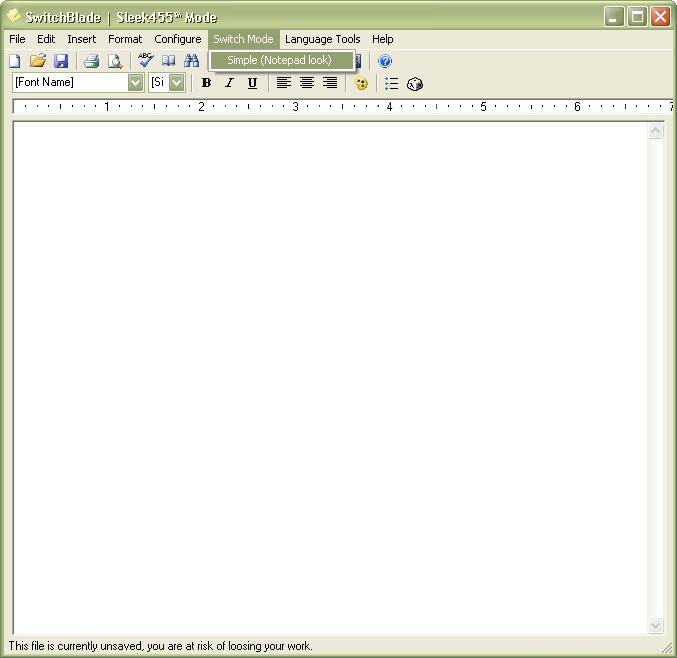
supports switching modes during runtime. You can do this by clicking the
Switch Mode menu and then clicking the available alternative
mode Sleek455 mode or Simple mode. By
doing so, the file you're currently working is COPIED into the new window
named NewUnsavedDocument, which as the name implies UNSAVED!
The text is only copied and not saved! Meaning you have to resave it once
again. Pictures and formatting are of course is dropped off.
Switching
mode from Simple interface
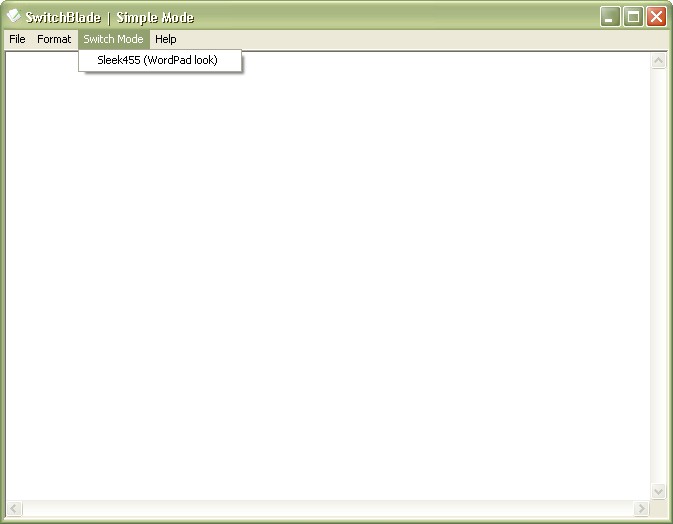
Switching mode from Sleek455™ interface
Thesaurus
Shortcut:
Shift + F7
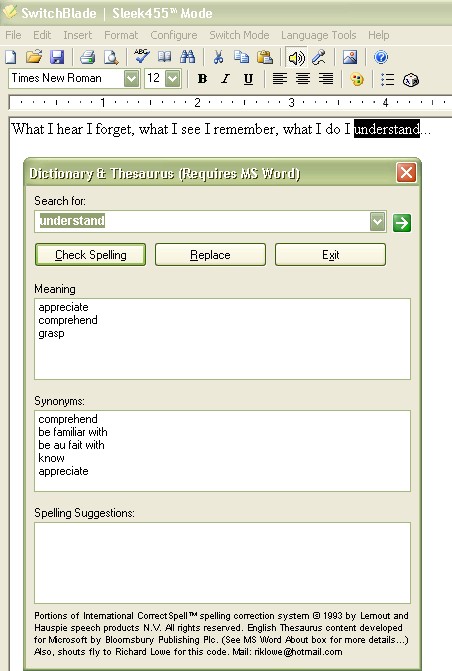
MS Word Dependent Dictionary and Thesaurus
This feature is a not so original concept and provides a way to use MS
Word's built-in powerful spell check and thesaurus. This feature
assumes you have MS Word installed (no matter what the means).
Haha... It can check for the meaning of the word and the synonyms if it
exists in the installed version of your MS Word. The functionality of
this feature solely relies on the current version of you MS Office.
Sample thesaurus window
VoodooSpell™
Spell Check feature
Shortcut:
F7
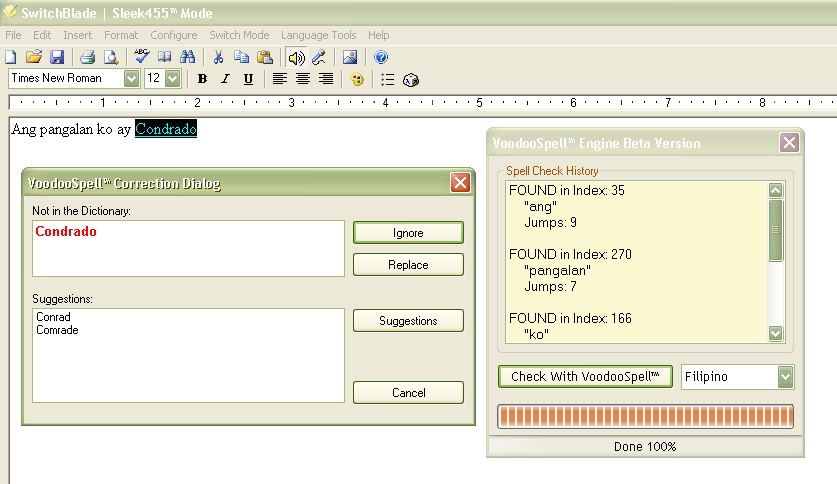
VoodooSpell™ is a spelling correction system that is based solely
on a dictionary file. As a prerequisite, the dictionary file
must be sorted in a descending fashion. Attempts to modify the file should
always make sure that the file is sorted. The system is also case insensitive
meaning having the word "Coconut" and "coconut" in
the dictionary makes no difference. The spelling feature is called VoodooSpell
for it uses common logic, meaning the obvious method and does not put
in mind the speed and efficiency. It literally hogs memory and
bogs down CPU time by loading hundreds and thousands of word entries in
an array, thus the word Voodoo -it's evil! Lolz! Some could quote
it as being "crude" for that matter. Nonetheless it provides
a "proof of concept" that it can be done. VoodooSpell
is still in Beta version, meaning it still isn't working the way we intend
it to! Lolz... For some technical reasons (and short time)... it stops
checking upon encountering special characters and pictures. We suggest
checking the document one word at a time (...and hell yeah, speak about
tedious work!).
VoodooSpell can currently check an entire document, for
some technical reasons stops at certain special characters. Luckily the
word per word spell checking works fine with the thesaurus. Do this by
simply highlighting the word and pressing Shift + F7
or clicking on the menu or icon of the thesaurus.
Sample VoodooSpell check screen
Deja
Vu™ Automated Document Recovery
Deja
Vu is a French word for "already seen". Basically, Deja
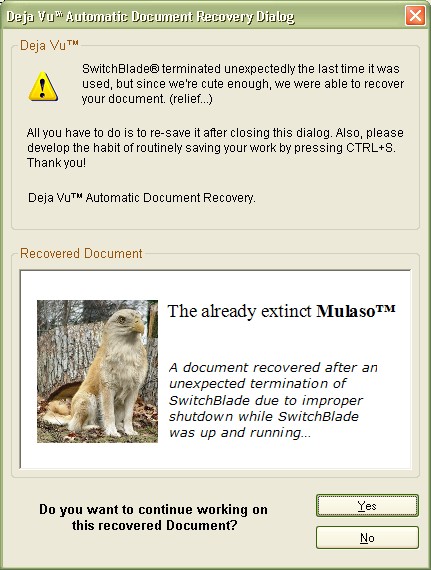
Vu™ is an automatic document recovery feature for SwitchBlade.
The idea behind Deja Vu is quite simple. When the program closes, it writes
to a file that the program terminated normally, meaning the computer did
not shutdown while SwitchBlade was up and running or the application wasn't
"killed" from the task manager. The auto save function is triggered
every time the mouse is moved around the main window and this is how SwitchBlade
keeps track of what you're doing. If the program is initiated the next
time and it was indicated that it previously terminated unexpectedly,
it then simply loads that file and then asks you if you want to load the
recovered document. Deja Vu is quite "cute" if I say so myself.
It was conceived just a few days before release of version 1.0, the deadline
that is!
Warning: The recovered
document is NOT the actual document you were previously working on. You
HAVE to save it again!
Also, closing the window by clicking CLOSE WINDOW button
will cause Deja Vu to drop off the recovered document.
If in case you've done this by accident, go to the installation folder
of SwitchBlade and go to the folder named System then open autoRecovery.rtf
and wish your luck it is still there. Good luck.
How it works
Considering that the program terminates unexpectedly the last time it
was used, the next time you start SwitchBlade, the document you were previously
working on is presented and Deja Vu asks you if you want to recover the
document and continue working on it.
Sample Deja Vu™ screen
Configuration
options
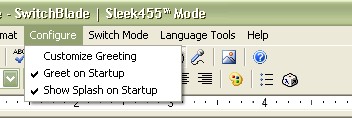
SwitchBlade
offers a number of configuration options that it "remembers"
the next time you open SwitchBlade. Among these configurations are the
mode, greeting message, greet on startup, and show
splash on startup options.
You simply click the Configuration menu and then adjust
the customizations you prefer.
Sample configuration menu
The
current state of the Toggle speech button is also remembered
the next time you open SwitchBlade.
All the configuration settings are stored in a file named switchBlade.ini
in the installation folder under the folder System. In
case there's something terrible that happened to your configuration file,
simply delete it and reload your copy under the filename Copy
of switchBlade.ini.
Warning: Never attempt to
modify the configuration file for it can cause drastic effects and even
cause SwitchBlade not to start at all!
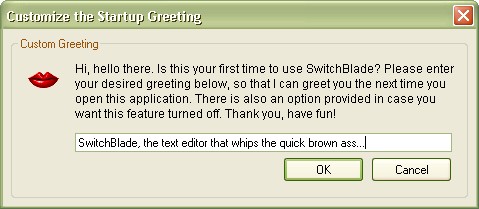
Sample
customize startup greeting dialog
---
Nothing follows --- |