Visitors
This example illustrates for downloading AIM (Click here to download AIM.)
1. In File Download window, click "Save this program to disk",
then click OK (Figure 1).
Note: If you don't want to save the file
for later use or backup, click "Run this program from its location"
and click OK. The software will be downloaded and installed into
your computer, but the setup file will be deleted as soon as the installation
process is done. It's NOT recommended this way because you may need to
reinstall the software later for some reasons such as system crashed. If you
choose this way, go straight to installation step.
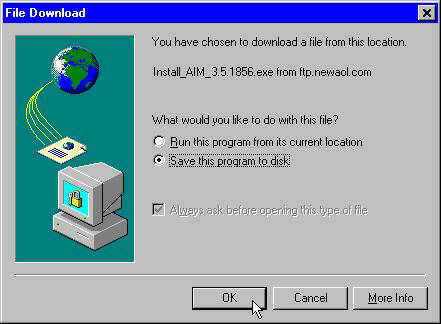
Figure 1
2. Save As window will pop up. Choose Drive C: by clicking the button of Save in (Figure 2a) and moving the mouse cursor to select Drive C: (which is C fujitsu (C:) in Figure 2b).
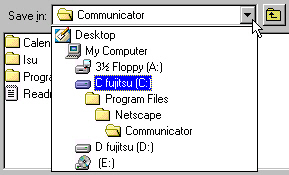
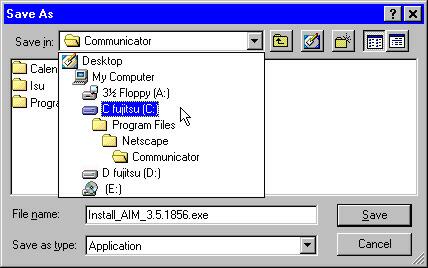
Figure 2a and 2b
3. Click the yellow icon (first row, the third one from the right in Figure 3) to make a new Folder.
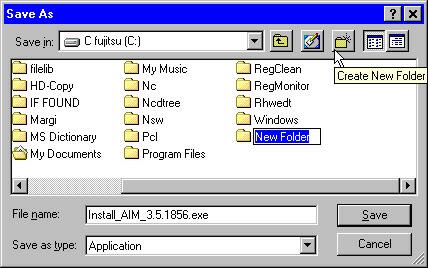
Figure 3