MS Excel Spreadsheet
Online Module
Lesson 2: Creating a New Worksheet
Section 2.2 - Entering and Changing Data in a Cell
A "cell" is the area where the column and row intersect. You may enter your data your data by selecting a cell. You can select a cell by clicking your mouse pointer on the cell. Type your data on the selected cell and move to the next cell to type another data. You can move to another cell by pressing the arrow keys on your keyboard or just by clicking the mouse.
If you want to replace the data you have previously typed, go back to the cell by clicking your mouse pointer on the cell you want to change.
There are two ways to change the data:
- Method 1. Once you are in the cell you want to change, double click the cell and when the blinking cursor appears, press backspace or delete and type your new data and press the enter key.
- Method 2. Once you are in the cell you want to change, click your mouse on the formula bar, press backspace or delete and type your new data and press the enter key.

Section 2.3 - Saving the Worksheet
Microsoft Excel provides many ways to save a file. It is important to know how each functions individually. New, edited and opened file may be saved for future use or for a succeeding action such as printing and modifying.
To save a worksheet, you can
- Step 1. On the Quick Access Toolbar, click Save button. or Click the File Tab and on the drop-down menu click the Save command.
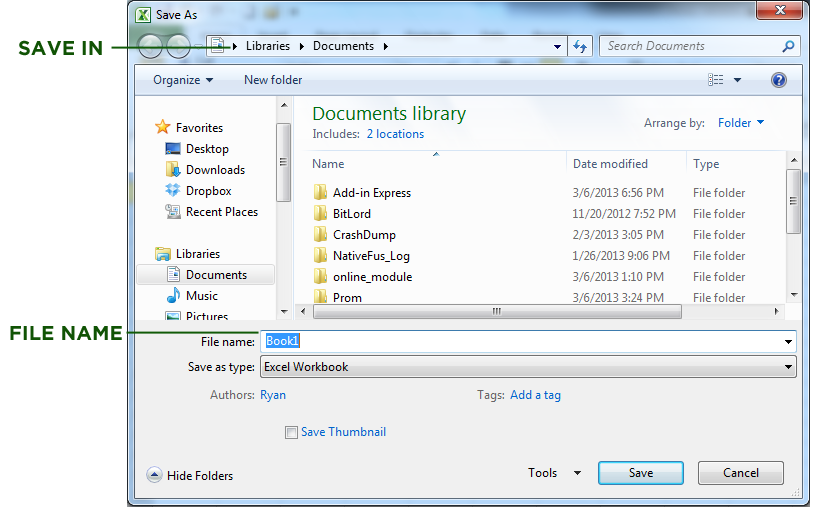
- Step 2. When you are saving a worksheet for the first time, the Save dialog box will appear. Click the drop-down arrow in the Save in box to select where you want to save your worksheet.
- Step 3. On the File name box, type your file name and click save.