Click
Pics above if you're looking for a safe way
to see the guts inside.
|
|
|
|
|
Click
Pics above if you're looking for a safe way
to see the guts inside.
|
|
Back
to the |
ePods-compatible software |
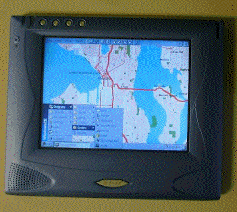
| Generally, most software which will run on Windows CE 2.11 or 2.12 compatible MIPS devices will work with the ePods, although not always. This page features a few ePods-tested applications which you'll enjoy. If you come across something notable you'd like to share, feel free to and I'll update the page! (Photo credit: "Saridnour" of course!) | |
|
Finally, the software for which the hordes have clamored... Here's your ticket to a full Windows CE shell (Start menu, working icons, soothing sea blue background, etc.), thanks to "Saridnour" from the Discussion Board. Remember that this is an artform in progress, and improvements are inevitable. Also, please note that the CE Shell hack does not substitute for the initial "Hack Your ePods" steps found on the initial page of this web site. Newbies should be advised that the primary "Hack Your ePods" modifications are mandatory, while the CE Shell hack (while exceptionally tasty) is optional. Your two choices: Basically you must choose between "Version 1.02 Easy" and "Version 2.04 Full." The bottom line is that both implement the full Windows CE 2.11 shell. The major difference is that V1Easy is easily undone. If you want to hard-reset back to the original ePods system from scratch and start over again, you can with V1Easy. With V2Full, on the other hand, resetting back to the original ePods system is a trying process. (Important: The gory restoration procedure can be reviewed in discussion board comments made by "jkgamer" here and in a great web site assembled by "KarmaPC" here. If you don't think you're capable of doing the soldering, etc., described by "jkgamer" and "KarmaPC," then you should probably stick with the safer V1Easy.) On the other hand, the major advantage to V2Full is its permanence and that it frees up about 2 more megs of precious memory space. Furthermore, V2Full will survive a hard-reset and includes several pre-installed games and utilities. Keep in mind, though, that those programs are readily available on the net for downloading and could easily be added to a V1Easy installation as well. Also, the Internet Explorer 4 add-on hack (thanks to "Smakz") works with either version. Which do I recommend? Well, if you are a relative beginner (and you decide what that means), then stick with V1Easy. If you are an experienced hand (again, your definition), then give V2Full a whirl. The major dangers to each? Well, V1Easy is an EXCEPTIONALLY safe a method for implementing a full Windows CE shell on your ePods, because you can always just do a simple hard-reset and your original ePods is back and good as new. With V2Full, on the other hand, if you have a stroke of bad luck and a file becomes corrupted as you're transferring it over, you've got trouble. Either hack offers untold Windows CE bliss. It's your call. |
|
|
Quick 1.02 upgrade note: Version 1.02 Easy cleans up a few registry anomalies introduced by your guilty webmaster when he tested and posted the original file. If you have previously installed the original Version 1.0 Easy, just download the revised registry file and import it as you did in Step 5 below the first time around. Bingo, you're done! It's a 10 second upgrade. Caveat: Since all you are modifying is your Windows folder with Version 1.02 Easy, a hard-reset (pressing the power button while inserting the stylus in the little reset hole on the back) will restore your unit to like-new condition. The bad news is that you'll have to reinstall any add-on software you may have acquired such as the handwriting recognition application. The good news is that your level of risk is quite low if you follow these instructions to the letter. No CF card needed for 1.02: An email from "eggplant" shares his good news that he was able to implement 1.02 without using a Compact Flash card. Here's what he had to say: "It is possible to do the v1.02 hack *without* a CF, for those people who want to try it. I've been able to do the hack, plus add in the calligrapher software (excellent!), plus a few games. So far, everything works!" Ok, so here goes : Step 1. Using the "filestor.exe" application (found in the \windows subdirectory), delete all files ending with ".bmp" and ".html" from the \windows subdirectory (with the exception of the "wait.html" file). Do not remove files ending ".2BP" or anything else at this point. By removing these files, you're freeing up some memory space, which you'll need. Wait, hold the phone! What do those deleted .BMP and .HTML files do in the first place, and will they come back with a hard reset? Well, yes, they do come back: When you do a hard-reset, the ifc.exe program copies those exact files from the \ePods System\ifc subdirectory back to the \windows subdirectory. (That's why the Version 1.02 Easy CE shell hack is so safe in the first place -- we aren't tampering with the \ePods System folder at all in Version 1.02 Easy.) The .BMP and .HTML files are help files for the original ePods shell interface and are fairly irrelevant to the new CE shell and in any case are no longer worth the precious space. Step 2. Next, download the Tascal Registry Editor program here. In this file (registry102.zip), you'll find both the application (tascalre.exe) as well as the required registry file (aaaa.reg). Unzip the archive and transfer the two files over to your ePods any way you like. Step 3. Better safe than sorry, so back up your existing registry settings by doing this: Double click the Tascal Registry Editor and select "Export Registry File" from the File menu. Give it a name like "bakreg" and move the file to your Compact Flash card (or somewhere other than the somewhat-temporary \windows subdirectory which would get rewritten if you had to do a hard-reset. DO NOT import the new registry file which was downloaded along with the Tascal application quite yet. Quit the Tascal Registry Editor. Step 4. Download the necessary files by clicking here (files102.zip). Unzip the archive and copy all 20 included files using your preferred method to the \windows subdirectory on the ePods. (Important: Do NOT use ActiveSync to copy these files directly into your \windows subdirectory because you'll get a "file in use" error. Instead, copy the files to your Compact Flash card or to another folder on your ePods, then use filestor.exe to then copy the files to the \windows final destination.) If asked if you would like to overwrite existing files, answer "yes to all." Keep in mind that you are copying almost 2 megs, so it will take around 2 minutes or so. Wait, didn't this archive use to have 22 or 23 files instead? Yes, it did, but we've discovered that a few of the files were already there, so there's only 20 now. One more question... I can't see all the files on my PC after I downloaded the archive! What do I do? Your desktop PC is evidently set to hide certain files, so you need to set your PC to "view all files" this way: With the file explorer window open, click the View menu, then click the choice labeled "Options...", then click the "View" tab at the top, and finally click the "Show All Files" button and then "OK" to close the dialog box. You should then see all files. Step 5. Open the Tascal Registry Editor application again. Select "Import Registry File" from the File menu. Then select the new registry settings file called "aaaa.reg" and click OK. This will take a few seconds to import but will let you know when it's completed. Once done, quit the Tascal application again. Step 6. Do a soft-reset. Remember that a soft-reset is when you simply insert the stylus point into the little reset hole on the back of your unit. (Do not hold the power button at the same time, because that's a hard-reset and you'll lose your changes.) Step 7. Voila! You're looking at the Windows CE desktop! Uh-oh, you can't click the Start button! To correct this, you need to re-calibrate your touch screen. Hold in the TOP TWO LEFT BUTTONS (power and Explorer logo) to bring up the calibration screens. After you've re-calibrated, you're practically there! Click the Start button! Step 8. To access "brightness" and "contrast" again, double-click the "ezex.exe" application in the \windows subdirectory. You may want to put an alias to that in a more convenient place, perhaps the Start menu (see Step 10). If you would like a desktop "My ePods" icon that actually looks like an ePods rather than a folding PocketPC, replace the "CESHELL.DLL" file in both your \windows and \ePods System\ifc subdirectories with the file in this archive (ceshell.zip). (That file is protected on the ePods, so you'll need to access its properties and uncheck "Read-only.") Step 9. To reenable the LED which lights up when you're online, copy the "NetDetect.exe" file (in the \windows subdirectory) and paste an alias to it in the \windows\Startup subdirectory. This important tip courtesy of "Glitch" and "Groch"! Step 10. The entries on the Start Menu are configured by putting aliases to applications in the \windows\programs subdirectory. Enjoy! |
|
|
Notes about the new releases: Version 2.04 Full enables the red LED that lights up whenever you're online. Version 2.03 included a more visually pleasing background screen appearance. Version 2.02 added the Ezex.exe file and revised the "My ePods" desktop icon to indicate a web slate rather than a folding H/PC. Beginning with Version 2.02, dummy files were also added into the required empty subdirectories so that WinZip would preserve the exact directory structure when the archive was expanded. For those who need to upgrade only: To upgrade from a successful Version 2.00 installation to 2.02, download the Ezex.exe utility here, place it in your \windows subdirectory, and make an alias to that in your \windows\programs\system subdirectory; next, download the new "CESHELL.DLL" file here and replace the corresponding file in both the \windows and \Win_CeFiles\IFC subdirectories (which gives you the new "My ePods" desktop icon), then soft-reset. To upgrade from a successful Version 2.02 installation to the more visually pleasing 2.03, click here. Finally, to upgrade from Version 2.03 to 2.04, which enables the online indicator LED, click here.) If you're on the upgrade track, it is obviously best to do each one in order since certain aspects of one build may depend upon previous improvements. Caveat: If you're attempting Version 2.04 Full, then I'm assuming you're an experienced old hand here. For that reason, I won't define terms like "hard reset" as we go. If you have trouble understanding what to do, then you would be better served sticking with Version 1.02 Easy above. Finally, review the paragraph titled "Your Two Choices" above. That said, these are the steps for a fresh 2.04 installation (not an upgrade, i.e. the whole enchilada): Step 1. Hard reset your ePods unit to ensure a stable build. Note that the original "Hack Your ePods" modifications from this web site's front page (killing the password screen, enabling ActiveSync, etc.) will remain even after a hard reset, so you won't need to go through that again. Step 2. Download the necessary file archive by clicking here (files204.zip). This archive contains several subdirectories containing many files. Do not change the way these files are arranged within their subdirectories. This is critical. The archive also contains the new registry (filename: v204.reg). INVISIBLE FILE NOTE: Make sure your desktop PC is set to "view all files" or else you won't be able to work with all the files in the archive. Set your PC to "view all files" this way: With the file explorer window open, click the View menu, then click the choice labeled "Options...", then click the "View" tab at the top, and finally click the "Show All Files" button and then "OK" to close the dialog box. You should then see all files. Step 3. Here's where things get frightening. Delete EVERYTHING from inside your \ePods System subdirectory on your ePods unit. I'm assuming you understand the full implications of this potentially coma-inducing act. Keep in mind you are NOT deleting the "ePods System" folder itself (only its precious contents). After you have deleted the contents of this subdirectory, go immediately to Step 4. FILE DELETION NOTE: Every file in the \ePods System subdirectory is protected. For that reason, you have to do a few acrobatics to delete these files and folders. You could, of course, select every file in each of the subdirectories (one file at a time) from within the Filestor application and then click "Properties" from the "File" menu and uncheck the "Read-only" attribute before clicking OK. Once all files have been unprotected, you could then simply select everything and delete as usual. It takes about 10 tedious minutes to complete the task this way. If you are at least somewhat comfortable with DOS commands, open up the cmd.exe application in the \windows subdirectory. Then type the command to change to the \ePods System subdirectory (cd epods system); then type the global unprotect command (attrib -r -s -h /s *.*). Now quit the cmd.exe DOS shell program, and then delete the files and folders inside \ePods System using Filestor. (Kudos to "Fantasy" and "humphery" for detailing the DOS method.) Finally, "nhavar" and others have reported success deleting files and folders from the ePods using their ActiveSync connection with the desktop PC. Step 4. Transfer the contents of the archive you downloaded in Step 2 to the \ePods System subdirectory you just purged in Step 3. The \ePods System subdirectory should be layed out EXACTLY as the contents of the archive are arranged. Change nothing. Even transfer the "v204.reg" registry file to the \ePods System subdirectory just as you saw it in the archive alongside the subdirectories. Step 5. If you are prompted to reset at this point, don't do it yet! You absolutely need to import the registry file first. Now launch the Tascal Reg Edit.exe program located in the \ePods System\Program Files subdirectory. From the File menu, select "Import Registry File" and import the "v204.reg" file you placed in the \ePods System subdirectory. After a brief period, the program will inform you that you're done, so click "OK" and then quit the Tascal Registry program. IMPORT ERROR NOTE: Thanks to "Goalkeepr" for this tip... If you get a "Print()" error when attempting to import the v204.reg registry file, reimport it again (and again) until it imports completely without error. Then, Goalkeepr adds, go ahead and import once or twice more. Don't worry, you won't be creating duplicate key entries, since each key can only be imported correctly once. Then do a soft-reset. And finally do a hard-reset. Now you're set. Step 6. Do another soft-reset. Ta-da! You should now be viewing the blue screen of the Windows CE shell. If you do not yet see the blue screen, try cycling through one or more times -- i.e., reimporting the reg file, doing a soft reset, then if no blue screen another hard-reset, and repeat cycle as needed. (If you have a white screen, click the Start menu, then Programs, then Systems, to navigate to the Tascal Registry Edit program in order to reimport the reg file again. A blue screen at any point in the cycle signifies success, so stop!) Since the "ifc.exe" program is doing a lot as part of this hack (renaming folders, moving files, etc.), it looks like cycling through more than once completes the task every time that I've heard so far, so cycle a few times if needed. After you do see the blue screen, you MUST recalibrate your screen by pressing the two top-left hardware buttons on the ePods unit. This brings up the calibration routine, so finish that out with your stylus. Step 7. It's likely that the red LED indicating online status (at the top-left of the unit) remains on now, even though you've obviously not yet signed onto the net. That's because the "NetDetect.exe" program needs to be cycled once. After you have signed onto the net, then signed back off, the LED will go out and subsequently only indicate when you've logged back online. You can do that now or later. Step 8. Here are a couple of configuration reminders. First, to access "brightness" and "contrast" again, select the "ezex" application now found on the Start menu under Programs, then System. (Anyone who needs to download this file only can click here.) Second, the entries on the Start Menu are configured by putting aliases to applications in the \windows\programs subdirectory. Step 9. Configure your mouse cursor. You probably noticed that the standard windows arrow and hourglass cursors now appear on your ePods. If you plan to use the unit with a desktop USB keyboard and mouse most of the time, then you certainly want to retain the cursor. If, on the other hand, you plan to use the stylus, then you can disable the cursor this way (thanks, "AndyP"): Open your registry editor program again. Double-click "HKEY_LOCAL_MACHINE," then "Drivers," then "Display," and finally double-click "PLUM2." Now, on the right-side of your screen, double-click the "CursorEnable" entry (usually the first in the list). In the resultant dialog box, change the data value from "1" to "0" (without the quotation marks I use here). Then click OK to save, quit the registry program, and do a soft-reset. Ta-da! No more on-screen cursor! Step 10. Congratulate yourself. You're finished. Enjoy! |
|
|
Note: This is Preliminary Version 1.0 of the IE 4 browser, thanks to "Smakz" from the Discussion Board. Bookmarks aren't working yet in this release, but it won't take too long for Smakz to fix that, and we'll post the upgrade here. Regardless, this browser is fully functional and renders pages more accurately and more quickly than does the browser utilized in either of the CE shell hacks described above. Keep in mind that the CE shell hacks use IE 3, a clunkier release. It is also worth noting here that the original ePods system uses a derivative of IE 4. However that ePods version can't open multiple browser windows like IE 3 and 4 can. So you're faced with another dilemma. Once again, it's your call. TIP: Rather than REPLACING IE3 with IE4, install BOTH of them. In that case, simply copy the IEXPLORE.EXE file from the archive (downloaded below in Step 1), rename it IE4.EXE, toss it in your \windows subdirectory, and then make a convenient alias to it on your Start menu. Don't worry about the other sound files in the archive, and don't import the included registry. Then, when you feel like using IE4's superior browser, although unfortunately without boomarks, you can. Or, you can use the regular IE3 browser for usual surfing. If you do choose to install both as described in this paragraph, then DON'T follow Steps 2, 3, or 4 below. However, if you DO choose to install IE4 INSTEAD OF IE3, again without bookmarks, follow these steps (not recommended, but here for those pioneers who believe they can fix the bookmarks): Step 1. Download the necessary files by clicking here (ie4epods.zip). Step 2. If you are using Version 1.0 Easy, put all unzipped files from the downloaded archive into your \windows subdirectory. If, on the other hand, you are using Version 2.0 Full, put all unzipped files into the \Win_CeFiles\ifc subdirectory. Step 3. Open the Tascal Registry program and import the ie.reg file from the archive. Step 4. Do a soft-reset. We'll see a full implementation of IE4 with bookmarks sooner than later, I believe! |
|
|
Speaking of a better implementation of IE4 bookmarks, "PTCheezer" has accomplished a great workaround – not to mention a complete graphical overhaul of the ePods desktop in the style of Windows XP! (I've also covered this on this site's Fun page because it's so cool, so pardon the redundancy.) After you've installed the full Windows CE shell hack described above, consider making over your ePods in the style of Windows XP (if you like WinXP, of course). The terrific ePods1XP web site is a definite must-visit. Wait, before you do the ePods1XP hack, heed this all-important tip: If you do my v2.04 hack first (per this page), then make sure you subsequently put the ePods1XP hack files in the \Win_CeFiles subdirectory rather than the \ePods System subdirectory. This is absolutely critical. Note this discussion board thread as well. This wonderful hack works if you apply it correctly! |
|
|
"Mix" has set up a wonderful ePods Software List page which lists ePods-compatible Windows CE software. This is a must-visit and must-bookmark site. Also, don't forget to keep him posted about your new compatible software discoveries! If you find that certain software doesn't run but should, you may need one of these DLL files in your \windows subdirectory. Try one or more, but watch your storage and memory contraints: MFCCE20.DLL, MFCCE211.DLL, OLECE20.DLL, or OLECE211.DLL. Unzip files right on your ePods unit by downloading the freeware Pocket Unzip here. The documentation for the file can be viewed here. Thanks, "New2CE"! Need a spreadsheet that opens and saves Excel files? Click here for the SpreadCE shareware program. Although it is shareware, it is completely unrestricted and practically as capable as the desktop Office releases of Excel. You can unzip the SpreadCE archive right on your ePods (see above paragraph) and run it without having to install anything with ActiveSync. Play the ePods version of Doom. Click here for information. You'll need to unzip the archive, put the file ending with ".wad" in your \my documents subdirectory, and then put the actual game file "doom.exe" wherever you like. (You can run both from your Compact Flash card, but make sure you create a \my documents subdirectory on your CF card for the ".wad" file.) Make sure you download the "MIPS" version. Voice Recorder software is right here! This great audio utility was released into the public domain by Microsoft (it's called Voice Recorder 1.0) a couple years back. This will turn your ePods into one of those fancy digital memo-taking machines. The file must be downloaded to your desktop PC and installed to your ePods with ActiveSync. Microsoft has since removed this file from their site, hence the mirror, but note that this version of the file was indeed released into the public winds, even though it's apparently no longer actively promoted. |
|