Quick Links






Quick Links |
|||||
|
|
|
|
|
|
Step 2 - Stripping extra streams and using Ifoeditor. Overview: We now should have about 5 or 6 files we ripped (in my example, to folder 1). There should be some .vob and .ifo files there. This step will explain some basic things about using ifoeditor to strip streams and extras. Since we are only doing the movie, we don't have to worry about messing around with a menu or anything, just straight up movie. We are also preparing our movie to be splitted, or transcoded, and creating new video_ts.ifo files and vts_01_0.ifo files. |
Programs required: -Ifoeditor -PowerDVD or WinDVD (to test movie files) |
| 1. Open Ifoeditor. Once you have ifoeditor opened, click the open button. We want to open the VTS_0X_0.ifo file we ripped to our harddrive (x = a 1 or 2 or 3, etc, depending on what movie you are doing), in my example the VTS_04_0.ifo in folder "1". | 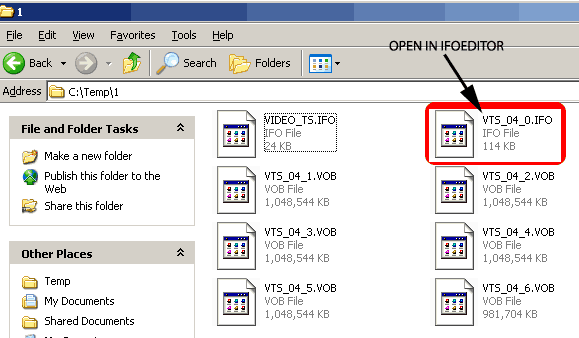 |
2. After you have the VTS_0X_0.ifo file opened in Ifoeditor,
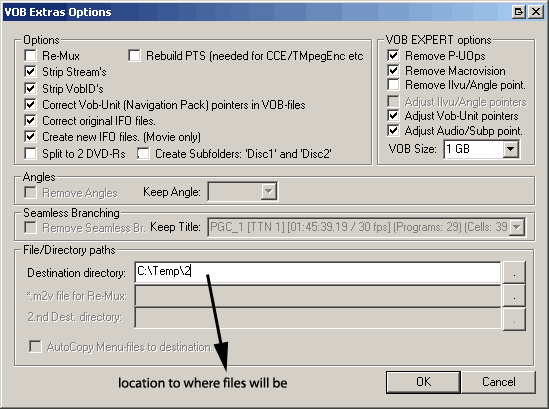
click the VOB Extras button. A new Vob options screen will pop up. We want to change the options to look like this (see right). For the destination directory, choose where you want to save the new files. (in my example, i will use folder 2, again to keep things easier i use new folders for each step). Then Click OK. |
 |
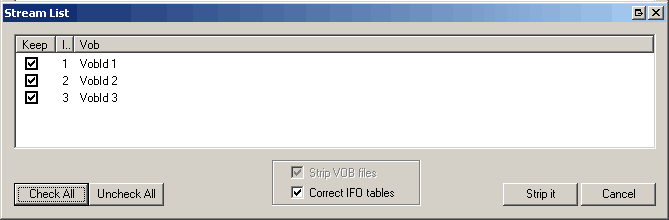
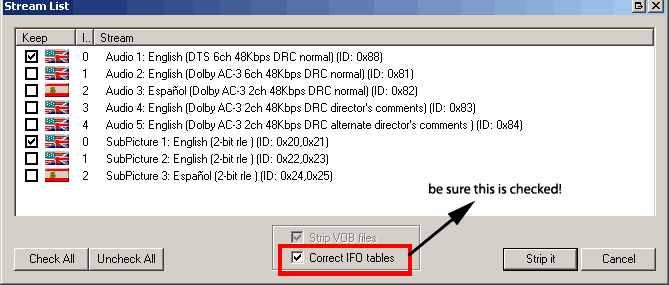
3. A new window will popup, tihs window lets you keep which ever audiostreams and subtitles you want. I only keep the main english audio and english subtitles. Just put a check next to the ones you want. BE SURE TO CHECK THE "Correct IFO tables" box.!! Then hit hit the Strip It button. |
 |
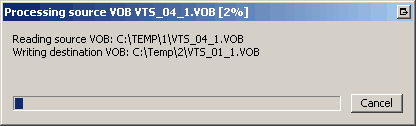
4. Another new window will popup, this lets you choose which VOB Cell IDS to keep. In my previous guides i advised to use VOBrator to analyze the VOBS but it is too much work and Vobrator is buggy with Windows XP so we will just keep all of the VOB IDS (put a check next to all of them). Make sure you have a check next to "Correct IFO Tables"! Then again hit Strip it. Ifoeditor will start stripping and processing the files, this will take about 15 - 20 minutes.
I saved the files to folder "2", we will test the movie with PowerDVD 4 by playing it from the harddrive (WinDVD works too). |
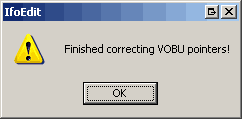
Says this when finished. |
| 5. Testing the movie with PowerDVD, just click the Open button, then choose "Open movie on Harddrive" and then browse to the folder were we saved the new stripped files (in my example, C:\Temp\2), open the VIDEO_TS.ifo file. Hopefully your movie will play. If not, you might have to re-strip the files or even re-rip the movie files your harddrive. | Lets move onto Step 3 - Splitting movie, transcoding movie, or using DVD2One? We will see if we can burn the stripped movie to DVD yet (if total file size of the vob and ifo files is less than 4.36GB, we can burn it to DVD, if its over that we need to decide on what we want to do: split the movie onto two disks, transcode the files using Rempeg, or use DVD2one to squeeze it down.
|
|
|
 |
|