|
|
|
|
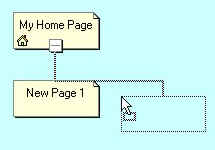
Now, lets link all of your saved pages together. This is where your left and bottom borders come into play. In the toolbar, click on "View" and then "Navigation. You will get a new window with file names on the left and a box on the right talking about navigation. Take the files on the left and drag them to the right side in the order you want people to surf your site. Lines will show up when you get close to a box to tell you how the navigation structure is working. Click HERE to see the entire navigation structure of this web site.
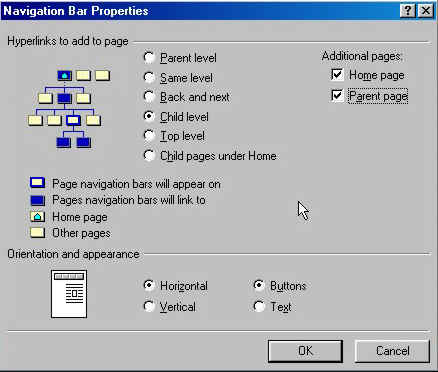
Once you have all of your pages in the order you want, click once in the left border of your home page to highlight the text the on the toolbar select "Insert" and then "Navigation Bar". You will the get a box that lets you setup your navigation bar.
Check the HOME and PARENT PAGE buttons if you want to have them on your page. At the "Hyperlinks to add to page," child level seems to work the best but play with this setting and see what suits your needs. Click the OK button when your finished, your new navigation bar will automatically be built in the left border. Now do the same in the bottom border. Check the "Text" radio button instead of "Buttons" to add a text only navigation bar to the bottom border.
|
| ||||||||
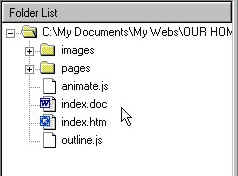 File names on left.
 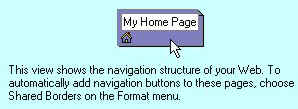 Navigation view on right.