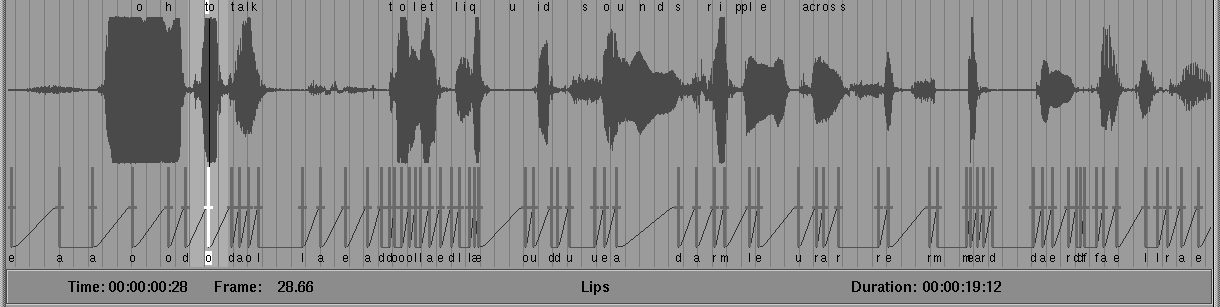
While you are still zoomed in on the beginning of the soundtrack, try editing the keyframe track.
Click-drag with the middle mouse button to select a small region that contains several keyframes. Click the Delete Key Region button to remove all keyframes in the selected area.
There are several ways to add new keyframes.
| You can also add keyframes using recognizers. Recognizers are discussed further along in this chapter. |
Select a keyshape in the upper window and double- click it. A keyshape appears as follows:
The selected keyshape appears as a keyframe at the meter's current location. The new keyframe is highlighted in white, meaning that it is the active keyframe as follows:
Select the Delete Key button to delete this keyframe. The keyshape in the keyshape display remains selected (it has a red border).
Press the Add Key button. The new keyframe is added at the meter's current location and becomes the active keyframe.
- select Edit  Delete Key to delete the keyframe.
- select Edit Add Keyframe with a keyshape active to add a keyframe.
- press the Ctrl button and D at the same time to delete the keyframe.
- press the Ctrl button and K with a keyshape active to add a keyframe.