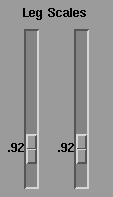
If the Reach Solution mode is used, additional limb scaling values are used to account for size and shape differences between the actor and the model. These scaling factors can be used to affect the overall ability of MotionSampler to match the actor's movement to the model.
To begin, adjust the limb scales to a value that approximates the relationship of the length of the actor's limbs to the computer model's limbs using the following sliders:
The best way to set the Arm and Leg Scales is to:
The following are clues to determine if the arms and legs require scale adjustment:
If the model's arm appears to be bent even when the actor's arm is straight, the scale is too small and needs to be increased.
If the arm appears to never bend or only bends a little when the actor's arm is fully bent, the scale is too large.
When the scale is correct, the model's arms bends at the same time as the actor's, although the rate of the bending may be different if the model's limbs are very different from the actor's.
If the model appears to bob up and down, or float when the actor walks, the scale is too large and needs to be decreased.
If the model's knees are bent all of the time, the scale is too small. Adjust the scale until the knees bend at the same rate as the actor's.
If you need to scale the model's body to match an actor's size, put the scaling value in the top (BASE) node of the dag node hierarchy. Scaling of this type is useful to adjust the overall size of the model to ensure accurate motion capture.
If the model is greatly different in size from the actor, you can scale the model for motion capture, then scale the captured data to fit the unscaled model. To scale the model in this way, find the inverse of the scale applied to the model for motion capture (1/scale). Multiply the translations applied to the BASE node by the inverse of the scale. Leave the rotations unchanged.