Once the motion capture stage has been built, the sensors have been attached to a motion capture suit, and the talent has been strapped into the suit, the process of calibration can begin. Calibration is done in real-time by adjusting a series of sliders and observing their effect on the model and its motion. Once the adjustment is complete, the talent information is saved for the next session.
MotionSampler accepts any number of calibrations for each talent because calibrations are defined by MotionSampler plugins.
Each plugin creates special calibration definitions that contain the specific information useful for that plugin. As more and more plugins require specific talent information, more calibration types are defined.
For example, the plugin called BipedTalent defines a calibration called biped. The biped calibration contains values that measure the positions and rotations of the magnetic sensors placed on a human talent's body. These values are edited using an interface provided by the BipedTalent plugin.
The Biped filter receives calibration information from the Biped Talent. The Biped Talent provides an interface that is used to calibrate the actor to the motion capture suit.
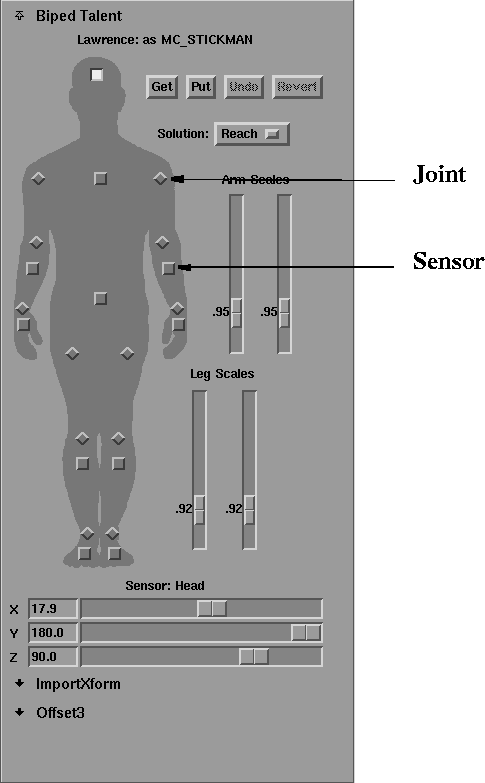
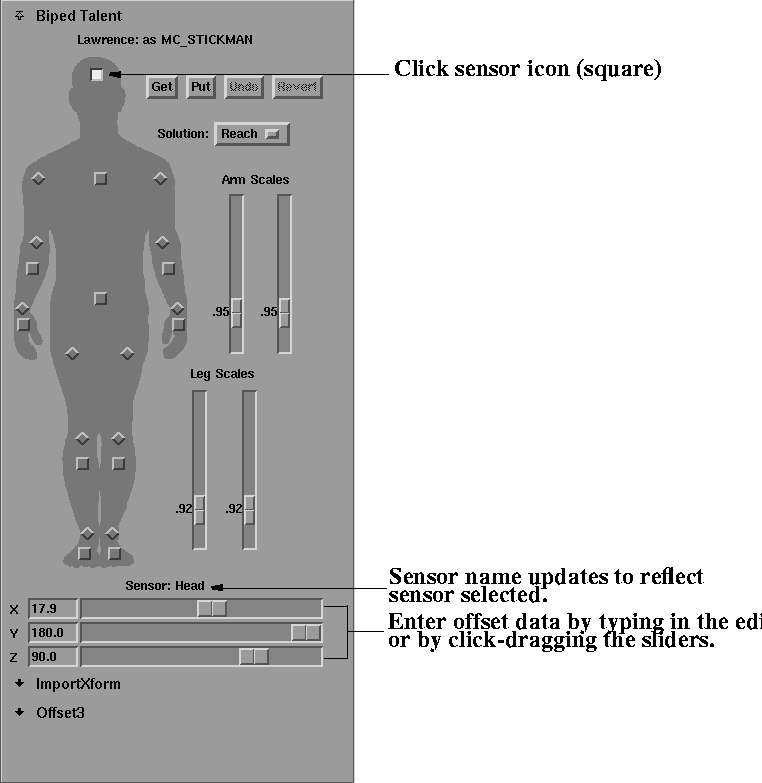
The Biped Talent section of the Toolbox, when either single view or four view mode is selected, presents an image of the human body with sensor and joint locations marked as follows:
On the image of the body, joints are marked with diamond buttons and sensors are marked with squares.
To begin calibrating a talent, information that may be on record for the talent is retrieved.
To retrieve the talent's information, click the Get button which appears as follows:
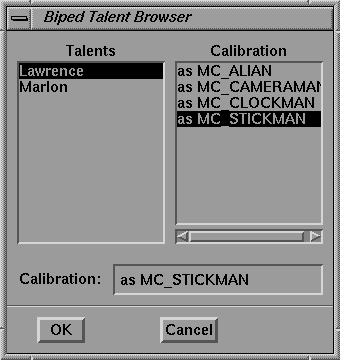
The Biped Talent Browser appears for you to select a talent file to retrieve. The Biped Talent Browser appears as follows:
Click on the name of the talent you want to retrieve. The name highlights as shown above.
If there is a previous calibration that you think is an appropriate starting point for the current motion sampling calibration, click on the name of that calibration. The name highlights as shown above.
Click the OK button and the values shown in the Biped Talent section update to show the talent and calibration you selected.
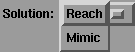
The Biped filter provides two Solution modes which are selected by clicking the button to the right of the word Solution, dragging to the mode you want to use and releasing the mouse button. The Solution pop-up menu appears as follows:
The Reach Solution mode attempts to place the model's hands and feet, called end-effectors, in the same three-dimensional location as the actor's. If the scale between the actor and the model differ significantly, the rotation angles on the arm and leg joints may also differ in order to place the hands and feet in the correct position. Therefore, the motion of the model may not appear the same as the actor's motion.
The Mimic Solution mode matches the actor's sampled joint rotation angles to the model's without regard for the final position of the hands and feet. The Biped Talent and filter provide scale factors for the Reach solution to better match the length of the actor's limbs with the model's limbs.
To rotate each physical sensor into the coordinate system of the virtual sensor, a rotational offset is determined.
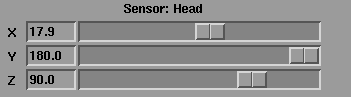
The rotation values for each sensor are accessed in the Biped Talent calibration interface by clicking the squares on the human figure that represent the sensors. The X, Y, Z sliders and their label update for the specific sensor information as follows:
Select each sensor and set its X, Y, and Z rotation values to the default as listed in the initial model position section using the sliders or by clicking on the number in the edit field, entering a new number and pressing Enter.
| See the Initial Model Position section for a chart of the default initial joint rotations. |
To convert the incoming sensor data into the coordinate system of the virtual sensor, a matrix is constructed by MotionSampler using the three supplied rotational offset values.
The equation for this operation is:
M2 = XR * YR * ZR * M1
| MotionSampler does these calculations internally and in real time, but because calibration can be complex, the information about the equation is provided to help you understand the underlying mathematics of the Biped filter. |
If you enter a value or slide a slider and then decide that the previous value was better, click the Undo button.
The slider and the value in the edit area return to the previous value.
The Undo button only returns values to the last value shown and only affects the last change made. When the button is not available, it appears grayed out.
If you have made many changes and then decide that the original values were better than any changes you have made, click the Revert button which appears as follows:
The sliders and the values in the edit areas return to the settings you originally loaded for that talent at the beginning of the calibration session.
| The Undo and Revert buttons only affect the sliders in the Biped Talent area, not the sliders in other interfaces stacked above or below the Biped Talent. |
For each joint, an offset value is determined. The offset value is a reflection of the size of the actor in the suit, not the computer model. The offset values are calculated in terms of the default sensor orientation, as described above.
Measure the appropriate joint position offsets on the actor's body by measuring from the center of the sensor to the center of the joint's rotation point. These measurements are subject to some level of judgement, especially in relation to the shoulder. The relationship of joints to sensors is as follows:
The following diagrams illustrate the above relationships.
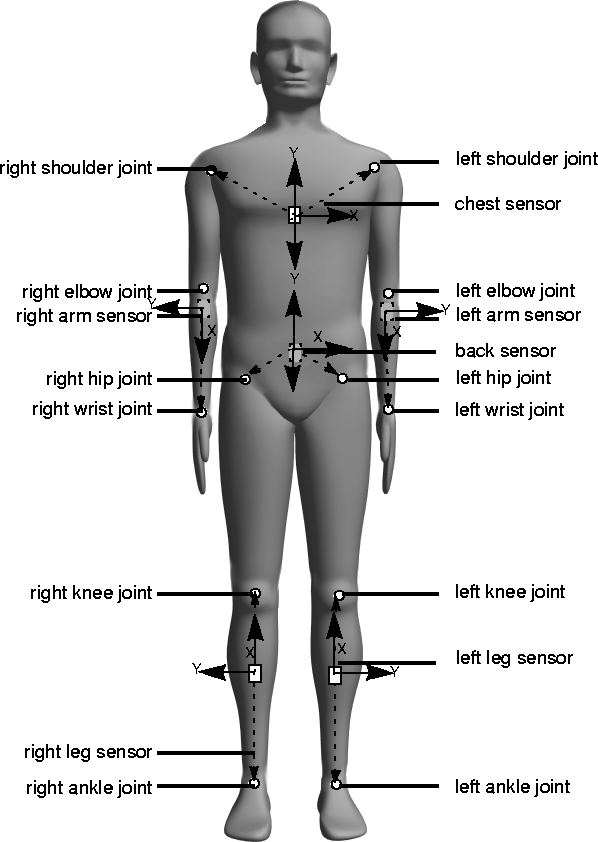 offset_position Measurements, Front View
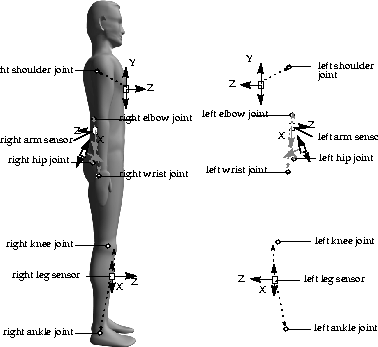 offset_position Measurements, Side Views
For each sensor, click the square representing the sensor on the image of the body in the Biped Talent interface and enter the offset data in the slider area directly below as follows:
Click the Sample button in the shuttle bank to begin calibrating the talent.
Your model will begin moving as the talent moves.