The pipeline editor mode is opened by selecting Pipeline  Edit Pipeline or by clicking the pipeline editor icon below the shuttle.
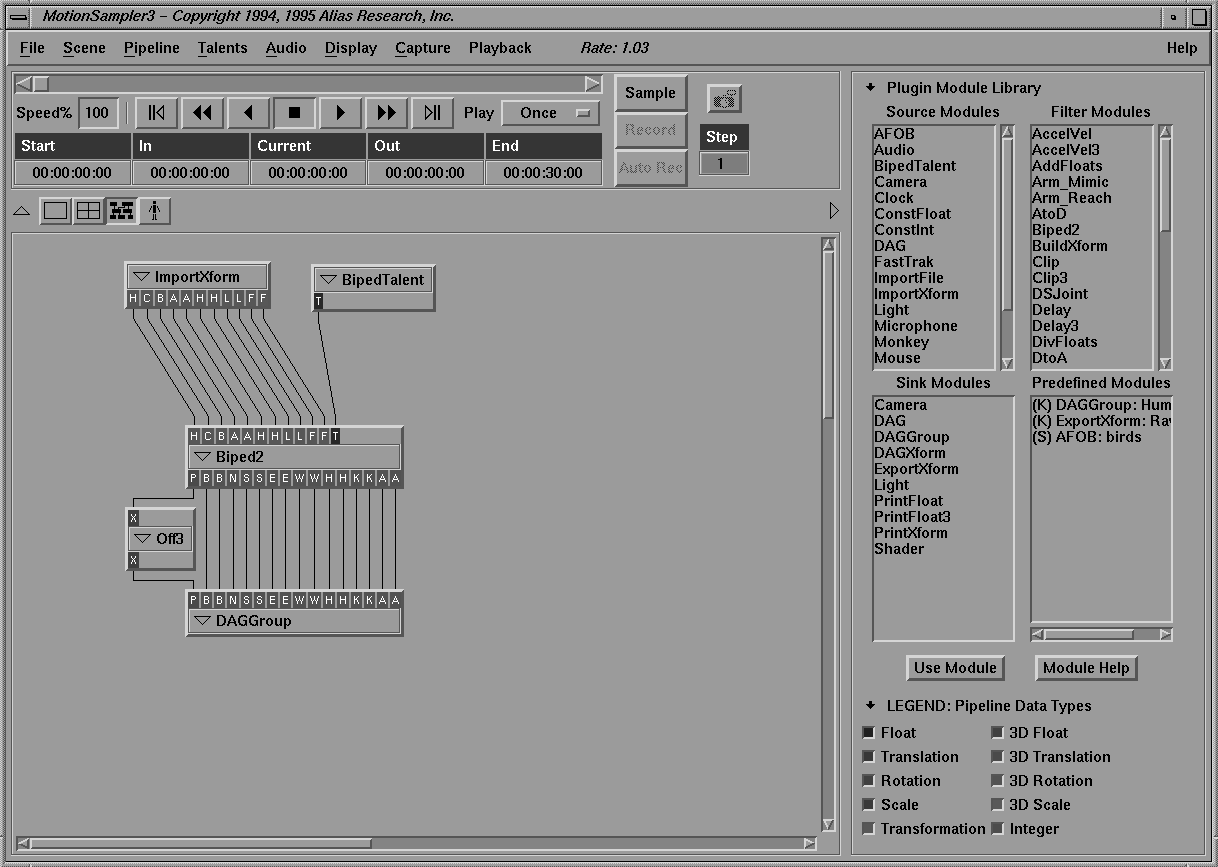
MotionSampler appears different in pipeline editor mode than in single or four view mode as you can see below:
When the pipeline editor mode is active, the Camera menu, the 3D view buttons, and the view controls are not available. The view/edit area is occupied by the Pipeline Field, and the toolbox contains the Plugin Module Library. The shuttle remains the same.
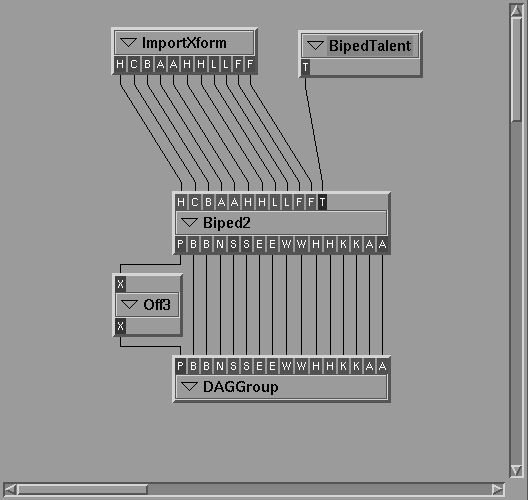
The pipeline mode view/edit area is referred to as the Pipeline Field and appears as follows:
The pipeline field presents a schematic diagram of the current pipeline.
Pipelines can be created in the pipeline field by laying out module tiles from the Plugin Module Library and connecting the inlets of some modules to the outlets of others.
Connections are made from module outlets to module inlets and describe pathways, called pipelines, for data to move through. Data moves from the top of the pipeline to the bottom.
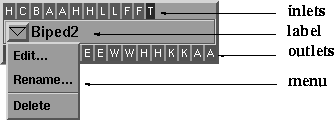
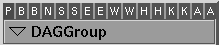
Each module in a pipeline is depicted by a module tile. A module tile consists of some or all of the following components:
Each module tile can be moved around in the Pipeline Field by clicking and dragging on the module tile label. You must click on the label of the tile, not on any outlet row or any blank sections of an inlet row.
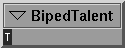
Source modules with no inlets do not have an inlet row as follows:
Likewise, Sink modules with no outlets do not have an outlet row as follows:
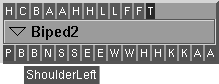
Each colored rectangle in an inlet or outlet row contains the first letter of the name of the inlet or outlet. Clicking on an inlet or outlet port displays its full name as follows:
A module tile's option menu is opened by clicking on the triangle icon in the tile and dragging down to the option you want. The commands in the menu are explained as follows.
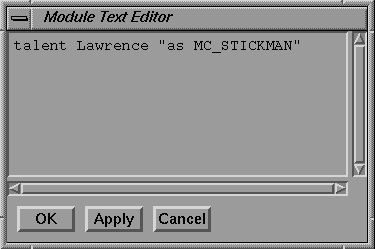
Selecting Edit... opens the Module Text Editor which appears as follows:
In this window, you can edit the text description of the selected module.
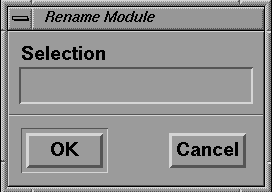
Selecting Rename... opens the Rename Module window which appears as follows:
The Rename Module window is used to rename modules. This command is used when a plugin uses module names as special parameters. For example, the DAG Sink Module plugin expects the module name to match the name of a dag node in the scene.
Selecting Delete disconnects all of the inlets and outlets of the module, removes the module from the pipeline, and deletes it from the pipeline field. A confirmation window is displayed to verify the module to be deleted. The confirmation window appears as follows: 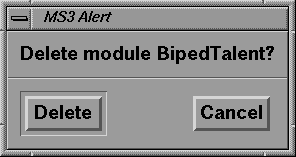
When in pipeline editor mode, the toolbox contains the Plugin Module Library and the Legend.
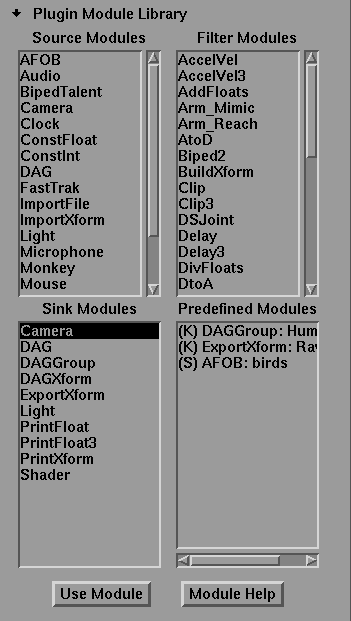
The Plugin Module Library provides access to the plugin modules you have available to use in the pipeline. The Plugin Module Library appears as follows:
The available plugin modules are displayed in four lists according to their type: Source, Filter, Sink, and Predefined.
The predefined list is a convenient way to add pre-configured modules of any of the other three types and is useful for categorizing modules with complex parameter sets.
You can do two things with the lists in the Plugin Module Library:
To hide the Plugin Module Library, click the solid arrow that points down beside the name "Plugin Module Library."
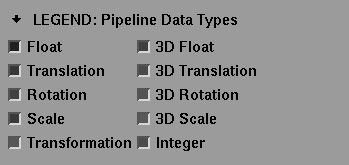
The color coding of the inlet and outlet rectangles on module tiles is explained in the LEGEND. The LEGEND is located under the Plugin Module Library and appears as follows:
The LEGEND provides information about the data type used by each inlet and outlet on the module tiles and associates a color with the data type. An inlet and an outlet must be compatible for you to join them. Therefore, the compatible inlets and outlets are the same color.
To hide the LEGEND, click the solid arrow that points down beside the name LEGEND.