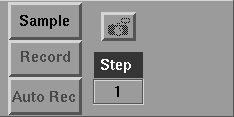
To the right of the main block of the shuttle bank are buttons that control the sampling part of MotionSampler and which appear as follows:
If you select the Sample button, MotionSampler begins sampling the modules configured in the current pipeline. If the pipeline is constructed to animate objects in the scene, the objects move in the view/edit area in response to changes in the devices being sampled. However, none of the sampled data is saved.
With the Sample button still selected, click the Forward playback button in the shuttle and any recorded animation or any animation contained in the wire file play back in addition to any sampled data.
The Record and Auto Rec buttons are similar. Record and Auto Rec both sample the pipeline devices and save the data.
If the Auto Rec button is selected, samples taken when the shuttle is between the In and Out time values are saved. This is useful if there is a specific gap in time where you want to insert animation without touching values before and after the gap. If the shuttle time is not moving, the data is recorded over and over to the same location.
If the Record button is selected, the shuttle begins playing forward if it was not doing so already. The sampled data is recorded using the current time of the shuttle to determine where to record the sampled data. If the shuttle is moving slowly, the recorded motion appears fast when played back at normal speed.
To stop recording and return to the sampling mode, click the Record or Auto Rec button. Click the Sample button to deselect it and stop the sampling.
Usually, devices in the pipeline are sampled faster than MotionSampler can render a whole scene. Therefore, there may be three or four samples taken in the time it takes MotionSampler to draw one scene. MotionSampler fully evaluates each pipeline once for each time the scene is drawn. Obviously, many sample slices are ignored this way. However, their values are accumulated during the recording. In this way MotionSampler prevents scene complexity from affecting the frequency of sampling.
When you are finished recording, MotionSampler evaluates the full pipeline once for each sample to consider each sample value when the data is inserted into the animation channel. Because of these evaluations, MotionSampler pauses when recording is stopped.
The Snapshot button appears as follows:
If you click the Snapshot button when MotionSampler is sampling, one frame of animation is recorded to the current time location of the shuttle. After taking the snapshot, the shuttle moves ahead by the amount specified in the Step value.
The Snapshot button is useful for sampling motion from poseable armatures as follows:
| The Record, Auto Rec, and Snapshot buttons appear grayed out when MotionSampler is not sampling or recording. Record and Auto Rec can be selected only if Sample has already been selected. This allows motion capture hardware to begin sampling and avoids having a pause at the beginning of the recording. |
The Step edit field appears under the Snapshot button as follows:
The Step value indicates the number of frames for the shuttle to move ahead between animation samples.
The Step edit field is only for use with Snapshot mode or when using the
Capture  Calculate IN/OUT function. Calculate IN/OUT function.
|
To change the Step value, click on the number in the edit field. The number highlights. Type the new value and press Return.