The Shuttle Bank, located just below the menu bar on the left half of the main window, contains the interface used to control animation playback and motion data sampling.
The shuttle controls frame time interactively in the same way as the controls found on most audio and video tape recording devices.
MotionSampler stores animation data internally in structures called channels.
To preview animation, MotionSampler:
When recording, the shuttle samples data from the pipeline and inserts this data into the animation channels at a time-slice chosen with the shuttle.
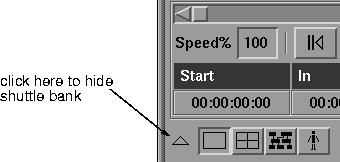
Tip: The shuttle bank can be hidden from view if you want MotionSampler to devote more screen space to the view/edit area.
| Clicking the outline arrow icon hides the shuttle bank. The arrow icon points up when the Shuttle is open and down when the shuttle is hidden. The arrow appears as follows when the shuttle bank is open: |
The slider at the top of the Shuttle Bank is used to position the current time of the shuttle bank anywhere in its range setting. The shuttle appears as follows:
If you drag the slider knob, the 3D views in the view/edit area update to reflect the changes in any animated parameters. If you click on the arrow buttons at either end of the slider, the time value advances by one frame in that direction. Clicking in the shaded area to either side of the slider knob advances the time value by one second in the selected direction.
Below the slider is a row of seven buttons that control the major shuttle functions. These buttons appear as follows:
When one of the above buttons is selected, it appears recessed. Clicking the same button twice is like selecting the Stop button.
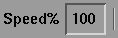
To the left of the bank of playback buttons is an edit field labeled Speed % which appears as follows:
The value in the edit field controls the playback speed of motion captured data. The value is adjustable from 1 (meaning 1% normal speed) to 999 (meaning 999% times normal speed).
| The figure in the edit area does not represent frames per second. MotionSampler keeps track of its data in terms of time, not frames. |
Setting the value to 50% causes 1 second's worth of motion capture to play back in 2 seconds, but does not affect the number of frames that are played back in a second.
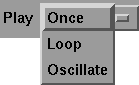
To the right of the playback buttons is a menu labeled Play:
The Play menu controls the way the shuttle repeats the time range that is set. The default setting is Once.
Once the shuttle plays through its range once and stops when it reaches the start or end depending on the direction of playback.
Loop the shuttle plays through its range over and over again in the same direction.
Oscillate the shuttle moves from the beginning to the end of the shuttle range and then from the end to the beginning, over and over.
The shuttle's time values are displayed below the shuttle bank as follows:
The words above the values are buttons which can be used to move the shuttle to the value indicated below the button. The meanings of the buttons are as follows:
Clicking on Start, In, Out, or End moves the shuttle to the location of the corresponding time value.
Each time value can be edited directly. To change the value of Current time, for example, click on the time value. The area around the selected time value becomes black and the value becomes grey. Type in the new time value, you do not need to type in the colons or spaces, but you can if you like. Press Return. The new time value is displayed.
You can also type an integer to set a timecode to the equivalent number of frames. For example, type -1 to set the value to 23:59:59:59, or type 30.. or 30:: to set it to 00:30:00:00.



 Go To Start.