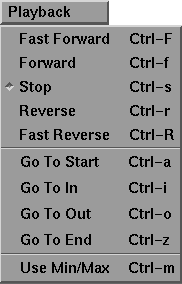
The Playback menu appears as follows:
The menu options are selected by dragging down until the option you want is highlighted.
The Playback menu contains commands for playing back animations and sound tracks. Many of these commands can be activated more directly using the shuttle bank. These commands are used when the buttons in the playback shuttle are hidden.
The options in the Playback menu also have keyboard shortcuts.
Selecting Fast Forward begins playing the shuttle at fast forward.
Playback at fast forward is 25% faster than the normal forward speed. If the shuttle is already playing at fast forward, selecting Playback  Fast Forward is the same as selecting Playback Stop.
Selecting Fast Forward is the same as clicking the following button on the shuttle bank:
Selecting Forward begins playing the shuttle forward at normal speed.
If the shuttle is already playing forward, selecting Playback Forward is the same as selecting Playback Stop.
Selecting Forward is the same as clicking the following button on the shuttle bank:
Selecting Stop stops the shuttle playing back.
If the shuttle is already stopped, this command does nothing.
Selecting Stop is the same as clicking the following button on the shuttle bank:
Selecting Reverse begins playing the shuttle backward.
If the shuttle is already playing in reverse, selecting Playback Reverse is the same as selecting Playback Stop.
Selecting Reverse is the same as clicking the following button on the shuttle bank:
Selecting Fast Reverse begins playing the shuttle backward.
Playback at fast reverse is 25% faster than the normal backward speed. If the shuttle is already playing at fast reverse, selecting Playback Fast Reverse is the same as selecting Playback Stop.
Selecting Fast Reverse is the same as clicking the following button on the shuttle bank:
Selecting Go To Start moves the shuttle directly to the Start value.
Selecting Go To Start is the same as clicking one of the following buttons on the shuttle bank:
Selecting Go To In moves the shuttle directly to the In value.
Selecting Go To In is the same as clicking the following button on the shuttle bank:
Selecting Go To Out moves the shuttle directly to the Out value.
Selecting Go To Out is the same as clicking the following button on the shuttle bank:
Selecting Go To End moves the shuttle directly to the End value.
Selecting Go To End is the same as clicking either of the following buttons on the shuttle bank:
Selecting Use Min/Max sets the Start and End values on the shuttle bank to the current minimum and maximum animation times stored in animation channels.
This operation only considers animation on dag nodes (that is, transformations) and not parameter animation on shaders, lights, and cameras.
Use Min/Max also includes shader and visibility animation. The LookAt function, accessed through the eyeball button to the right of the view movement controls, now considers animation and tracks all nodes that have attached geometry.
Users who combine performance animation with synchronization to sound have encountered the problem of lagging between various motion capture devices and the audio track. The fader console addresses this problem.
The fader console provides eight separate controls that can be considered offsets to the way animation is written into channels. In the dag_group source module, an additional parameter has been added to the "inlet" command. This additional parameter specifies which of the eight fader console sliders will be used to offset the final animation. See the help file for the DAGGroupmodule for further information.