flipbook is an animation previewer which allows you to:
FlipBook is available inside the Alias package, and as the stand-alone utility, flipbook, suitable for presentation use. Compressed FlipBook animations can be saved as single files to quickly load later on.
The usage statement for flipbook is as follows:
When the command is entered, the FlipBook window is displayed, and starts cycling through the animation.
If you have specified the [-m] option, the FlipBook control window is also displayed.
For information about using FlipBook from within Alias, refer to the Alias Menu Book.
fmovie converts a sequence of Alias image files into an SGI or Apple QuickTime movie.
fmovie is used to take a sequence of image files and create an industry standard movie file from them, such as a SGI movie file or an Apple QuickTime movie.
The QuickTime option can also be used to ease the transfer of animation output to Apple Macintosh systems.
The usage statement for fmovie is as follows:
To JPEG compress all frames of foo into foo.mv, use the following:
fmovie -i foo -o foo.mv -c JPEG -v
To create a quick time movie of the above, use the following:
fmovie -i foo -o foo.qt -f 3 -c "Apple Video"
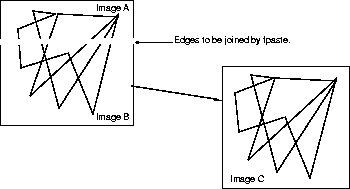
fpaste vertically joins together pieces of image files as in the following diagram.
fpaste is most useful for creating a single complete image from a series of incompletely rendered images, each starting after the last complete scanline in the previous attempt.
If you have several CPUs, the elapsed time to generate a single image can be reduced by rendering different portions of the image on different CPUs and then pasting them together.
The usage statement for fpaste is as follows:
fpaste a b [c...] output
a, b and so on are files to be joined together to produce the output image.
The files are joined vertically so that a is the top of the image, b follows immediately after the last complete scanline of a, and so on.
The X resolution of output is set to be the same as image a. The Y resolution is set to the actual number of complete scanlines joined together.
froam allows the mouse to move through image files that are larger than the screen size.
The mouse pans through a subset of the original image in the window. This allows you to see small parts of very large images without having to resize the image and lose details from the original.
The usage statement for froam is as follows:
For large pix files, there will be a delay during start-up while the file is read and processed.
To pan through the image, move the cursor into the image window and drag the image using the left mouse button. The image follows the cursor while the left button is pressed. For the best visual results, scroll slowly.
To zoom in and out of the image, use the up and down arrow keys.
Due to the way dithering is implemented, sometimes a short pixel-wide vertical or horizontal band will appear. Repositioning the image slightly will make it disappear.
fstats reports pixel and scanline statistics for images.
fstats supports the following file formats:
The usage statement for fstats is as follows:
The X and Y resolution are reported to standard output.
If the image is an Alias format file, the Y resolution is printed as yres.fraction if the number of complete scanlines does not match the Y resolution specified in the header. If this is the case, the image is incomplete. yres always represents the actual number of complete scanlines. .fraction represents the number of pixels calculated so far on the incomplete scanline.
yres=483.639 is one pixel short of a complete 640x484 image in Alias file format.
ftarga converts AT&T Targa Format 10 image files to Alias pix files and the reverse.
The default conversion creates a Targa Format 10 Version 2 format file. To convert to a version 1 (original) format file, specify the -o option.
The usage statement for ftarga is as follows:
ftiff converts Alias pix files to TIFF format.
TIFF format files are accepted by desktop publishing programs.
The usage statement for ftiff is as follows:
 MacBinary Enabled.
Set Transfer Directory to the name of the Macintosh folder you want the TIFF file to appear in.
Send FTP Command.
quit to exit from Telnet.
Get Info from the Resedit menu. Change the File Type from TEXT to TIFF using all capital letters.
MacBinary Enabled.
Set Transfer Directory to the name of the Macintosh folder you want the TIFF file to appear in.
Send FTP Command.
quit to exit from Telnet.
Get Info from the Resedit menu. Change the File Type from TEXT to TIFF using all capital letters.
The Macintosh TIFF file can now be opened in Macintosh programs that accept TIFF files.
Grayscale TIFF files are accepted by Retouch (shareware), Aldus Pagemaker, Aldus Freehand, Microsoft Word (via Freehand), and Adobe Photoshop.
Adobe Photoshop, Letraset's ColorStudio, and Pixelpaint Professional accept color TIFF files.
ftile tiles a sequence of images into a single, larger image sometimes by sampling the images to the same size.
Use the ftile stand alone if you want to take a set of images in any sequence and create a single large image file with the images arranged on it.
You can also use ftile in combination with the mark and gamepoly OpenAlias plug-ins in order to create an 8 x 8 palette of images to use as a texture palette.
The usage statement for ftile is as follows:
gamma applies a specified gamma conversion factor to an image.
gamma alters images by specified factors in each channel to correct the rendered color.
gamma is particularly useful for correcting the color in images rendered by old versions of Alias.
gamma accepts input and produces output in any of the following file formats:
The usage statement for gamma is as follows:
get_alias_variable queries the value of Alias preference variables from the command line.Alias: preferences: querying value of:
get_alias_variable is called from your .cshrc at login with a variable name as an argument. It attempts to determine the value of the variable by scanning through $HOME/.AliasPrefs and /usr/alias/.AliasPrefs, in that order. get_alias_variable will not find environment variables, for example ALIAS_LOCATION, that are set at the shell level.
If a value is found, it is written to stdout. If a value is not found, an error message is written to stderr.
The usage statement for get_alias_variable is as follows:
get_alias_variable <var_name>
where <var_name> is the name of the Alias preference variable you want information about.
get_alias_variable completes the search for the variables and then returns one of the following:
| 0 | indicates that a variable was defined and a value was found. |
| 1 | indicates that the variable could not be found in a .AliasVariables file. |
| 2 | indicates unauthorized use of the stand-alone. |
The following example illustrates a use of get_alias_variable.
get_alias_variable ALIAS_EDITOR
returns the value 0 and the pathname to the editor:
/usr/sbim/jot_f
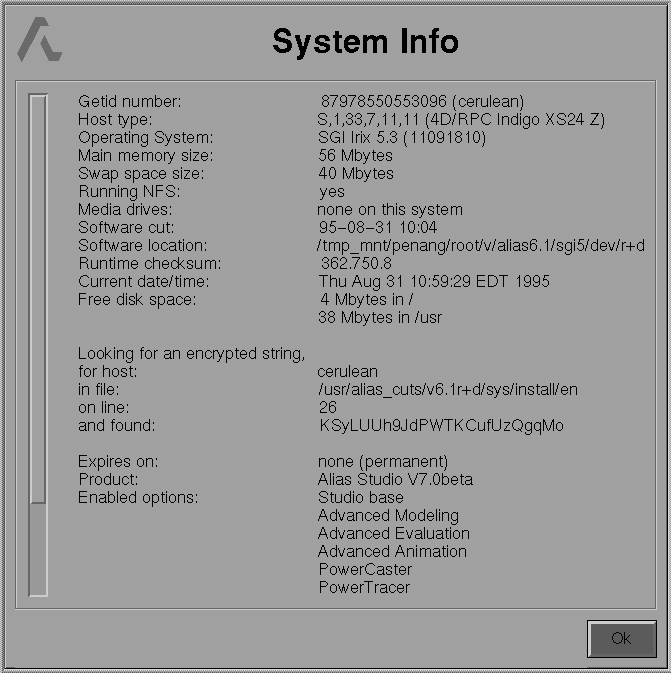
getid provides helpful information about your machine's set-up and about the Alias system you are running.
The same information provided by getid -i -v is available from within the Alias executable by selecting Help System info
Some of the information provided by getid is required to obtain an encrypted string. If you are having problems with your system, it is useful to have this information written down before calling for assistance.
The usage statement for getid is as follows:
The following is an example of the information displayed if getid -i -v is typed at the command line:
Looking for an encrypted string,
The Host type field reports the official SGI name (or our best guess at the official name in the case of new systems) for almost all SGI systems produced in the last three years. The Host type is reported even if the system is not qualified to run Alias software. Check the Alias CD-ROM booklet or the Alias Installation & Release notes to determine if the system is capable of running Alias. The numerical Host type was devised by Alias to identify the system when the official SGI name is not known, such as for new systems or unusual configurations. The SPAR form requires the numerical host type so that there is no ambiguity.
harry converts files between Alias RGB format and Quantel Harry 4:2:2 format.
harry reads an Alias format run-length file and converts it to one frame/field of digital component video in Harry format.
The usage statement for harry is as follows:
If the Alias RGB files are not rendered with Harry horizontal resolution (set in the Render Globals window), they cannot be converted to Harry format using harry.
harry only converts Alias RGB format images or Harry format images that are 720 pixels wide.
hp_glplotf translates Alias plot files into HP-GL (IBM GL) format files that are suitable for plotting on any supported plotter.
hp_gl2plotf creates similar output, but includes initialization commands required for HP-GL2 plotters.
hp_glplotf and hp_gl2plotf are filters which take input from stdin or <in_file> and send output to stdout or <out_file>, which would normally be sent to lp.
The usage statement for hp_glplotf and hp_gl2plotf are as follows:
iges_info provides a summary of the iges entities used in the named files.
The usage statement for iges_info is as follows:
iges_info file [file...]
The following is an example of the use of iges_info.
iges_info sample.iges
The following is an example of the type of information provided by the command stated above.
Summary of IGES file sample.iges
---------------------------------------------
entity unsupported if marked ***
---------------------------------------------
Done for the named file(s).
IncreaseVSwap verifies that the size of a machine's virtual swap space is at the optimal level.
IncreaseVSwap examines the computer's resources and determines the optimal size of virtual swap space that the system should have in order for Alias to run efficiently.
If the size of virtual swap space is not equal to the optimal value calculated by IncreaseVSwap, the Alias software generates a warning message every time it is started.
The size of the virtual swap space can be set to the optimal level by a System Administrator using IncreaseVSwap.
For further information about virtual swap space, see the UNIX manual or your System Administrator.
install_glib installs the games library.
install_glib is used by the InstallGame script to install game specific libraries. (For more information on InstallGame, see the Games Data Transfer book.) install_glib copies standard input to standard ouput, converting to plain format, if the appropriate game library option is enabled.
The usage statement for install_glib is as follows:
IvToAl translates Inventor files into Alias wire files.
The usage statement for IvToAl is as follows:
To render or rerender the polyline files created during a PowerToon render.
The line renderer can render or rerender the polyline files that were created during a PowerToon render. This utility allows you to alter shaders in the line file and rerender the resulting composite quickly. You can also use it to set composite opacity and improve anti-aliasing quality.
The line files used by the linerender are created in the same directory as the rendered pix file with the name pixfilename.lines. These are simple ASCII files, like SDL files.
The line renderer executable is called linerender, and is located in the .../alias/bin directory. Type linerender without any arguments to see a list of options.
The usage statement for linerender is as follows:
For more information on PowerToon, see What's New in Alias 8.5.
To create block ordered texture files.
Note: A compressed block ordered texture containing a mipmap (i.e., created with the -m option) can be used as a texture with either filter OFF or ON. A compressed block ordered texture created without a mipmap (i.e., created without the -m option) can only be used as a texture with filter OFF. Unless you do not plan on using filtering on a texture, the -m option should be specified when creating the compressed block ordered texture files.
make_pix_icons produces icons to represent image files in the File Browser.
The image to be represented by the icon can be in any of the following formats:
make_pix_icons creates icons in Alias file format and uses the same filename for the icon, but with the extension ICON added.
The size of the icon created by make_pix_icons can be specified. The default icon size is 60x60.
The usage statement for make_pix_icons is as follows:
If directory_name is a filename, then only one icon is produced for that file. If the files are compressed and their names end in .Z, the icon file name will exclude the extension .Z.
matteRGB converts 8-bit matte files to 24-bit RGB image files for certain devices (for example, Quantel Harry) which only have one format for both color and matte files.
The usage statement for matteRGB is as follows:
matteRGB infile outfile
nprocs displays information about the host machine's processor(s).
nprocs is mainly of use on multi-processor machines. It displays information about the number and type of processors on a machine, and queries each processor to determine if any special flags have been set or if any of the processors have been locked by using IRIX system calls.
nprocs displays the following information:
HOST `whistler'
IRIX 6.2 03131015 IP22 mips 1762190057 /etc/inittab Silicon Graphics, Inc.
Silicon Graphics, Inc. IRIX IP22 1 c04b146e 6 2 0
Processors : R4600 2.0
Available Procs: 1
Allowed processes : 150
Parallel processes : 1
Page size : 4096
Number of processors: 1
Unlocked processors : 1
Processor 0 --> Id: 0 Flags: Enabled Master Clock FastClock
The plug-in manager script is only available on SGI machines.
The Plug-in Manager script is new to Alias 7.5 and supports the loading, removal and distribution of plug-ins. The Plug-in Manager script is called pim(Plug-in Manager) and is located in $ALIAS_LOCATION/bin/.
The plug-in manager script allows users to work with plug-in manager archives. The suffix used to represent a plug-in manager archives is .pim. Plug-in manager archives enscapsulate the necessary files of a plug-in into one archive file. All scheme, icon, binary(.plugin) and other supporting files will be placed into the archive. Archives can be created, appended to, viewed and installed using the Plug-in Manager script.
The Plug-in Manager script requires that $ALIAS_LOCATION, $ALIAS_WORKENV and $HOME be set. In addition, $ALIAS_LOCATION/bin/aliasWarning must exist.
The Plug-in manager script supports both Command Line and GUI modes. The script is layered so that the user input code is isolated from the code that actually performs the generic operations required. GUI mode is utilized to perform operations that are called from within the Alias application.
The Plug-in Manager script supports the following options:
The creation ( -create, -cR ) and append ( -append) routines require the files that will be placed into the archive be in a specific format. This format is:
This rigid format has been choosen so that special logic is not required to install the individual files from the archive.
The following is an example of how to create a plug-in manager archive
pim -c nothing.pim ./lib/nothing.plugin ./scm/nothing.scm ./scm/nothing_init.scm ./
medium/nothing.M
The files that will be inserted into the archive must be relative to the current directory. Note that the created file's location could be specified in another directory.
pim -c /tmp/nothing.pim  ./lib/nothing.plugin ./scm/nothing.scm ./scm nothing_init.scm ./
medium/nothing.M
If the directory NothingPlugin has the proper structure, then the recursive creation option could be used.
pim -Cr nothing.pim NothingPlugin
The following is an example of how to install plug-in manager archives using the script.
pim -i /tmp/nothing.pim
You will asked to choose between local or global installation. Local installations put the plug-in files into $HOME/.Alias/plugins. This makes plug-ins available locally to any Alias session. Global installations place the plug-in files into $ALIAS_LOCATION/ODS/OpenAlias/plugins. If its a global installation, then the user must have the priviledges required to place files within the Alias directories.
The files of a plug-in manager archive can be installed locally into $HOME/.Alias/plugins by dragging and dropping the archive onto the Alias icon via the SGI desktop. The files will be copied out of the archive and placed into the local plug-in directory, with warning prompt boxes generated for duplicates. An "Installation Complete" dialog signals the end of the install process. At the end of the installation process of the plug-in, Alias exits. In the next session of Alias, the plug-in installed will be displayed in the Plug-in Manager window.
Alias will attempt to install all files dropped as Plug-in Manager Archives if the first file of the possible set that was dropped onto Alias has the .pim suffix. This implies the following:
To simplify the complexity of removing plug-ins from a machine, when the plug-in manager script executes an install, it also builds a removal script. This removal script can be run in two ways. It can be run from the command line:
pim -r helix.pim
The user will be asked if it is a local or global removal. If its a global removal, then the user must have the priviledges required to remove files from the Alias directories.
The second way of deleting the files associated with a plug-in that was installed locally is to use the desktop to run the appropriate removal script located in $HOME/.Alias/plugins/remove. Double clicking on the script will execute it to run the removal code. As a result, plug-ins should not share scheme, icon or other supporting files.
pixdiff compares two pix files on a pixel by pixel basis to determine the differences between them.
pixdiff supports the following file formats:
The usage statement for pixdiff is as follows:
pixdiff checks the alpha channel for differences, in addition to the RGB channels if the input file type has a bit depth of 32.
If file1 has fewer channels than file2, the outfile uses the smaller of the two channels. The smaller number of channels is checked for differences.
In addition to generating an image, the following statistics are also listed:
pix2omf converts files between pix and OMFI (AVID Open Media Framework Interchange) format.
The usage statement for pix2omf is as follows:
PRenderToAlias converts Pro/Engineer Render Format files into Alias Wire files.
This utility is available in Alias Studio, AutoStudio, Designer and PowerAnimator.
PRenderToAlias converts the triangle data of the Pro/E Render Format into Alias Polysets. It is important that the Pro/E designer assign each part of an assembly a different color so that each part becomes a separate polyset in Alias. The colors also translate into simple Alias shaders and these shaders are assigned to the appropriate objects.
The units of the data in Pro/E Render files are not specified in the files. Therefore, you must specify the units so that the model is the correct scale once it is imported into Alias.
The default file extension used by Pro/Engineer files is .slp.
The usage statement for PRenderToAlias is as follows:
All options can be specified in either upper or lower case.
By default, all vertices are merged according to their positions and normals.
PRenderToAlias can be executed in a UNIX shell window, or from within Alias if an External Filter for the program has been set up.
To execute PRenderToAlias from the command line in a UNIX shell window, use the usage statement and options described above. The resulting wire file can be retrieved into Alias.
If the model was created in Pro/E based in units other than the default inches, these units should be specified using the -u option when the render file is converted.
The following are examples of usage statements for PRenderToAlias as typed into UNIX shell windows:
PRenderToAlias crankshaft.slp crankshaft.wire
PRenderToAlias -g -t0.001 hammer.slp hammer.wire
By default, PRenderToAlias may merge the vertices of triangles along apparent shared edges. If two vertices have the same x,y,z position within a tolerance and have the same normal within a tolerance, they are merged into one vertex. This allows Alias to do smooth shading across the edges. If two vertices have the same x,y,z position, but have different normals, then these vertices are not merged to maintain the hard edge.
The tolerance used for comparing vertex positions can be specified using the -t option. The value specified is in the same units as the data. For example, if you specified -uMM -t0.01, the tolerance for comparing vertex positions is 0.01 millimeters. If you change the units from the default inches, then the default tolerance of .0001 may have to be changed to make sense for the units specified.
The tolerance used for normal comparisons can be specified using the -a option. The value is specified in degrees and is the angle between the normals of two vertices. The default is that two vertices are merged if their positions are equal within tolerance and the angle between the normals is less than 1 degree.
Vertex normals in Pro/E Render Files all point towards the inside of objects. For rendering purposes in Alias, these normals must point towards the outside of objects. Consequently, PRenderToAlias flips all vertex normals during the translation.
The vertex normals of polysets are usually recalculated by the Alias renderer before it renders polysets. By default, PRenderToAlias freezes the normals assigned to vertices in the Pro/E Render file so that they are used by the renderer rather than discarded and recalculated. This allows the renderer to produce a better quality rendering.
To suppress this behavior, specify -r so that the renderer will discard the Pro/E assigned normals and recalculate them.
print_wire_header prints the header and can be used to verify the named wire files.
The usage statement for print_wire_header is as follows:
The header information displayed is different depending on the version of Alias that made the file.
In V3.1.1 and previous versions, wire files have an 80 character text string for a header.
In V3.2 through V5.0.1, wire files do not have the Alias Software Date in the header (this is a reformatted version of the number you get when you execute "Alias -i").
The following is an example of output produced from using the command print_wire_header -v * in a directory.
Filename: sample.501
| Alias Product Name: | Alias Animator |
| Alias Product Version: | 5.0.1 |
| Alias File Version: | V5.0.1-2 |
| File Creation Date: | Thu Jun 16 05:32:59 1994 |
| File Type: | WIRE |
| Graphics Display Size: | 1279 x 1022 |
Kenworth.hood.iges is not an Alias Wire File.
Filename: sample.truncated.wirefile
| Alias Product Name: | Alias Studio |
| Alias Product Version: | 3.2 |
| Alias File Version: | V3.2-15 |
| File Creation Date: | Thu Sep 3 11:12:10 1992 |
| File Type: | WIRE |
| Graphics Display Size: | 1280 x 1024 |
Warning: Wire file sample.truncated.wirefile is corrupted. Trailer record is missing!
Filename: old_wire
Alias2v3.1 Wire File, Alias Research Inc., Copyright 1991
Filename: gold_sphere
psplotf is a plotter driver program that translates Alias plot files into PostScript suitable for printing on any PostScript printer.
psplotf is a filter that takes input from stdin or <in_file> and sends output to stdout or <out_file> instead of lp.
The usage statement for psplotf is as follows:
Additional initialization commands can be added to the file by defining the environment variables ALIAS_PSPLOT_INIT and ALIAS_PSPLOT_INIT2.
pst and pstget create simple editor windows of the type used by Alias.
The PST editor system consists of two stand alone programs: pst and pstget.
The PST editor system is intended for those who are familiar with programming concepts and who know how to write UNIX shell scripts.
The editor windows created are of the form type. The editors always contain Save and Cancel buttons and can contain many, possibly interdependent, editor fields.
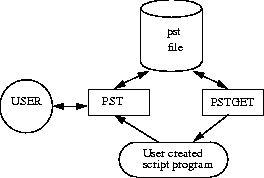
A high level diagram of how a PST editor is used is as follows:
A PST file contains a description of the fields to be edited, and the current value of each field.
To allow you to interact with the editor described by the PST file, the script launches the pst program, providing it with a specified path on the command line.
You must have write permissions for the pst file to make an editor window.
The usage statement for pst is as follows:
$ALIAS_LOCATION/bin/pst <-geometry WxH+X+Y> PST_file_name
If -geometry is specified, the window is opened as a WxH pixel window, and located at the coordinates specified by X and Y.
The path to the pst file must be specified.
If you exit pst by clicking the Save button, the return code is 0. If you exit pst without clicking Save, the return code is 1. If an error occurs, the return code is a negative integer.
A script can query values from an editor using pstget.
pstget accepts a specified pst filename as an argument and a symbol name specifying the field to be queried and then prints the current value of the field to the console. The output can be saved in the script you created.
The usage statement for pstget is as follows:
$ALIAS_LOCATION/bin/pstget PST_file_name symbol_name
You can format a pst file any way you choose because white spaces (tabs, spaces, new lines) are irrelevant. When you click the Save button, the file is recreated from scratch by a code generator in pst.
Each file must start with a name for the table (the string <Name> appears as the title of the editor window).
profile "<Name>" {
LIST
}
LIST is a list of entries. Each entry can be a block name (a group in the editor window) or a standard entry.
A block, or group, is an open/close section of an editor window.
The usage statement for a group is:
group "<GroupName>" {
LIST
}
group = "<GroupName>" {
LIST
}
A <GroupName> must be entered because it appears as the title for the block in the editor window.
If = is included in the statement, the block starts open. If = is not included, the block starts closed.
In each of the following entries, if data replaces entry, the particular field does not appear in the editor window, but rather in the table. You can determine the value of the entry with pstget.
To insert comments in the editor window, use the following:
annotation( "<text>" );
The <text> string appears right justified.
To insert Boolean entries in the editor window, use the following:
entry( "<Name>", type=boolean, value="<X>" );
entry( title="<Title>", "<Name>", type=boolean, value="<X>" );
<Title> is optional and appears as the <Name> for the field in the editor window.
<Name> can be used to query and to refer to the value of the entry.
To create an integer slider, use the following:
entry( "<Name>", type=integer, value="<val>" );
entry( title="<Title>", "<Name>", type=integer, value="<val>" );
entry( "<Name>", type=integer {range "<low>" to "<high>" }, value="<val>" );
entry( title="<Title>", "<Name>", type=integer {range "<low>" to "<high>" },
value="<val>" );
If range is not specified, it defaults to [0,100].
<low>, <high>, and <val> should be integers. They represent the low and high boundary for the slider and the initial value.
To create a floating point number slider, use the following:
entry( "<Name>", type=float, value="<val>" );
entry( title="<Title>", "<Name>", type=float, value="<val>" );
entry( "<Name>", type=float {range "<low>" to "<high>" }, value="<val>" );
entry( title="<Title>", "<Name>", type=float {range "<low>" to "<high>" }, value="<val>"
);
If range is not specified, it defaults to [0.0,100.0].
<low>, <high> and <val> should be floating point numbers. These values represent the low and high boundary for the slider and the initial value.
To create a radio pop-up menu, use the following:
entry( "<Name>", type=choice {"<Name_0:symbol_0>", "<Name_1:symbol_1>",...},
value="<Name_x:symbol_x>" );
entry( title = "<Title>", "<Name>", type=choice {"<Name_0:symbol_0>",
"<Name_1:symbol_1>",...},
value="<Name_x:symbol_x>" );
The value specifies the initial value and it should be the same as one of the entries in the choice.
To create a string entry in the editor window, use the following:
entry( "<Name>", type=string, value="<text>" );
entry( title="<Title>", "<Name>", type=string, value="<text>" );
<text> appears as the initial value for the string entry.
Editor windows should look different depending on some of the values in the table. For example, you want to display the Pivots option in extrude only if extrude tube is chosen, because extrude flat does not use the Pivots option.
To make editors dependent on the values in the table, use the test entry as follows:
test( {"<Name1>" * "<value1>", "<Name2>" * "<value2>"},{...}, ... );
* can be = or ! to signify equality or inequality. <Name> matches one of the <Name> entries in the table. The string right after the optional title=Title.
<value> is one of the possible values for that entry.
The conditional entry should immediately precede the entry for which the test is being done.
entry( watch, title="Extrude Tube", "mo_extrude_tube", type=boolean, value="0" );
...
test( {"mo_extrude_tube" = "1"} );
entry( watch, title="Extrude Pivots", "mo_extrude_pivots",
type=choice { "COMPONENT:comp", "CLOSEST:clos" }, value="CLOSEST:clos" );
...
test( {"mo_extrude_pivots" ! "clos"} );

something else that appears only if closest is NOT chosen as the pivot option.
test( { a = b, c ! d }, {e = f}, {g ! k, h = m} );
says that { (a equals b) OR (c does not equal d) } AND { e equals f } AND { (g does not equal k } OR (h equals m) }. This should be general enough for you to convert anything into this form.
To make this work, we tell the table that the value of the mo_extrude_tube variable is important as something else depends on it. This is what the watch keyword means.
You can put test entries before groups in which the whole block appears or does not appear depending on the conditional in the test.
The following is an example file for a curve rebuild editor window. You can copy this code and see what the result would look like by running pst /fullpath/filename.
profile "Rebuild Curve" {
entry( watch, title = "Rebuild Type", "mo_rbld_type",
type=choice{"MATCH:match","UNIFORM:uniform","CURVATURE:curvature"},
value="UNIFORM:uniform" );
test( { "mo_rbld_type"!"match" } );
entry( title = "Tolerance", "mo_rbld_tolerance",
type=float {range "1e-05" to "0"}, value="0.01" );
test( { "mo_rbld_type"="uniform" } );
entry( watch, title="Keep Number of CVs", "mo_rbld_keep_cvs",
type=boolean, value="0" );
test( { "mo_rbld_type"!"match" },
{ "mo_rbld_type"!"uniform","mo_rbld_keep_cvs"="0"} );
entry( watch, title = "Max Spans Type", "mo_rbld_spans_flag",
type=choice{"RELATIVE:relative","ABSOLUTE:absolute"},
value="RELATIVE:relative" );
test( { "mo_rbld_type"!"match" },
{ "mo_rbld_type"!"uniform","mo_rbld_keep_cvs"="0"},
{ "mo_rbld_spans_flag"="absolute"} );
entry( title = "Max Spans", "mo_rbld_spans_val",
type=integer{range "1" to "50"}, value="3");
test( { "mo_rbld_type"!"match" },
{ "mo_rbld_type"!"uniform","mo_rbld_keep_cvs"="0"},
{ "mo_rbld_spans_flag"="relative" } );
entry( title = "Max Spans Factor", "mo_rbld_spans_fact",
type=float {range "0.1" to "10"}, value="1.0");
test( { "mo_rbld_type"!"match" } );
entry( watch, title = "Change Degree", "mo_rbld_deg_flag",
type=boolean,value="0" );
test( {"mo_rbld_deg_flag"="1"}, {"mo_rbld_type"!"match"} );
entry( title = "Degree", "mo_rbld_degree", type=integer {range "1" to "9"},
value="3" );
}
The above code creates an editor window that looks like the following:
To query a value (such as mo_rbld_type), from the above table, assuming it was called /usr/tmp/table, the usage statement is as follows:
pstget /usr/tmp/table mo_rbld_type
In this example, provided that no fields had been changed, the following would be written to stdout:
uniform
To capture this value into a c-shell variable called buildtype, use the following:
set buildtype=`pstget /usr/tmp/table mo_rbld_type`
The single quotation marks above are a forward single quotation mark (to the left of the 1 key on an SGI keyboard).
rb_stereo combines a stereo pair of images into a single image file suitable for viewing with red/blue glasses.
rb_stereo is useful for previewing stereo images on a standard display. All that is required are a stereo pair of images, rb_stereo, and a pair of red/blue or green/red "3-D" stereo glasses.
rb_stereo accepts a single stereo pair, or a sequence of stereo pairs.
rb_stereo performs a luminance calculation on each image to reduce it to a grey-scale, 8-bit image. The 8-bit channels are then combined into a single image file by assigning the 8-bits to the red, green, or blue channel of the new file as specified by the user options.
rb_stereo maintains the image file type between the input files and the output files. For example, if SGI image files are used as input, then SGI image files are output.
The usage statement for rb_stereo is as follows:
If you want to combine the files image_left and image_right into a single red/blue stereo pair image with a bit of green blend, the command would be:
rb_stereo -b image image.3d
This command creates a file called image.3d in your current directory.
If you have the following animation sequence:
pix/image_left.1 pix/image_right.1
pix/image_left.2 pix/image_right.2
pix/image_left.3 pix/image_right.3
the command to create a sequence of green/red stereo images is as follows:
rb_stereo -g -a 1 3 1 pix/image pix/image
This command creates files called pix/image.1, pix/image.2, and pix/image.3 in your current directory.
renderer creates raycast or raytraced image files from Alias SDL files while in a UNIX shell.
The usage statement for renderer, raytracer, powercaster, or powertracer is as follows:
* If required, the renderer quantizes images after rendering them. The option -C allows a previously generated color table to be used for quantizing images. However, aquant quantizes images much more quickly.
** Generally, when a depth_input file is specified for a shadowing spotlight, it is read every frame. -k forces the renderer to read the shadow map only once during the first frame of rendering.
*** Rather than editing your SDL files to add depth_input or depth_output commands to shadowing spotlights, this command line option may be used. When set to a non-zero value (for example -K 1), the renderer automatically creates depth output files named after the spotlights in your current directory, or if these files already exist, they are used.
Using any of the above options overrides any equivalent SDL keyword settings in the SDL file.
The following are examples showing the uses of the rendering utilities.
renderer testframe.sdl
renders an SDL file called testframe.sdl. All parameters and keywords set within the SDL file will be used. If any of the keywords is missing and requires a value, the default value for that parameter is used.
renderer -a0 -s1 -b2 -e20 -p testpix -q0 -h512 -w512 -x0 -y0 scene.sdl
renders an SDL file called scene.sdl. The scene to be rendered is an animation.
Anti-aliasing is turned OFF by setting the aalevelmax to 0. The animation specified in the SDL file is overridden by the specification of -s1 -b2 -e20, which renders with a frame step of 2 the first twenty frames of animation. Normal messages are output, and the test image size is 512x512 pixels square. The animation sequence is output to a series of files starting with the name testpix.
renderer -s 1.5 -e 3.5 -b .25 -S 1 -B 2 -E 3 sdl/foo
foo.001 (a snap shot of the animation at time 1.5)
foo.003 (a snap shot of the animation at time 1.75)
foo.005 (a snap shot of the animation at time 2.0)
...
foo.019 (a snap shot of the animation at time 3.25)
foo.021 (a snap shot of the animation at time 3.5)
Assuming a 512x512 image, the following command:
renderer -h 255 -w 255 -x 255 -y 255 sdl/foo
produces an image of the top right 255x255 pixel region of the original image.
Saved geometry is incompatible with motion blur.
You cannot stop and start a render process that uses saved geometry and retain the saved geometry.
Saved geometry uses a significant amount of memory. You should have at least 100 megabytes of swap space available before attempting to use it.
Alias backgrounds attempt to interpolate between the top and bottom of the current rendering pixel span in Y. This may not be what is intended if only a sub-region is being rendered as this would result in the background being repeated many times in Y. Therefore, remember to specify the -W and -Y options to specify the final resolution from which the background positioning can be calculated.
renderit is a shell script that executes an SDL script. renderit copies files to the proper locations and can start a render on a remote machine.
The usage statement for renderit is as follows:
There are a few places in the renderit shell script where the standard Alias layout of projects is assumed. This is unfortunate but necessary to make things work with Alias. The major assumption is that the renderer is running in a project directory (or at least a directory with a pix directory in it).
Because renderit is a shell script, it can be customized. However, we recommend that you give the customized version a different name so that the Alias interactive system runs the renderit script as supplied.
rndctl opens the Rendering Control window and can be used to specify the path to the directory to which control files are written or to specify a variety of batch commands.
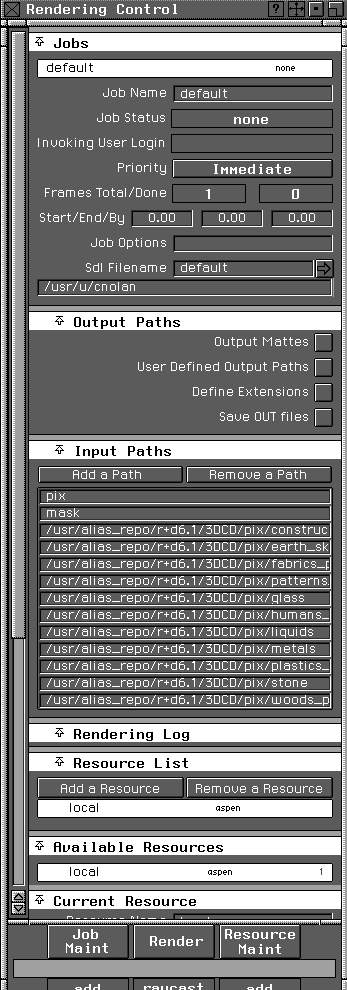
The Rendering Control window appears as follows:
For more information about the Rendering Control window, see Render Distributed render in the Alias Menu Book.
The usage statement for rndctl is as follows:
To use the -a or -b batch commands, type the option, -a or -b, and then the commands. Do not type spaces between the commands.
The following is a list of the batch commands that can be used with the options -a and -b.
Index is the identification number of the rendering job as defined by the system.
The following are examples of how rndctl is used to control rendering jobs and resources.
The following command line displays a summary list of jobs in the Distributed Render Control area:
rndctl -b jobsummary
The above command will list the known jobs, start one of the jobs, and then check on the tasks list.
The output from the above command appears as follows:
Index Name Status totalframes doneframes executable sdl
-------------------------------------------------------
The following command starts a renderer and returns the process identification number of the new daemon started:
rndctl -b renderer,99,renderer
The process identification number of the new daemon appears similar to the following:
[1] 4201
Tip: To remove a daemon from a specific host, delete the host.pid file found in the Distributed Rendering Control area. Deleting the daemon directly may make the control file invalid.
The following command presents a listing of how the rendering tasks are progressing:
rndctl -b taskdump
The results of this command appear as follows:
by1_t1 99 10 10
setupacct is used to customize pre-existing user accounts or create new user accounts to use the Alias software.
Setupacct can be used to either update an existing user account for use with the Alias software or, when executed by the superuser, create a new user account for use with the Alias software.
When executed by a user (other than the superuser), setupacct prompts the user, asking them if they wish to customize their account to use the Alias software. If they say "yes", the account is customized.
If setupacct is executed by the superuser, it prompts for the username of a user account which should be customized to use the Alias software. If the specified user account does not exist, it is created and customized to use the Alias software. If the user account already exists, setupacct prompts the user, asking them if they wish to customize their account to use the Alias software. If they say "yes", the account is customized.
If an existing user account is customized to use the Alias software, some of the "dot" files in the account (i.e.: .cshrc, .login) may be moved aside in favor of the customized Alias software versions. These files are "saved" in a subdirectory of the user account named .env_MMMDD, where MMM are the first three letters of the current month and DD is the day of the month. For example, .env_Jan06.
Once a user account has been updated, the user must log out and back in again. This ensures that any changes made to the user account take effect.
Some further customization of the user's environment may be necessary to meet the users' needs. For example, if the user wishes to place their Alias working area in another location besides their home directory, they will need to edit their .cshrc file and change the value of ALIAS_WORKENV. Other customizations of the user account may be necessary as well if the user wishes to use their account for uses other than working with the interactive package. See the Alias Installation Notes for more information.
showstereo is used to view stereo pix files on Alias systems equipped with stereo viewing hardware by Streographics Corporation. Note that if the images are shown on other monitors, they are likely to appear half-height. To view the image on a standard monitor, you will need to interlace the images.
The usage statement to view a pair of pix files that have been rendered with the stereo keyword in SDL is:
Images that are smaller than full resolution (1280x480) are enlarged to fill the screen by pixel replication. Images larger than full screen resolution are truncated with as much as possible of the picture from the upper left corner preserved.
sla converts generic triangle information generated by File Export Save polygons -  (with the Triangles option selected) to SLA-1 format.
File Export Save SLA - can be used in place of this stand-alone utility.
The SLA-1 is a device that produces physical replicas of objects modeled using Alias.
Objects modeled in Alias that you want the SLA-1 to produce must satisfy the following constraints. The modeled object must:
The objects that can be converted by sla are:
Curves or points that are not part of a surface are ignored. For example, a cross section of a model is not acceptable input for sla.
See the Alias Menu Book for further information about creating models for the SLA-1.
The usage statement for sla is as follows:
The SLA-1 SLICE program accepts two formats for input. One format is ASCII, where keywords identify elements in the file and where all numbers are given in a string. The other format is Binary which consists of Intel 386 format floating point and integer numbers where the position in the file determines the meaning of the value. See option -B above.
We recommend that you use the -S, -U, and -C options.
Converts ISO10303 files to Alias wire files, specifically application protocols ISO10303-203 (Configuration Controlled Design) conformance classes 1-4, and ISO10303-214 (Core Data for Automotive Mechanical Design Process) conformance classes 1-2. The import and export of this data is supported via ISO10303-21 Physical file exchange.
The usage statement for StToAl is as follows:
surfmate examines Alias triangle files to determine the topology of the data. surfmate then mates triangle meshes along edges that have small gaps, but which should be perfectly matched for use in conjunction with solid imaging.
surfmate is useful when the wire frame model needs to be topologically closed. Topologically closed means that if you poured water into the object, it would not leak. This condition is required by some three dimensional manufacturing systems.
If you are creating objects for manufacture on a prototype machine such as the stereolithography apparatus (SLA-1) by 3D Systems, you want to create a closed solid.
If you are creating objects for transfer to the Wavefront Personal Visualizer, you want to create one or more continuous surfaces, which may or may not be closed.
The small gaps that surfmate closes usually result when surfaces meet near trim curve boundaries.
The usage statement for surfmate is as follows:
The triangles in the file input.tri are modified as necessary to mate surfaces separated by small gaps of less than -t dist apart. The modified triangles are written to a file called output.tri.
If input.tri and output.tri are not specified, standard input and output are used. All messages are written to a standard error file.
No prompt or warning is given if output.tri is the name of an existing file. However, the triangles are not written out until the process is complete. Stopping surfmate before it writes the binary triangle data prevents the existing file from being overwritten.
The following is a list of terms and their definitions to help you understand surfmate.
Rapid Prototyping is a sector of industrial design which uses Solid Imaging (SI)to translate three-dimensional geometry to create physical models or parts of models using a variety of resins and other materials. The file formats used by Alias for outputting files for Rapid Prototyping are the tessellated STL and SLC file formats.
The topology of an object refers to the geometric properties of the object, discounting its location and size. For example, a sphere has the same topology even if it is large, small, squashed almost flat, or stretched.
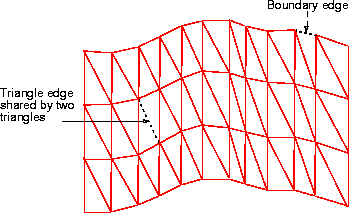
Input to surfmate is a set of triangle vertex locations with a triangle normal. These triangles make up one or more distinct surfaces. Every triangle in a single surface can be reached from every other triangle in the same surface by stepping across shared triangle edges. Surfaces are distinguished from one another because there is no such connection across a shared edge.
Each triangle edge is either shared with two triangles or belongs to only one triangle. Edges that belong to only one triangle are called boundary edges. See the following diagram of a boundary edge.
surfmate compares individual boundary edges with every other boundary edge. If two boundary edges are close enough to each other, they are considered to be a matched pair of edges. If a boundary edge is not near any other boundary edge, it will never be matched and it will show up as one of the unjoined edges reported by surfmate.
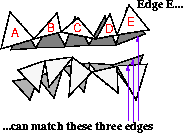
Even if a boundary edge is near two or more other boundary edges, it matches all of them, but can only be joined to one of them. For example, if an edge called E was near three other edges, E would match all three but could only be joined to one of the three edges.
surfmate reports the joining and counts the unjoined edges.
To continue the above example, after it has been joined to one of the three other edges, Edge E contributes 2 unjoined edges to the total number of unjoined edges.
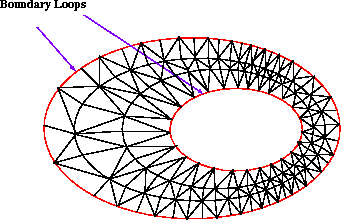
Every boundary edge belongs in a loop of other boundary edges that travels around the seam of a single surface. These loops are called boundary loops. See the following diagram of boundary loops.
You can picture a surface with a single boundary loop as a stretched piece of material where the boundary loop is the outside edge of the material.
A surface can have zero or more boundary loops. If a surface has no boundary loops, such as a sphere or torus, the surface is closed. A closed surface is the preferred state for solid imaging.
You can create surfaces with a single boundary loop in the Alias system using Surfaces Boundary surfaces Boundary - or Surfaces Ruled surfaces Patch - .
Surfaces with two or more boundary loops can be pictured as pieces of paper that have holes in them. For example, a cylinder is a stretchy piece of paper with a single hole in it. In Alias, objects with this type of topology are created whenever you create a revolved surface that is either open at the ends or with the curve not closed.
surfmate locates pairs of boundary loops that are near each other and attempts to join them. It is not necessary for an entire boundary loop to be near another entire boundary loop before they are joined. Most of the time, only portions of boundary loops are matched and subsequently joined.
You can clearly see when two surfaces need to be joined at a particular location. surfmate, however, uses an entirely different set of criteria in deciding if and when two boundary edges should be joined. These criteria are based upon the distance that separates the two edges. If the distance is less than the specified tolerance distance, the two edges are matched and may later be joined.
Using tolerance distance as the only criteria for matching edges does not work in all cases. surfmate usually repairs all of the gaps in an object with a single pass. Sometimes, however, the gaps are not all closed. In these cases, you examine the results of the first pass and rerun the program using the data produced from the first pass as the input for the second pass.
Initially, use the default tolerance determined by surfmate. The default tolerance is usually good enough to join most of the boundaries for data produced by Alias. For additional passes, increase the tolerance to close the gaps between the surfaces that remain. A general rule is to increase the tolerance by the amount of the default tolerance for every pass. As more and more surfaces are matched, greatly increasing the tolerance is acceptable because there are fewer available boundary edges nearby to conflict with a pair of edges that should be matched.
If you have not turned on the -q (quiet) option, surfmate reports the minimum distance found between pairs of edges that were too far away from each other to be matched. Specifying this distance as the tolerance distance on the next pass joins at least one and perhaps a few other edge pairs.
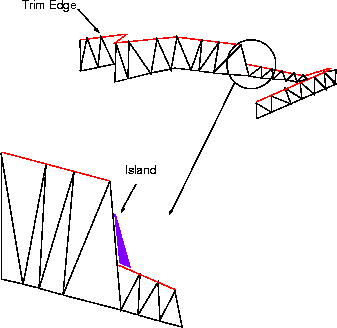
Alias sometimes produces boundaries that have high densities of very small triangles near trim edges. Sometimes little islands of triangles are also created. The islands are actually surfaces in their own right, and are not attached to the two nearby trim surfaces.
Trimmed surfaces sometimes have very thin triangles near boundary edges that fold back on the surface. These triangles increase the uncertainty for surfmate when deciding which pairs of edges to join.
If you zoomed in on the triangles of a trimmed surface, you might see the following:
Before any boundary edges are matched and joined, they undergo a shrinkage operation in which very short adjacent edges are collapsed into a single, longer edge. Every boundary edge shorter than the specified collapse distance is fused with one of its neighboring edges in the loop.
By increasing the specified collapse distance from its default, you can eliminate islands and other small triangles along trim boundaries. However, if you increase the collapse distance much more than the tolerance distance, you can cause nearby boundaries of legitimate surfaces to shrink away from each other more than the matching tolerance which eliminates the possibility of these surfaces ever joining each other.
Use the default collapse distance supplied by surfmate for the first pass. If unexpected results occur, run the program again on the original data with the collapse distance increased to 20% greater than the tolerance distance.
Alternatively, try running surfmate using the original input data with a collapse distance that is smaller than the default. This can alter the order in which matched edges become joined and eliminate the problem.
It is dangerous to reduce the collapse distance too much because it may increase the number of edges any particular edge can match, and it does increase the risk of joining inappropriate edges.
It is important that you know what sort of topology you want surfmate to achieve. Do you want a single closed surface? Do you want several surfaces with holes in them? In particular, you need to know how many boundary loops should be present in the corrected data. surfmate reports the number of boundary loops present in the input data. If this number is the same as the number of boundary loops you wanted, this pass was not necessary.
The number of surfaces that are present in the output is also very important. Usually, when surfmate is used to prepare rapid prototyping input, the goal is to create a single surface. If there is more than one surface remaining, there are further boundary loops to be joined. Run the program once again using the newly created triangle file as input in order to determine the number of boundary loops remaining.
If the surfaces are still not fully repaired, look at the number of pairs of edges that remain unjoined. If there are only a few, you probably only need to increase the tolerance slightly to join them.
Do not specify the -q (quiet) option or surfmate will not display the necessary messages.
There are two possible reasons why the number of unjoined edge pairs can be large:
The number of matched edges could be high for both of the above reasons simultaneously.
You should also examine the number of edge pairs that have not been joined. If this number is a significant portion, more than 15%, of the number of boundary edges remaining after the short edges have been collapsed, surfmate may have difficulty completely repairing the surface.
The proportion of collapsed edges to original boundary edges gives you an indication of how suitable your collapse length is for the input data. In general, it is not a good idea to collapse more than 50% of the boundary edges because the surfaces can become badly distorted and nearby boundary edges can pull apart from each other wherever a boundary loop makes a sharp turn around a corner of a surface.
The following are examples of possible uses of surfmate and their results.
The data files used in the following examples are not on the Wavelink option tape as these examples focus on the output; the data input is not critical to these examples.
surfmate cyl.tri cylout.tri
produces the following messages and results:
Reading triangle data...
Sorting triangle vertices...
Identifying common triangle vertices...
Sorting triangle edges...
Linking adjacent triangles...
Locating boundary edges...
Tolerance value: 0.0118796 Collapse length: 0.0130676
Number of input triangles: 352.
Number of input boundary edges: 64.
Number of input boundary loops: 5.
Collapsing short boundary edges...
0 boundary edges collapsed.
Sorting boundary edges...
Matching edge pairs...
Writing binary triangle data...
Number of output triangles: 960.
Repaired surface(s) are closed.
The information messages above show the tolerance value used for the maximum matching distance. In this case, the default value 0.0118796 was used. The default value for the collapse length is also shown in the information messages above. The default values are calculated by surfmate and vary according to the input data.
The final line of the information messages states that surfmate had produced a closed surface.
This example passes an open surface with some cracks in it through surfmate. The result wanted is an open surface with a single boundary loop.
The input object is a hemisphere placed on a wavy plane. The bottom of the hemisphere has been trimmed flush with the plane.
surfmate globe.tri globe1.tri
produces the following messages and results:
Reading triangle data...
Sorting triangle vertices...
Identifying common triangle vertices...
Sorting triangle edges...
Linking adjacent triangles...
Locating boundary edges...
Tolerance value: 0.015625 Collapse length: 0.0171875
Number of input triangles: 1156.
Number of input boundary edges: 896.
Number of input boundary loops: 23.
Collapsing short boundary edges...
262 boundary edges collapsed.
Sorting boundary edges...
Matching edge pairs...
Writing binary triangle data...
Number of output triangles: 1059
52 edges have not been joined to any other edge.
72 edge pairs could not be joined because one or both of the edges have already
joined some other edge...
Minimum tolerance to try for next iteration: 0.0156905
2 distinct surfaces remain.
52 edges have not been joined to any other edges because no other edge comes within the tolerance value. Because this object is an open surface, it should have unjoined edges.
72 edge pairs could not be joined because mating conflicts exist. Increasing the collapse distance before running surfmate again will reduce the number of conflicting edge pairs by turning short edges into longer ones. The collapse distance will increase without specifying it if you increase the tolerance value.
Only in unusual situations do you have to change the collapse distance explicitly.
The last line of the information messages states that there are still two surfaces remaining in the object. If the result you want is a single surface, run surfmate a second time. As a rule, increase the tolerance value for subsequent passes by the initial tolerance value reported by surfmate in the information messages. Check that this increased value makes the tolerance greater than the minimum tolerance value required (the second to last line of the information messages).
The following command runs the program a second time, increases the tolerance value to 0.032, and uses the triangle file output by the first pass of surfmate as the input for the second pass:
surfmate -t 0.032 globe1.tri globe2.tri
The following messages and results are produced:
Reading triangle data...
Sorting triangle vertices...
Identifying common triangle vertices...
Sorting triangle edges...
Linking adjacent triangles...
Locating boundary edges...
Tolerance value: 0.0032 Collapse length: 0.0352
Number of input triangles: 1059.
Number of input boundary edges: 59.
Number of input boundary loops: 7.
Collapsing short boundary edges...
7 boundary edges collapsed.
Sorting boundary edges...
Matching edge pairs...
Writing binary triangle data...
Number of output triangles: 1052
40 edges have not been joined to any other edge.
Minimum tolerance to try for next iteration: 0.05.
1 distinct surfaces remain.
The number of input triangles is the same as the output from the first pass. The number of edges is different because the changed tolerance value and collapse length result in the triangles being processed differently.
surfmate has adjusted the default collapse length to match the specified maximum matching tolerance. The only time you are likely to need to specify a collapse length explicitly is when you use surfmate on a trimmed surface with a large number of very small triangles.
7 boundary edges were collapsed allowing the two surfaces to be joined.
The second pass has produced the desired result: a single surface. You can tell that it is an open surface by the third to last line: 40 edges have not been joined to any other edge.
The following section describes how to use surfmate.
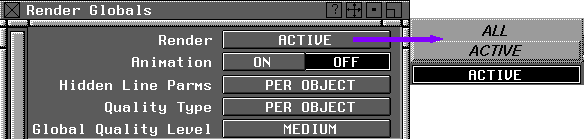
Globals... to open the Render Globals window and set Render to ACTIVE to render active objects only as follows:
Export Save polygons - .
Globals... and set Render to ACTIVE to render only the active objects. See the illustration above for details.
Top to make the top window active.
Export Save STL/SLC. Repeat the process for the supports.
To show you how surfmate is commonly used, we have included a basic exercise and a more advanced exercise. We strongly recommend that you try the exercises before working with surfmate.
The following is a basic exercise showing a common procedure for using surfmate.
All windows All (Studio).
Primitives Sphere to create a default sphere. Type 0 0 0 at the command line to place the sphere at the coordinates 0, 0, 0.
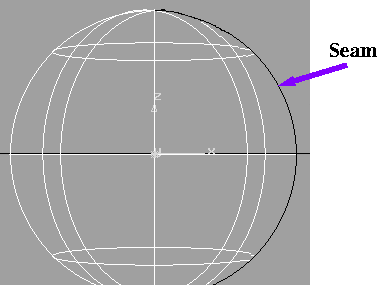
Although the sphere looks like a closed object, it actually has a seam along one side that reaches from pole to pole:
Top.
If you were planning to manufacture this object with a rapid prototyping machine, such as the SLA-1, you would have to close the seam. For the purposes of this exercise, we assume that you need to close the seam.
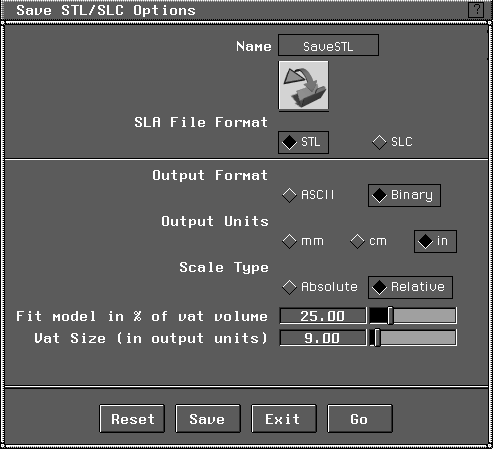
Export Save STL/SLC - . This opens the Save STL/SLA Options window as follows:
When the Alias File Requestor appears, type the following at the File information line:
defaultsphere.tri
Exit. The UNIX window appears.
cd sla
to access the sla directory. You should see the defaultsphere.tri file in the directory.
Run surfmate using the default values for tolerance and boundary collapse by typing:
surfmate defaultsphere.tri sphere.tri
The following information appears on the screen:
Reading triangle data...
Sorting triangle vertices...
Identifying common triangle vertices...
Sorting triangle edges...
Linking adjacent triangles...
Locating boundary edges...
Tolerance value: 0.00195312 Collapse length: 0.00214844
Number of input triangles: 960.
Number of input boundary edges: 32.
Number of input boundary loops: 1.
Collapsing short boundary edges...
0 boundary edges collapsed.
Sorting boundary edges...
Matching edge pairs...
Writing binary triangle data...
Number of output triangles: 960.
Repaired surface(s) are closed.
This information tells you that there was initially one boundary loop (the seam). No boundary edges were collapsed, and all of the edges were matched. The result is a closed surface.
The following is an advanced exercise showing a common procedure for using surfmate to create a T-shaped pipe for creation on a rapid prototyping machine such as the SLA-1.
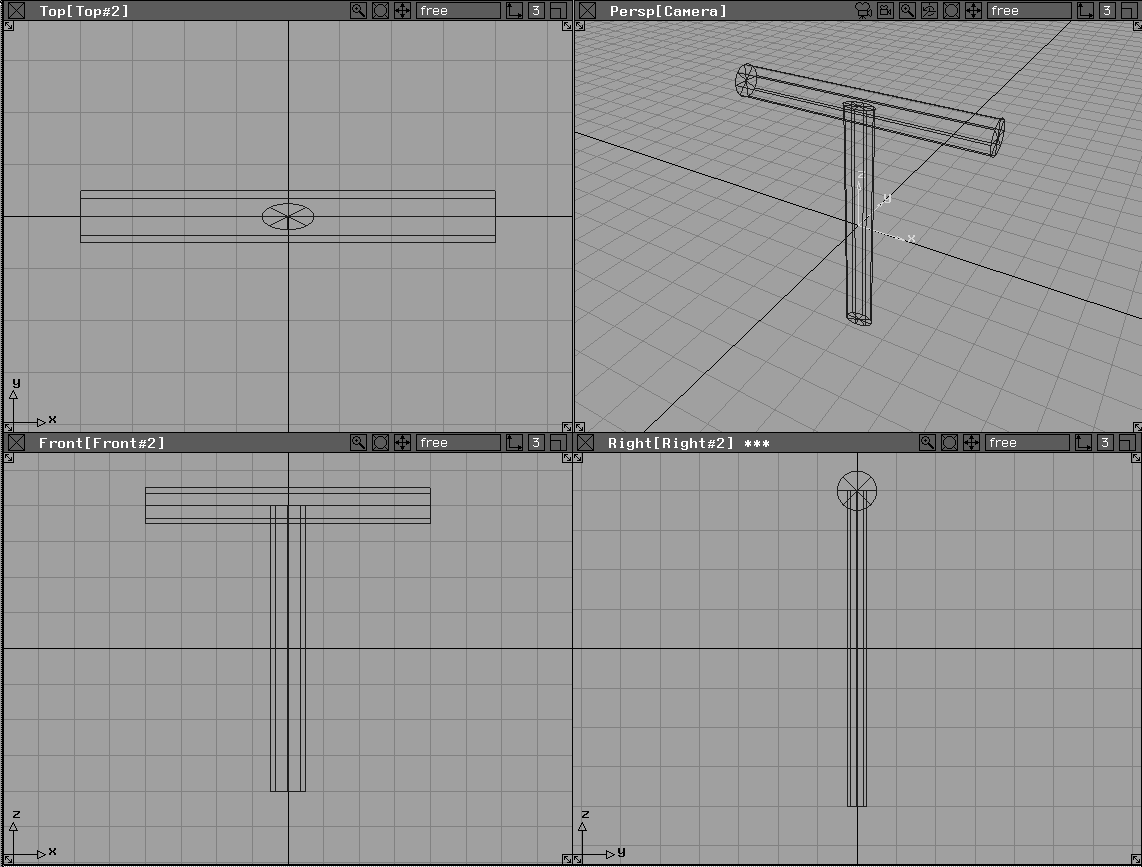
First two crossed cylinders are created using the instructions that follow to resemble the following illustration.
Primitives Cylinder. At the prompt line, type the numbers 0 0 0.
Nonp scale and type the numbers 1 0.5 8 at the keyboard prompt.
Primitives Cylinder to place the second cylinder. Type the numbers 0 0 4 at the prompt line.
Rotate and type the numbers 0 90 0 at the prompt line. This rotates the cylinder 90 degrees about the Y axis.
Nonp scale and type the numbers 1 1 8 at the prompt line.
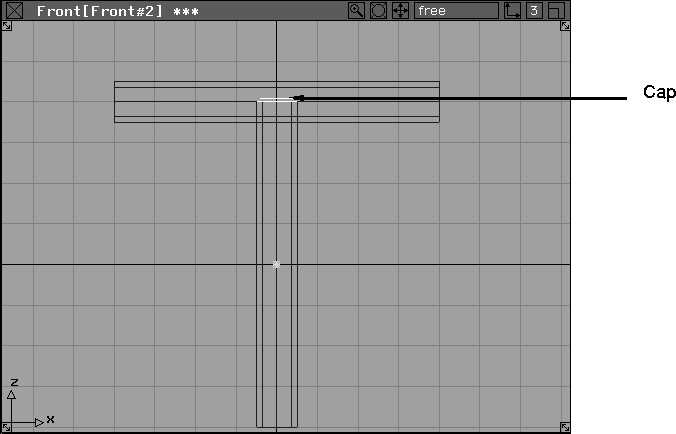
Nothing and then Pick Component. Pick the cap of the vertical cylinder that is inside the horizontal cylinder as in the following illustration.
You will probably need to tumble and dolly in the Perspective window to pick the cap.
Del active and click YES in the confirm box to delete this cap.
Save all to save the wireframe file.
The cylinders are now intersected and trimmed to form a single, joined pipe from the two separate cylinders.
Object and click on the vertical cylinder to make it active.
Create CurveOnSurface Intersect. When prompted, click on the horizontal cylinder.
Trim Trim. When prompted, click on the vertical cylinder to make it active. When prompted to select the region to keep, click on the lower part of the cylinder. Make sure that Keep is selected and click Go.
Select a target surface to trim.
Click on the horizontal cylinder to make it active. Make sure that Keep is selected. Click again on the horizontal cylinder away from the area of intersection and click Go.
Save all.
Object, hold down the Shift key, and click on the cylinders to make them both active.
Globals... to open the Render Globals window. Select ACTIVE at the Render option and then close the Render Globals window.
Export Save STL/SLC - . When the Alias File Requestor appears, type the following at the File information line:
t_pipe.tri
Exit to exit Alias. The UNIX window appears.
The file t_pipe.tri is now processed using the default values for surfmate.
Type the following usage statement at the UNIX prompt:
surfmate t_pipe.tri t_pipe1.tri
The following information is displayed on the UNIX screen:
Reading triangle data...
Sorting triangle vertices...
Identifying common triangle vertices...
Sorting triangle edges...
Linking adjacent triangles...
Locating boundary edges...
Tolerance value: 0.0166016 Collapse length: 0.0182617
Number of input triangles: 1936.
Number of input boundary edges: 848.
Number of input boundary loops: 2.
Collapsing short boundary edges...
574 boundary edges collapsed.
Sorting boundary edges...
Matching edge pairs...
Writing binary triangle data...
Number of output triangles: 1354.
8 edges have not been joined to any other edge.
4 edge pairs could not be joined because one or both of the edges
have already joined some other edge.
Minimum tolerance to try for next iteration: 0.0166142
1 distinct surfaces remain.
From this information we can see that a single surface remains. However, since not all triangles have been mated, this is not a closed surface.
On the next iteration of surfmate, the tolerance is increased by the recommended value to 0.033.
Type the following usage statement at the UNIX prompt:
surfmate -t 0.033 t_pipe1.tri t_pipe2.tri
The following information is displayed in the UNIX window:
Reading triangle data...
Sorting triangle vertices...
Identifying common triangle vertices...
Sorting triangle edges...
Linking adjacent triangles...
Locating boundary edges...
Tolerance value: 0.033 Collapse length: 0.0374
Number of input triangles: 1354.
Number of input boundary edges: 0.
Number of input boundary loops: 0.
Collapsing short boundary edges...
0 boundary edges collapsed.
Writing binary triangle data...
Number of output triangles: 1354.
Repaired surface(s) are closed.
After two iterations of surfmate, a closed surface is produced that can be processed on a rapid prototyping machine such as an SLA-1.
You can now use the final triangle file t_pipe2.tri with the stand-alone sla to produce appropriate .sli files.
For further information about File Export Save STL/SLC - , see the Alias Menu Book.
systemInfo displays information about your system in a window.
The preferred ways of getting the same information are by using Help System info... within Alias or the stand-alone getid at the UNIX shell level.
For further information about using Help System info... , see the Alias Menu Book.
For further information about using getid, see getid on page 63 in this manual.
The usage statement for systemInfo is as follows:
systemInfo
The window displayed is as follows:
unlace breaks up image files into two separate files, one containing the even scanlines field of the image and the other containing the other containing the odd scanlines field of the image.
Because of the length of time between recording the first field of an image and the second, sequences grabbed from traditional video sources such as video cameras can show significant temporal aliasing between fields. In other words, temporal aliasing is caused by the interlaced scan used in television and video cameras. The first field is offset from the second field by 60 Mhz.
Temporal aliasing can cause some serious artifacts when the sequence is used as a backdrop or other computer graphics element. By unlacing the images, you can eliminate these effects by either rendering on fields or using only the data from the even or odd field of your animation.
unlace can be used with the following format files:
The even field is stored in a file with the suffix .e, and the odd field is stored in a file with the suffix .o.
The usage statement for unlace is as follows:
unlace <image>
Many files can be specified on the command line at one time, or a valid UNIX wildcard such as * can be specified.
If your current directory contained pix files named image.1, image.2, and image.3, running the following command:
unlace image.*
would create the following PIX files:
vda_info lists the number of occurrences of entities in the specified VDAFS files.
The usage statement for vda_info is as follows:
vda_info <file>
where <file> is any VDAFS format file.
The following is an example of a vda_info usage statement:
vda_info sample.vda
The following information is displayed on the screen:
Summary of file sample.vda
**********************
| Entity Name | Number of Occurrence |
| SURF | 108 |
| CURVE | 231 |
| CONS | 336 |
| FACE | 72 |
| number of sets | 5 |
write_multiple_sdl converts wire files to SDL files.
If the wire file has animation, write_multiple_sdl creates one SDL file for each frame of the animation in order to animate the curve networks and construction history.
This utility is specifically designed to render animated curve networks and/or construction history. It is also accessible in Alias through the Render menu (see Render Render in the Alias Menu Book).
The animation can be output as either a normal SDL file containing all of the animation or as a single SDL file for each frame of the animation.
In the case of the individual SDL files for each frame of animation, each SDL file contains no animation.
The sequence of SDL files can be animated to simulate animated curve networks or construction history.
The renderer or raytracer can be started from write_multiple_sdl. This is convenient for rendering animated curve networks or construction history. Instead of writing one SDL file for every frame, the renderer or raytracer will render each SDL file as it is written. When the frame render is complete, the SDL file is rewritten using the next frame.
The usage statement for write_multiple_sdl is as follows:
wrl is used to view image files.
wrl allows interactive placement and display of one or more image files.
The usage statement for wrl is as follows:
wrl generates a red square the size of the image to be shown. Move the mouse to place the red square where you want it and click the mouse button. The image is then displayed. Continue placing the red squares and displaying the images until all the files in the list have been placed on the screen.
If you type r, g, b, or a in a wrl window, wrl displays only the corresponding channel: red, green, blue, or alpha.
Pressing any key other than r, g, b, or a toggles the wrl window back to red, green, blue display mode.
If the image file is only 3 channels, red, green, and blue, typing a toggles the window back to red, green, and blue display mode.
Once an image is displayed, it can be removed from the screen by clicking the mouse anywhere inside the image.
Pressing Esc with the cursor in any of the images removes all the image windows.
If the image to be displayed is exactly the same size as the console, it will be automatically positioned so that it entirely fills the screen. The screen cursor will also be blanked.
If the image is larger than the screen, the bottom left corner of the image is displayed.
The following is an example of a usage statement for wrl:
wrl -F-C -t30 <Files>
In this example, using the -C, -F, and -t options together cause wrl to continuously display images on the full screen, resizing them as necessary, and cycling to the next image in <file> every 30 seconds.
Press the Esc key to stop the images from cycling and to clear the screen.
The following is an example of a usage statement for wrl:
wrl -display remotehost:0.0 <Files>
In this example, wrl shows the image on another display. Alternatively, you can set your DISPLAY environment variable.