|
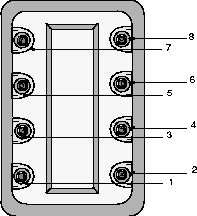
Dial 1
View Track Horizontal
|
Similar to the Cameras  World Move camera Track feature where the mouse is moved left and right while holding down the middle button.
Rotate the dial counter-clockwise to track the active view to the left and clockwise to track the active view to the right. World Move camera Track feature where the mouse is moved left and right while holding down the middle button.
Rotate the dial counter-clockwise to track the active view to the left and clockwise to track the active view to the right.
|
|
Dial 2
View Track Vertical
|
Similar to the Cameras World Move camera Track feature where the mouse is moved up and down while holding the right button pressed.
Rotate the dial counter-clockwise to track the active view to the bottom, and clockwise to track the active view to the top.
|
|
Dial 3
View Tumble About the World Up Axis
|
Similar to the Cameras World Move camera Tumble feature where the mouse is moved left and right while holding the middle button pressed.
The tumble function only works in the perspective window, so using this dial automatically changes the current window to a perspective window.
If there is more than one perspective window, the one with the highest priority is chosen (priority 2 is higher than priority 3). If the perspective windows have the same priority, the most-recently current perspective window is chosen.
Rotate the dial counter-clockwise to revolve the camera clockwise about the Z axis, and clockwise to revolve the camera counter-clockwise about the Z axis (in the Z-up coordinate system). If you are working in the Y-up coordinate system, rotation is about the Y axis.
|
|
Dial 4
View Tumble Vertical
|
Similar to the Cameras World Move camera Tumble feature where the mouse is moved up and down while holding the right button pressed.
The tumble function only works in a perspective window, so using this dial automatically changes the current window to a perspective window. For more than one perspective window, see Dial 3 above.
Rotate the dial to revolve the camera vertically.
|
|
Dial 5
Dolly View In
|
Similar to the Cameras World Move camera Dolly feature.
Rotate the dial counter-clockwise rotation to dolly the active view out, and clockwise to dolly the active view in.
|
|
Dial 6
View Twist
|
Similar to the Cameras Local Move camera Twist feature.
The twist function only works in a perspective window, so using this dial automatically changes the current window to a perspective window. For more than one perspective window, see Dial 3 above.
Rotate the dial clockwise to rotate the camera clockwise, and counter-clockwise to rotate the camera counter-clockwise.
|
|
Dial 7
Anisotropic View Scale Horizontal
|
Similar to the Cameras World Move camera Dolly -  feature, with Scaling set to NON PROPORTIONAL, where the mouse is moved left and right while holding down the middle button.
This operation only works in an orthographic window view.
Rotate the dial counter-clockwise to decrease the view scale along the horizontal axis in the active view, and clockwise to increase the view scale along the horizontal axis in the active view. feature, with Scaling set to NON PROPORTIONAL, where the mouse is moved left and right while holding down the middle button.
This operation only works in an orthographic window view.
Rotate the dial counter-clockwise to decrease the view scale along the horizontal axis in the active view, and clockwise to increase the view scale along the horizontal axis in the active view.
|
|
Dial 8
Anisotropic View Scale Vertical
|
Similar to the Cameras World Move camera Dolly - feature, with Scaling set to NON PROPORTIONAL, where the mouse is moved up and down while holding the right button pressed.
This operation only works in an orthographic window view.
Rotate the dial counter-clockwise to decrease the view scale along the vertical axis in the active view, and clockwise to increase the view scale along the vertical axis in the active view.
|