|
|
Poly Shading palette
> TexCoord Map
|
Mapping Textures to Irregularly Shaped Polygons
|
|
|
|
|
|
|

|
Assign texture coordinates to irregularly shaped, connected polygonal surfaces. This tool helps with shapes that do not work well with parametric projection mapping tools (such as the Sphere, Planar, Cylindrical, and Camera projections).
|
|
Use the Polygon Edit >
Polyset Cleanup tool before
using TexCoord map. This
removes cases of bad
geometry which may result
in ambiguous mapping
results.
|
Overview
TexCoord map assigns a set of texture coordinates to selected vertices of a polygonal surface. The center of texture space corresponds to a "center" polygon you choose.
The mapping operation assigns texture coordinates per vertex per polygon as required. Note that any previous texture coordinates stored in the affected vertices are overwritten.
|
|
The UV (texture coordinates)
of mapped vertices may be
viewed from the UV texture
display window accessible
from a texture icon in the
Multi-lister.
|
TexCoord map works best on surfaces that do not have non-manifold topology, holes, twisted polygons, or T vertices.
Choosing Which Polygons to Map by Proximity to a Center Polygon
-
1
-
Choose Poly Shading > TexCoord map -
 or double-click the icon. or double-click the icon.
-
2
-
Choose By level under Selection Mode to pick the polygons that will be affected based on their proximity to the center polygon.
-
3
-
Click Go.
-
4
-
The system prompts:
-
Click to select center, or enter number of
levels (2):
- Click a polygon to select the center polygon.
- Click in an empty area of a view window to deselect the center polygon.
- Type a number in the prompt line to set the level of polygons surrounding the center polygon that will be mapped.
-
5
-
Click Go to map UV coordinates onto the vertices.
Choosing Which Polygons to Map Manually
-
1
-
Choose Poly Shading > TexCoord map - or double-click the icon.
-
2
-
Choose By selection under Selection Mode
to pick the polygons that will be affected manually.
-
3
-
Click Go.
-
4
-
The system prompts:
-
Use [SHIFT-BTN3] to select center, any
other button to select area.
- Press and hold Shift and click the right mouse button to select the center polygon.
- Press and hold Shift and click the right mouse button in an empty area of a view window to deselect the center polygon.
- Click the left mouse button to choose vertices/polygons to map.
-
5
-
Click Go to map UV coordinates onto the vertices.
TexCoord Map Options
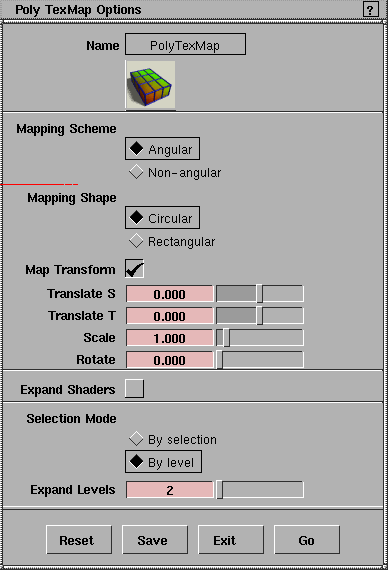
Mapping Scheme
- Angular - maps the UV coordinates onto the vertices in a circular pattern. The angle between each vertex is equal, so there is equal spacing between the UV coordinates.
- Non-angular - maps the UV coordinates onto the vertices in a rectangular pattern. The coordinates begin at 0.5, 0.5 and radiate outward from the center with equal spacing.
Mapping Shape
- Circular - maps UV coordinates in a circular pattern.
- Rectangular - maps UV coordinates in a rectangular pattern.
Map Transform
-
- Check this box to show sliders for moving (translating), rotating, and scaling the UV coordinates.
>
|
Note:
|
The pivots for rotation and scaling are at the center of
normalized texture space.
|
Translate S and Translate T
-
- (These options appears when Map Transform is on).
-
- Moves the UV coordinates this number of texture space units in S and T.
Scale
-
- (This option appears when Map Transform is on).
-
- Scales the UV coordinates by this factor.
|
|
This option appears when
Map Transform is on.
|
Rotate
-
- Rotates the UV coordinates this number of degrees.
Expand Shaders
-
- Assigns the shader(s) of the center polygon to all mapped polygons.
Selection Mode
- By selection - you will pick a center polygon and all polygons to map manually. Note that you can pick individual vertices of polygons to map as well as whole polygons.
- By level - you will pick a center polygon and Alias will map all adjacent polygons to the level set in the Expand Levels
text box.
|
|
This option appears when
Selection Mode is By level.
|
Expand Levels
-
- The number of levels of polygons adjacent to the center polygon are mapped. For example:
- If Expand Levels is 0, only the center polygon is mapped.
- If Expand Levels is 1, only polygons that share and edge with the center polygon are mapped.
- If Expand Levels is 2, polygons that share and edge with the center polygon are mapped, and polygons that share and edge with those polygons are mapped.
|


