Polygon Edit palette > Split

Increasing Polygon Divisions


Polygon Split divides a triangle or a quad into smaller polygons, increasing the level of geometric detail for a polygonal model.

You can use Split on quads and triangles only. All split tools work identically on triangles, but each uses a different method for splitting quads.

How to Use

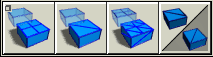
Select Polygon Edit > Split to use a split tool or click one of these icons.

For more information, see:

  • The rest of this section for Split > Polygon Split.

Splitting using the mouse

Using the mouse to split a quad

  • The left mouse button moves the split-point freely about the surface in both the S and T directions.
  • The middle mouse button constrains movement of the split-point along the S direction.
  • The right mouse button constrains movement along the T direction.

Using the mouse to split a triangle

The left, middle, and right mouse buttons move the locator along the S, T and U surface vectors respectively.

Splitting using the keyboard

Using the keyboard to split a quad

Type two decimal values between 0.0 and 1.0 to position the split point along the S and T surface vectors of the polygon.

Using the keyboard to split a triangle

Type three decimal values between 0.0 and 1.0 to position the split point along the S, T, and U surface vectors of the polygon. The sum of the three values should equal 1.0. If they do not, the S, T, and U values are automatically adjusted.

Polygon Split Options

Select Polygon Edit > Split > Polygon Split - . The following option window appears:

The three corresponding options available are:

Sides to Center

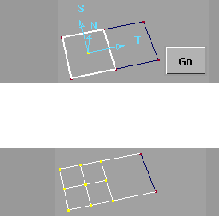
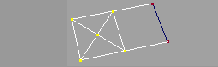
This option replaces the Split into quads function. You can use this tool to split from the sides to the center of the polygon. This function creates four sub-quads.
1
Select Sides to Center and click Go. The system prompts:
Select quad or triangle to split. (Quads are split into sub-quads).

2
Click on the quad polygon you want to split. The polygon is highlighted and a polygon surface locator is displayed.
A Go button also appears at the bottom right of the window along with the following prompt:
Current split point (s,t) = (5.0, 0.5). Enter new values (range 0.1).
3
Click Go to perform the split.
or
Type another value at the keyboard and press Enter. When you are happy with the vertex location, click Go. To cancel the current split, select another tool or function.

Sides to Center and Stitch

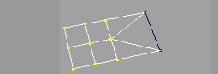
Stitch/triangulate adjacent polygons and perform a linear split.
1
Select Sides to Center and Stitch and click Go. The system prompts:
Select quad or triangle to split and stitch. (Quads are split into sub-quads).

2
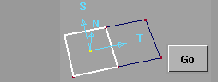
Click on any quad polygon. The polygon is highlighted and a polygon surface locator is displayed.
This locator displays the polygon's normal as a reference, S and T surface direction vectors. The vertex is inserted on the centre of the locator on the polygon's surface for the split. A Go button appears at the bottom right of the window along with the following prompt:
Current split point (s,t) = (5.0, 0.5). Enter new values (range 0...1)

3
Click Go to perform the split and stitch.
or
Type another value at the keyboard and press Enter . When you are happy with the vertex location, click Go. To cancel the current split, select another tool or function.

Corners to Center

Use this tool to split from the corners of the polygon to the center.
1
Select Corners to Center and click Go. The system prompts:
Select quad or triangle to split and stitch (Quads are split into sub-quads)
2
Click on any quad polygon. The polygon is highlighted and a polygon surface locator is displayed. This locator displays the polygon's normal as a reference, S and T surface direction vectors. The vertex is inserted on the polygon's surface at the locator as the center of the split. A Go button appears at the bottom right of the window along with the following prompt:
Current split point (s, t) = (0.5, 0.5). Enter new values (range 0...1)
3
Click Go to perform the split.
or

Type another value at the keyboard and press Enter . When you are happy with the vertex location, click Go. To cancel the current split, select another tool or function.


Copyright © 1998, Alias|Wavefront, a division of Silicon Graphics Limited. All rights reserved. Please send questions or comments regarding the documentation to:
[email protected]