|

|
When you select Merge, active vertices that are positioned within a specified tolerance of each other are merged into one shared vertex.
Overview
This tool can be used to impose connectivity in areas where cracks and spaces in a polygonal surface exist or could potentially arise. Vertex Merge can also be used to reduce polygonal geometry by merging a number of vertices and their corresponding polygons to a single point using a large tolerance relative to vertex spacing.
How to Use
-
1
-
Select Polygon Edit > Vertex > Merge or click this icon.
-
The system prompts you to select the vertices to merge.
>
|
Note:
|
If the vertices won't merge, open the Vertex Merge Options
window and toggle Use distance tolerance
off.
|
|
|
The selection and
deselection of vertices for
both the Vertex tools is the
same as the Pick Vertex tool.
See Pick Vertex for more
information.
|
-
2
-
Click and drag a pick box to select or deselect vertices. Within the pick box, any vertices that are active become inactive and any that are inactive become active.
-
Once vertices have been selected, you are prompted to
select or deselect the vertices to merge and click Go to
execute the merge.
-
3
-
You can continue selecting or deselecting vertices until you want to perform the merge. When ready, click Go. In the following example, the Distance tolerance is set to 1.0000
in the Vertex Merge Options window.
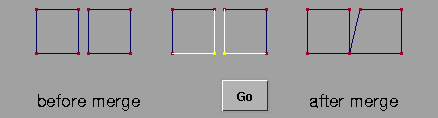
>
|
Note:
|
If a polygon's vertices are merged to a single point, the
polygon will have zero area. Any hidden geometry that
results can be removed using the Clean tools.
|
Vertex Merge Options
The tolerance for merging vertices can be defined by changing the
Vertex Merge options in the Vertex Merge Options box. To display the Vertex Merge Options box, double-click the Merge icon in the Tool Palette, or select Merge -  from the Vertex
cascading menu. from the Vertex
cascading menu.
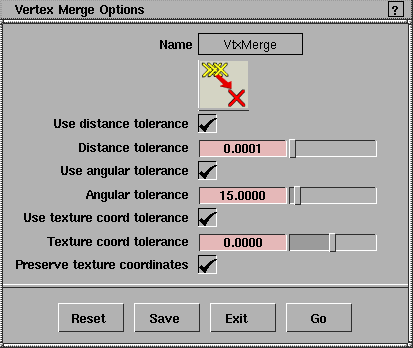
Use distance tolerance
-
- When this option is ON, the Distance tolerance slider is displayed.
Distance tolerance slider
-
- Specify how close polyset vertices must be in order to be merged.
Use angular tolerance
-
- When this option is ON, the Angular tolerance slider is displayed.
Angular tolerance slider
-
- Specify the maximum angle between the normals of two polygons that will be merged. You can use this value to create "hard edges" between polygons in rapidly changing areas of a polyset.
Use texture coord tolerance
-
- When this option is
ON, the Texture coord tolerance slider is displayed.
Texture coord tolerance slider
-
- Specify how close vertices must be in texture space (also referred to as parametric, UV, or ST space) to be merged.
Preserve texture coordinates
-
- Keep multiple texture coordinates for each vertex to preserve the parameterization of the polygons.
|


