|

|
-
1
-
Select Polygon Edit > Polygon reduction, or click this icon.
-
The system prompts:
-
Select polysets to reduce:
-
2
-
Click on the polygon vertices you want to reduce. The system prompts:
-
Select or deselect polysets to reduce.
Click GO to perform reduction.
-
3
-
Click the Go icon at the bottom right of the window to see the result.
How Polygon Reduction Works
To best use the polygon reduction tool, you need to understand how the tool reduces the number of polygons in one or more polysets.
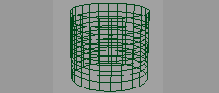
The Polygon reduction tool uses a "constant vertex density" concept to reduce the number of polygons. The tool ensures that the vertices of a model are equally dense (and less dense than the original polysets) to reduce unnecessary detail.
|
|
|
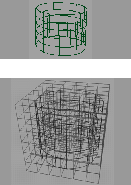
In the side example, the polyset is divided into 6 X-axis, 6 Y-axis, and 6 Z-axis subdivisions.
Notice that the subdivisions create a stack of boxes, or "voxels" that contain the selected vertices. For each voxel the system creates a single representative vertex based on the vertices in the given voxel, and takes into account factors such as the size of the polygons using the vertex, and the angle between polygons using the vertex.
Every vertex in each voxel is moved to the position of that voxel's representative vertex. This results in many polygons becoming zero-area polygons, or simple lines. These "degenerate" polygons are deleted, resulting in reduced polysets.
The Polygon reduction tool has several advantages:
- The reduction tool modifies the topology of a set of polygons if necessary. For example, a model of a building that undergoes a high degree of reduction might have the holes for its windows closed by the reduction routine.
- Multiple polysets can be reduced at the same time. Due to the nature of the tool, reducing multiple polysets at once does not result in cracks appearing between polysets.
- Although the reduction is performed quickly, a progress indicator is provided.
- Clicking Edit > Undo returns the polysets to their original state.
Caution!
- Under some circumstances, this tool can create polygons that are coplanar and overlap. These polygons should be extracted and deleted after using the tool.
- This tool is sensitive to the alignment of the polysets to the main axis. For best results, move the objects to be reduced so that they are roughly parallel to a major axis.
Poly Reduction Options
Use the Poly Reduction Options to control the polygon reduction process. Select Polygon reduction - from the Polygon Edit
menu, or double-click the icon in the Tool Palette to open the Poly Reduction Options box. from the Polygon Edit
menu, or double-click the icon in the Tool Palette to open the Poly Reduction Options box.
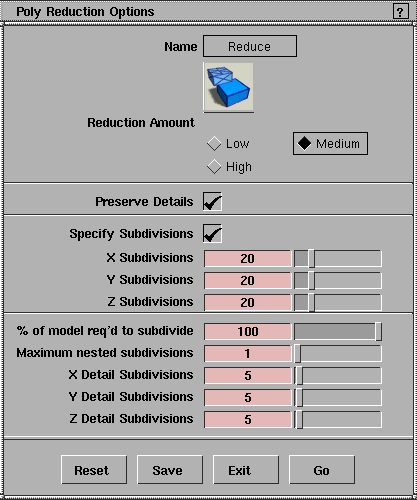
Reduction Amount - Low, Medium, High
-
- These settings provide a set of common preset values for polygon reduction. The subdivision values actually set by these presets can be viewed by clicking the Specify Subdivisions checkbox.
Preserve Details
-
- When toggled ON, Preserve Details puts the tool into a recursive mode. If a single voxel has more than a specified percentage of vertices in it, that voxel is further subdivided. This has the effect of preserving small details in the model, but does not give as much reduction.
Specify Subdivisions - X Subdivisions, Y Subdivisions, Z Subdivisions
-
- Lets you specify the exact number of X,Y and Z subdivisions to be used in the reduction process.
>
|
Note:
|
A large number of subdivisions will use a lot of memory
and won't give much reduction.
|
% of model req'd to subdivide
-
- This control is only active if Preserve Details is toggled ON. Specify the percentage of vertices in a given voxel for the system to subdivide that voxel.
Maximum nested subdivisions
-
- Lets you limit the maximum number of subdivisions that may occur to a voxel.
X Detail Subdivisions, Y Detail Subdivisions, Z Detail Subdivisions
-
- Specify how many subdivisions result when a voxel is subdivided to preserve detail.
|