|
|
Polygon Edit palette
> Boolean
|
Combining Polysets
|
|
|
|
|
|
|
|
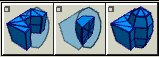
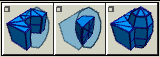
Boolean Operations combines two polysets into a new polyset.
Overview
|
|
|
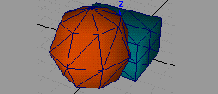
The polygon boolean tools let you combine two closed polysets in different ways, similar to the boolean operators for shells (see NURBS Modeling in Alias).
|
|
|
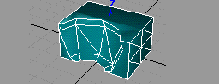
Subtract
-
- Removes the volume of one polyset from another.
|
|
|
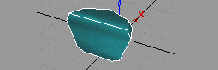
Intersect
-
- Keeps the shared volume of two polysets and delete the rest.
Union
-
- Combine the volumes of two polysets, creating a new polyset.
How to Use
Here are a few tips to follow that make using boolean easier:
- Both polysets must be closed.
- The boolean operators are very sensitive to polyset quality. Polysets created by converting NURBS primitives can have problems because they are usually not closed polysets. To close them, merge the vertices (Polygon Edit > Vertex > Merge) and combine the polysets (Polygon Edit > Polyset > Combine polygons). Check the normals (Poly Shading > Flip) before using the boolean tools.
- The boolean tools create polysets with N-sided, non-planar, and concave polygons. You may need to turn on the Tessellate Concave option (see below) and/or clean up the resulting polyset.
- Boolean operations do not preserve pre-lighting, normals, local shaders, or vertex animation.
- Choose Edit > Undo to return the polysets to their original state.
|
|
|
To use a Boolean tool, select it from the
Polygon Edit > Boolean menu, or click one of these icons:
-
1
-
The system prompts you to either pick the first polyset or to select the polyset to subtract from. It depends on the tool.
-
2
-
Pick the first polyset.
-
3
-
The system prompts you to either pick the second polyset or to select the polyset to subtract from. It depends on the tool.
-
4
-
Pick the polyset you want to subtract from or combine with the first polyset.
-
5
-
The system prompts you to click Go to proceed or to click the second polyset to cancel. Click Go, found in the bottom right corner of the window, to perform the boolean operation.
Boolean Options
Select Boolean > Subtract/Intersect/Union - from the Polygon Edit menu, or double-click the icon in the Tool Palette to open the Polygon Boolean Options window. from the Polygon Edit menu, or double-click the icon in the Tool Palette to open the Polygon Boolean Options window.
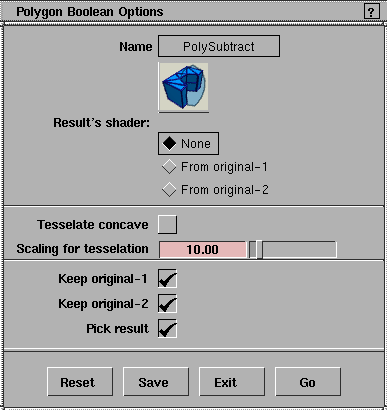
Result's Shader
None
-
- The resulting polyset uses the highlighted shader (in the Multi-lister).
From original-1
-
- The resulting polyset uses the shader of the first polyset.
From original-2
-
- The resulting polyset uses the shader of the second polyset.
|
|
|
Tessellate Concave
-
- Check this box to tessellate any concave polygons in the resulting polyset.
-
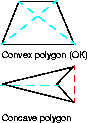
- Boolean operations can create concave polygons. Concave polygons have "dents". Technically, a polygon is concave if you can connect any two vertices with an edge that runs outside of the polygon. See the illustration to the side.
-
- Most 3D hardware and software platforms, including OpenGL, do not render concave polygons correctly. Use this option if you plan to export your model.
Scaling for Tessellation
-
- Boolean operations can create holes in polygons. Since polygons can't have holes, Alias must split the polygon into two or more polygons surrounding the hole.
-
- This operation requires complex geometric calculations that compare tiny differences between numbers. Since the differences are so small, the numerical precision of floating point representations can become a factor.
-
- Alias multiplies vertex values by the Scaling for Tessellation factor to allow more room for precision in floating point numbers. In most cases the default value of 10.0 will be fine. However, if you are combining polygons that are extremely large or small, you may need to change it.
Keep original-1
-
- Uncheck this box to delete the first polyset after the operation is complete.
Keep original-2
-
- Uncheck this box to delete the second polyset after the operation is complete.
Pick result
-
- Check this box to automatically pick the result of the operation. This is useful when you choose to keep the originals, since the old and new objects occupy the same space.
|


