|
|
Polygon Edit palette
> Pick > Pick Vertex
|
Picking and Unpicking Vertices
|
|
|
|
|
Pick Vertex unpicks all geometry so as to allow easy picking and unpicking of vertices.
How to Use
|
|

|
-
1
-
Select Polygon Edit > Pick > Vertex, or click the icon.
-
The system prompts:
-
Select/deselect polyset vertices.
-
2
-
Click and drag to select or deselect vertices.
-
This tool is similar to Pick > Point types > CV except that it
will only select or deselect polygon vertices (ignoring
NURBS and CVs).
To pick vertices by clicking in polygons
- Hold down Shift and click within a polygon with the right mouse button to pick/unpick the vertices of the polygon (if the polygon's polyset was picked it is now unpicked).
- Hold down Shift and click the middle mouse button to grow the pick by one polygon in all directions.
- Hold down Shift and drag with the left mouse button to sketch a path with the mouse. When you release the mouse button all polygons under the path are picked.
These pick methods are also available in the following tools:
- Combine polygons
(in the Polygon Edit menu).
Pick Vertex Options
To display the Pick Vertex/ Polygon Options box, double-click the Vertex icon in the Polygon Edit Palette, or select Pick > Vertex - from the Polygon Edit menu. from the Polygon Edit menu.
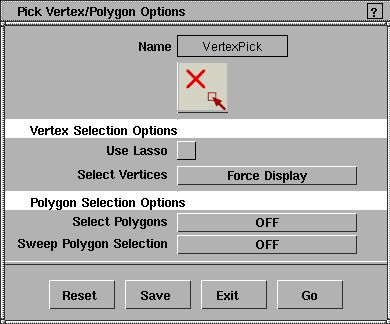
Use Lasso
-
- Pick vertices by drawing a lasso line around them instead of using a pick box.
|
|
|
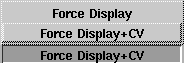
Select Vertices
- Force Display - picks the vertices.
- Force Display+CV - picks vertices and CVs, even when CVs are toggled off in the DisplayTgls > Control option window.
Select Polygons
- Off - picks individual vertices only.
- By Vertex - automatically picks all polygons that include the picked vertex.
- By Polygon - picks only whole polygons (all vertices of a polygon must be inside the pick box). Click on a vertex to pick all polygons that include the picked vertex.
>
|
Note:
|
The By Vertex
and By Polygon
options do not work on
instances of polysets.
|
Sweep Polygon Selection
-
- This tool modifies the behavior of the tools when you press and hold Shift and drag with the right mouse button:
- Off - picks/unpicks single polygons.
- Additive - picks any polygon dragged over with the pick box.
- Subtractive - dragging over polygons unpicks them.
|
Edit Polygons
palette > Pick > Pick
Polyset
|
Picking and Unpicking Polysets
|
|
|
|
|
Pick Polyset unpicks all geometry so as to allow easy picking and unpicking of polysets.
How to Use
|
|

|
-
1
-
Select Polygon Edit > Pick > Polyset, or click on the icon.
-
The system prompts:
-
Select/deselect polysets.
-
2
-
Polysets can be selected or deselected by clicking on a polyset, or clicking and dragging a pick box over the desired polysets.
>
|
Note:
|
If one, some, or all of a polyset's vertices are active when
you select that polyset, all of that polyset's vertices are made
inactive and that polyset is then made active. Any polysets
picked that are active become inactive, and any inactive
polysets become active.
|
|


