|
|
Polygon Edit
palette> Insert >
Insert Vertex
|
Inserting Polygon Vertices
|
|
|
|
|
|
|

|
Vertex lets you insert a polygon vertex in a polyset edge. The vertex is inserted into all polygons sharing that edge (defined by the edge-end vertices being shared).
|
|

|
How to Use
-
1
-
Create the polygons using the Add tool in the Polygons
Tool Palette.
-
2
-
Select Polygon Edit > Insert > Vertex or click this icon.
-
The system prompts:
-
Select polyset edge at vertex insertion
point.
|
|

|
- Click the left mouse button to select the vertex insertion point. The vertex is inserted at the point where you clicked.
|
|

|
- Click the middle mouse button to insert the vertex at the midpoint of the edge.
|
|

|
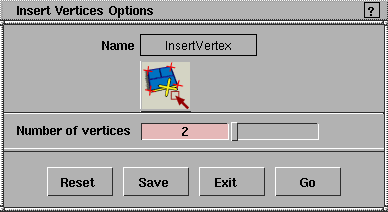
- Click the right mouse button to insert the number of vertices you set in the Insert Vertex Options box at the midpoint of the edge. The points are distributed uniformly.
Insert Vertices Options
You can insert from one to 100 uniformly spaced vertices on a selected edge by typing in a value in the Insert Vertex Options box (Polygon Edit > Insert > Vertex -  ) and performing the function. ) and performing the function.
Example
Before you perform the function:
-
1
-
Select Polygon Edit > Insert > Vertex - to open the Insert Vertices Options box.
|
|
Many of the Polygon tools
only work with 3- or 4-sided
polygons, so you may want
to split these polygons using
the Insert Edge tool.
|
-
2
-
Type the number of vertices you want to insert or drag the slider to set an amount, then click Go.
-
3
-
The system prompts:
-
Select polyset edge at vertex insertion
point.
|
|
Polygons with more than 4
sides can be manipulated
using the Vertex Pick tool,
and Xform > Move
command.
|
-
4
-
Using the right mouse button, click to insert the new vertices.
|


