|
|
Polygons palette >
Info > Edit vertex
|
Moving Polygon Vertices
|
|
|
|
|
|
|

|
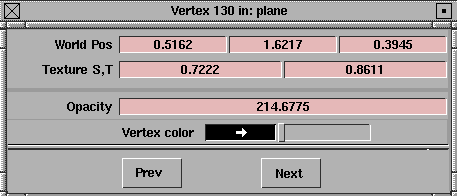
Edit vertex modifies the position (in world space), texture coordinates, transparency, and color of a polygon vertex.
How to Use
-
1
-
Select Polygons > Info >Edit vertex info from the palettes, or click its icon.
-
2
-
Click a vertex to open the Vertex information window:

|
|
To see polygon transparency,
choose Polygon Control from
the DisplayTgls menu. Turn
on Enable Transparency and
Colored Display, and set
Display Style to Filled.
|
-
3
-
Use the controls to edit the vertex information. Use the Prev and Next buttons to select the other vertices in the polyset.
|
Polygons palette >
Info > Highlight non-
planar
|
Picking Non-Planar Polygons
|
|
|
|
|
Highlight non-planar picks polygons whose vertices are not co-planar.
|
|
|
How to Use
-
1
-
Select Polygons > Info > Highlight non-planar, or click its icon.
-
2
-
Click a polyset to test.
Alias tests the polygons in the polyset and picks any non-planar polygons.
|


