|
Polygon Edit palette > Xform edge > Translate |
Moving Polygon Edges | ||
|
| |||
|
|
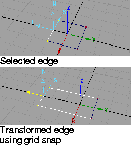
OverviewThis tool moves an edge of a polygon exactly like Xform > Move moves an object. | ||
|
For other Xform edge tools,
see: |
However, unlike Move, coordinates you type for numeric positioning move the midpoint of the edge. For example, if you pick two vertices that make up a edge, select Xform > Move, then type 0, 0, 0 in absolute addressing mode, both of the vertices are moved to the world space origin. If you type 0, 0, 0 in absolute addressing mode while using the Xform Edge > Translate tool, the midpoint of the edge moves to the world space origin while maintaining its size and orientation. How to Use
| ||
|
See Moving the edge with the mouse and Moving the edge with the keyboard below. |
Moving the edge with the mouseIf you are using XYZ axes, use the following mouse buttons to move the edge in an orthographic window:
If you are using Polygon axes, or XYZ axes in a perspective window, use the following buttons:
Mousing Tips | ||
|
|
Moving the edge with the keyboardType coordinates and press Enter to move the edge. The values you type are interpreted as XYZ or NST depending whether you have chosen XYZ axes or Polygon axes in the options box. | ||
|
For details on typing absolute and relative coordinates, see Basic Tools in Alias. |
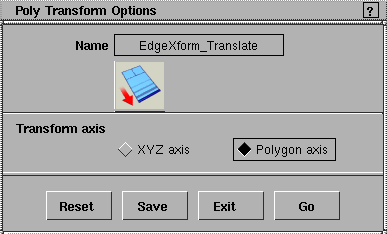
Poly Transform Options
Select Polygon Edit > Xform edge > Translate -
Transform AxisXYZ axes
Polygon axes
| ||
|
Polygon Edit palette > Xform edge > Rotate |
Rotating Edges around T and N Axes | ||
|
| |||
|
|
Rotate a polygon edge around the polygon's T or N axes. How to Use
| ||
|
Hold down Shift and click the right mouse button to repeat the last transformation of the active polygon. |
| ||
|
Press Shift and click the left mouse button to deselect the edge. |
Rotating the edge using the keyboardType decimal rotation values for N and T in degrees, separated by a space or a comma. The rotation is always relative. | ||
|
Polygon Edit palette > Xform edge > Scale |
Scaling from an Edge Mid-Point | ||
|
| |||
|
|
Xform Edge - Scale changes the scale of an edge from its mid-point. How to Use
| ||
|
Hold down Shift and click the right mouse button to repeat the last transformation of the active polygon. |
| ||
|
Press Shift and click the left mouse button to deselect the edge. |
Scaling the edge using the keyboardType a decimal scale factor to scale the edge from its midpoint. The scaling is always relative. |
| Copyright © 1998, Alias|Wavefront, a division of Silicon Graphics Limited. All rights reserved. | Please send questions or comments regarding the documentation to: [email protected] |

 or double click this icon: