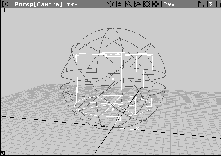
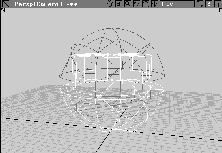
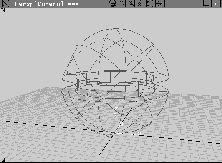
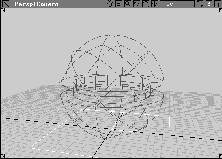
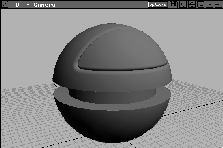
Boolean operations are a special type of modeling technique that let you take a subtractive approach to designing surfaces. Instead of building a shape one surface at a time, you create a larger shape, then carve another shape out of it. You can only perform Boolean operations on objects that have been converted into shells. Shells are a special object type that can be created by stitching surfaces that meet at their edges with positional continuity.
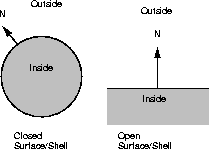
In Alias, shell surfaces can define both closed shapes and open surfaces. This gives you a great deal of modeling flexibility. When defining shells, it is important to set the surface normals of the participating shells and surfaces properly so they point outwards from the surface. The direction of surface normals define the parts of a shell that are kept in the operations.
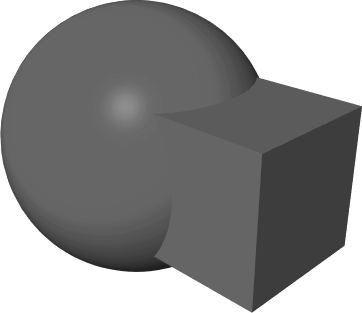
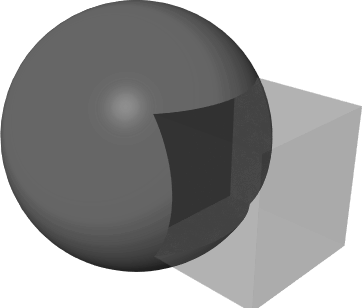
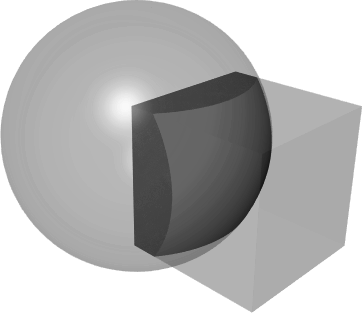
When two shells intersect each other completely, the Boolean operations can be applied. Three operations are available, as follows:
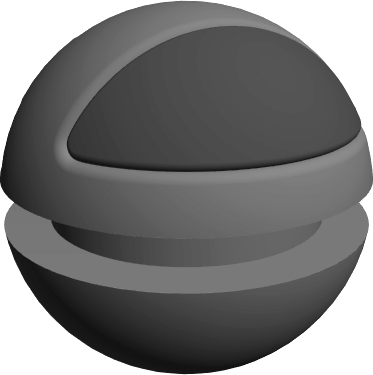
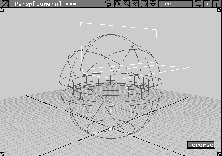
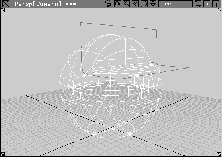
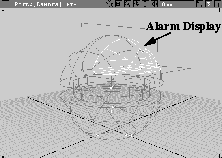
In this lesson, you use Boolean operations to create a concept design model of an alarm clock. Using various surfaces, a primitive sphere is carved to create a study of the clock design.
This lesson starts with a new, empty work space. This lets you build the alarm clock from scratch. If you are already working in Alias, save your current working session.
 All (Studio).
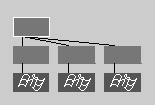
Tip: To help you see the effect of the stitching and Boolean operations, you can use the SBD Window. It is a useful way to pick and work with surfaces and shells. |
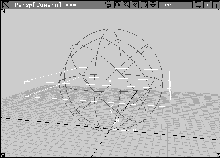
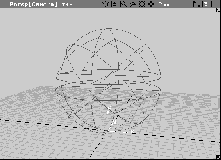
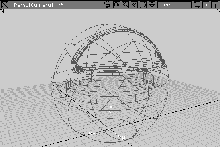
To create the alarm clock, primitive objects are used to show the most basic aspects of working with Boolean operations. You start with a primitive sphere that can be automatically set up as a shell, without requiring any stitching.
 Select Objects Primitives Sphere -
 . In the
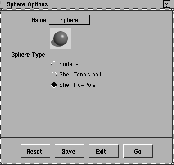
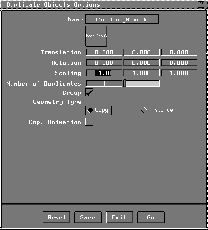
 Sphere Options window, set Sphere Type to Shell No-Pole.
| Tip: The sphere is the only primitive that has the option of being created directly as a shell. |
0, 0, 7 and press Enter to place the sphere into the scene.
| Note: This lesson provides exact coordinates so that your shapes match those in the illustrations. |
A non-polar sphere is built differently from a normal primitive sphere-it does not have isoparms that converge at the poles of the sphere, creating a "degenerate point" at either end. This makes the non-polar sphere better for exporting to CAD when the model is completed.
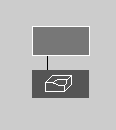
Take note of the SBD window. The sphere is placed into the scene using the shell icon. This means that it is already stitched and prepared for Booleans. If required, you can unstitch the sphere later into regular surfaces.
 Select Xform Scale. Type a value of
 16 and press Enter to scale the sphere to a larger size.
|
Note: You may need to dolly out in the modeling views. If you do, Pick Nothing first to avoid interactively scaling the sphere. |
Although you can automatically create a stitched sphere, other objects have to be stitched into a shell. Next, you create a primitive cube and stitch it into a shell.
Since a cube is built with all edges coincident and its normals pointing out, it is already prepared for stitching and for Boolean operations.
Primitives Cube. Type 0, 0, 7 and press Enter to place the cube.
 Select Xform Nonp Scale. Type
 18, 18, 2 and press Enter to scale the cube so it intersects the sphere in all directions.
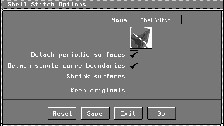
 With the cube still picked, select Surface Edit Stitch Shell stitch-. In the option window, make sure that
 Keep Originals is turned Off. This means that the surfaces are deleted once the cube has been turned into a shell.
SBD window confirms this.
| Note: In the SBD window, notice that the original cube is now represented with a broken outline to indicate that it is invisible. The original shape is temporarily made invisible so the stitch can be undone by selecting Undo from the Edit menu. This is the only time an undo can be done. Once another operation is performed, the original cube disappears. |
 Select Pick Nothing. In the SBD window, the original cube is removed and only the new stitched shell remains.
Now that you have two shells, you can apply your first Boolean operation. By removing the cube from the sphere you can create the central notch in the body of the alarm clock.
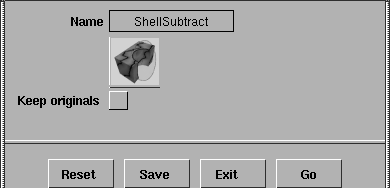
 Select Surface Edit Shells Shell subtract -. In the
 Shell Subtract window, turn the Keep originals checkmark off. This ensures that only the resulting shape remains after the cube is subtracted from the sphere.
SHELL to subtract from. Next, click on the cube as the SHELL or SURFACE to subtract from the shell.
The two original shells are now gone, the sphere is split in two and the resulting shape exists as two new shells. In the SBD window, the old shells are made invisible and the subtracting object is temporarily templated in case you want to undo this action.
 Select Pick Nothing. Now the Boolean operation cannot be undone.
To connect the two partial spheres, you place a cylinder at the center of the shape and then stitch it. A union operation is performed with the new shell and the sphere to create a new shape.
 Select Objects Primitives Cylinder. Type
 0, 0, 7 and press Enter to position the cylinder.
 Select Xform Nonp Scale. Type
 12, 12, 8 and press Enter to scale the cylinder so it is slightly smaller than the sphere. The cylinder will be the inner surface of the alarm clock.
 Select Surface Edit Stitch Shell stitch. Since the cylinder is already picked, it is stitched into a shell.
 With nothing picked, select Surface Edit Shells Shell union-. Turn the
 Keep originals option Off. Click Go.
select a SHELL to union from. Next, click on the cylinder to select a SHELL to union from the shell. Again the one shape is highlighted and the others are made temporarily invisible.
select a SHELL to union from the shell.
 Select Pick Nothing. Now you have one single shell that represents the body of the alarm clock.
Tip: If your surface has fewer isoparms than the surface illustrated above, select Object Edit Patch precision, type 3 and press Enter. |
The surfaces you stitched so far were made up of multiple parts. In Alias, you can also subtract a regular surface from a shell. You can also stitch a series of neighboring surfaces so they create a single continuous topology. Because the surface being used here already has a continuous topology, it doesn't need to be stitched.
 Select Objects Primitives Plane. Type
 0 and press Enter to position the plane at the origin.
 Select Xform Scale. Type
 18 and press Enter to scale to the appropriate dimensions.
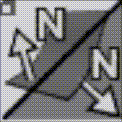 Select Object Edit Reverse direction.
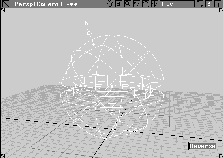
The sphere shell's surfaces are pointing outwards. This is the correct orientation to prepare for Booleans.
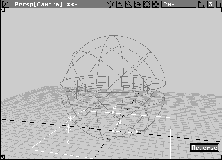
Reverse button in the lower right-hand corner of the Perspective window.
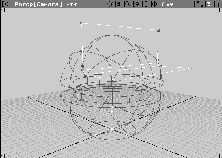
The surface normals flip direction and point toward the spherical object.
| Note: Because the normals are pointing towards the outside of the shell, the opposite side of the surface represents the inside. For closed shapes like spheres and cubes, this idea is easy to understand, but for single surfaces there is no real inside and outside to the shell. As a result, the normal indicator helps you see where the inside and outside of a surface exists for single surfaces. |
 Select Pick Nothing.
 Select Surface Edit Shells Shell subtract. In the Perspective window, click on the spherical object to
 select a SHELL to subtract from.
select a SURFACE or SHELL to subtract from the shell.
| Tip: Because the plane's normal is pointing up, the sphere's area below (the inside of the plane) will be subtracted from the spherical object. |
 Select Pick Nothing.
In the last section, a part of a shell was removed using an unstitched surface. You can also use an unstitched surface to split a shell into two distinct pieces. To do this requires one shell subtract and one shell intersect. The Keep Originals option is also needed for the first Boolean operation so the shells and surfaces can be re-used for the second Boolean operation.
 Select Curves New Curves New Curve (cvs). At the prompt, type the following coordinates to place the following six CVs:
 (8, 3, 16), (8, 3, 11), (8, 3, 10.5), (8, 3.5, 10), (8, 4, 10), (8, 9, 10). Press Enter after you have typed each set.
| Note: Once again, exact points are provided so that your curve matches the curve illustrated. |
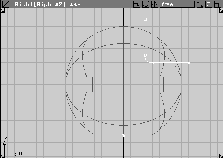
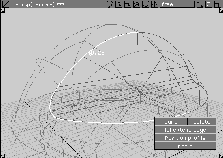
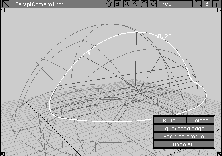
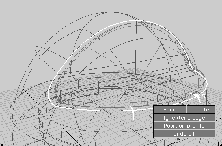
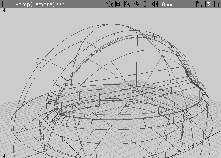
This curve describes a profile you can use to set up the Alarm clock's display. The Right window view shows how the profile curve will carve the display out of the upper hemisphere.
 Select Pick Object. In the Perspective window, click on the curve.
. In the option window, change the
Select Pick Object. In the Perspective window, click on the curve.
. In the option window, change the X Scale value to -1.0 to mirror the curve. Click Go.
Skin. In the Perspective window, click on one of the curves. Next, click on the second curve to generate the skinned surface.
 With nothing picked, select Pick Object. In the SBD window, click on one of the construction curves used to form the skin surface. Click on the other construction curve.
Yes to delete the curves and construction history. The clock surfaces and the skin surface are left intact.
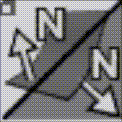 Select Object Edit Reverse direction. In the Perspective window, click on the skinned surface to pick it. Next, click and drag the pointer across the surface of the skinned surface and note the direction of the surface normals. The normals should be pointing towards the clock. This way the inside of the skinned surface represents the area to be kept.
Reverse button appearing in the lower right-hand corner of the Perspective window.
 Select Surface Edit Shells . Turn the
 Keep originals option to On. This keeps the two shells after the Boolean operation is completed. Click Go.
select a SHELL to subtract from. Next, click on the skin surface to select a SURFACE or SHELL to subtract from the shell. A notch is placed in the shell where the surface was subtracted.
Note: With Keep originals turned on, both objects are left intact while a new shell is created in the same space as the original ones. At this point, you can see that the original pieces have been templated. Once you use another tool or function, the original objects will reappear. |
 Select Surface Edit Shell . Turn the
 Keep Originals option to Off. Click on Go.
select a SHELL to intersect from and then click the skin surface to select a SURFACE or SHELL to intersect from the shell.
This creates the new intersected surface and temporarily turns the original surfaces invisible.
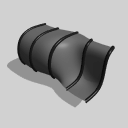
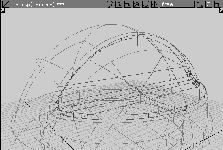
The skinned surface has split the original shell using both a shell subtract and shell intersect on the same shapes.
 Select Pick Nothing.
Objects resulting from Boolean operations are turned into shells. By unstitching a shell you can turn it back into a series of surfaces and trim surfaces. Once a shell has been unstitched, standard surface operations can be performed on the trimmed surface. If further Boolean operations are required, the object can again be stitched into a shell, as long as the rules for stitching are still met.
Next you need to unstitch the pieces of the alarm clock so the edges can be rounded. You then re-stitch the surfaces to turn them back into shells.
 Select Surface Edit Stitch . Make sure that
 Keep Originals is turned Off. Click Go.
The shell node is replaced by a grouped hierarchy of multiple trim surfaces.
 Select Pick Nothing.
 Select Surfaces Fillet surfaces Round. In the Perspective window, click on the curve where the clock display cover was cut from the sphere.
0.25 and press Enter to change the round fillet's radius.
| Note: Only half of the display edge was picked when the radius indicator was placed. The underlying curve on surface used to create the trim surfaces of the display is not continuous. This happens where the underlying surfaces meet at a seam. It just means a few extra picks when working with the geometry later. |
Build to execute the round. The operation should complete after a short delay. When it is finished, select Pick Nothing.
 Select Pick Object. Click-drag a pick box around all the surfaces of the display, including the rounded edges.
 Select Surface Edit Stitch Shell stitch.
 Select Pick Nothing. The surfaces and the new rounded edges are now stitched into a single shell. You can see the results in the SBD window. There are now two shells in the scene. The templated clock shell and the new clock display shell.
To soften the edges of the rest of the alarm clock, you can again unstitch a shell, then round the edges. You'll often find yourself stitching and unstitching as you integrate Booleans into a model.
 Select Pick Object. Click on the clock display shell to pick it.
 Select Pick Template and click on the templated clock shell to add it to the selection.
 Select Surface Edit Stitch Shell unstitch. In the Perspective window, click on the alarm clock shell. Note the SBD window. The shell node is replaced by a grouped hierarchy of multiple trim surfaces.
 Select Surfaces Fillet surfaces Round. In the Perspective window, click on the curve where the clock display cover was cut from the sphere.
0.5 to change the round's radius. Again, only half of the display edge is picked.
Build to execute the round. The round operation should complete after a short delay.
 When it is finished, select Pick Nothing.
 Select Pick Object. Click-drag a pick box around all the surfaces of the alarm clock, including the rounded edges.
 Select Surface Edit Stitch Shell stitch.
 Select Pick Nothing. The surfaces and the new rounded edges are now stitched into a single shell.
 Select Pick Template. In the Perspective window, click on the templated clock display geometry.
If you want to, you can continue to apply Boolean operations to the model. Stitching, unstitching and applying Boolean operations to the resulting shells let you develop geometric prototypes much more quickly than using traditional trimming techniques.
When using Booleans, consider which shapes can be built without using trimmed surfaces. As you have seen, trimmed surfaces often result from Boolean operations, which may make your model more complex than it needs to be. However, if the time saved by using Booleans is worth the extra complexity, they can be a very powerful modeling tool.