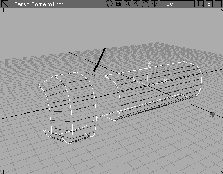
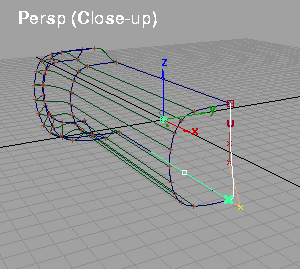
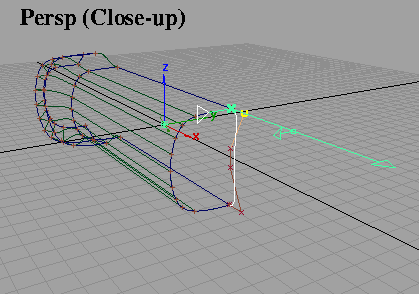
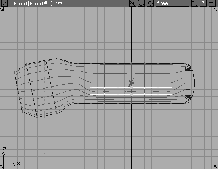
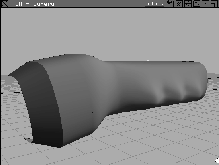
Curve Networks is a set of surfacing tools that lets you create a series of interrelated surfaces using a network of intersecting curves. The Curve Networks tools make sure that the surfaces are continuous at their edges and if required, rebuild the surfaces to optimize for any mismatched parameterization among the original curves. As with all Alias modeling, the better your original curves, the more predictable the resulting surface.
You can create surfaces with the Curve Networks tools so that neighboring surfaces meet with either Positional, Tangent or Curvature continuity. You can also use Sculpting Curves on an existing network to obtain surface features or details.
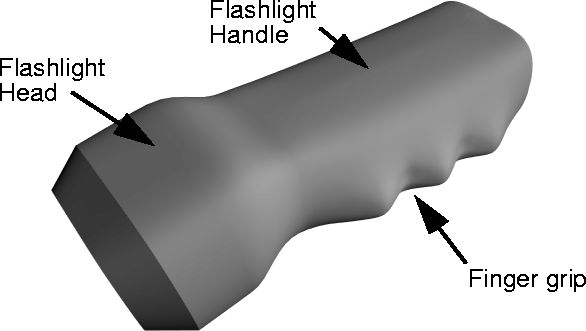
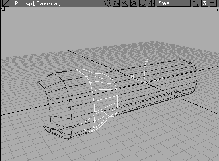
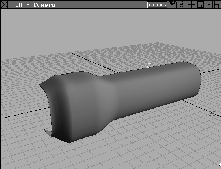
This lesson shows you how to construct a flashlight casing, starting with some provided character curves. You will add intersecting curves to these character lines to ensure that a proper network of curves is available and then create surfaces. Then you'll use Sculpting Curves to add a finger grip to the flashlight handle.
If Alias is already running on your machine, you can either save or delete your current work. You can then open a file containing the curves.
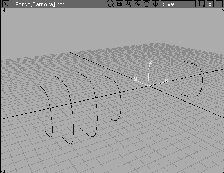
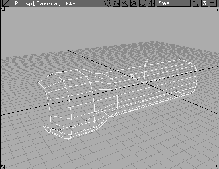
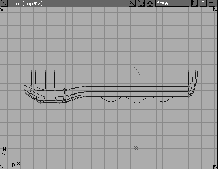
From the File menu, select Open. Double-click on the file named L31_CurveNetwork from the CourseWare project directory. Curves have been provided for one half of the flashlight. Later you will copy the surfaces across the axis of symmetry to complete the flashlight.
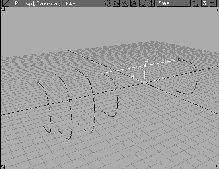
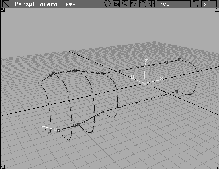
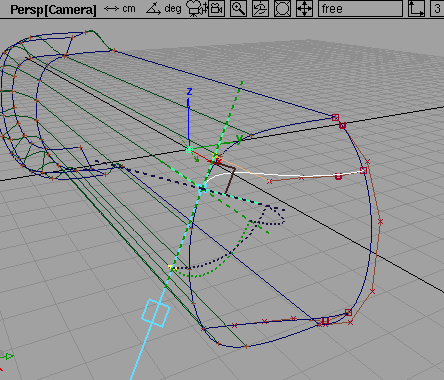
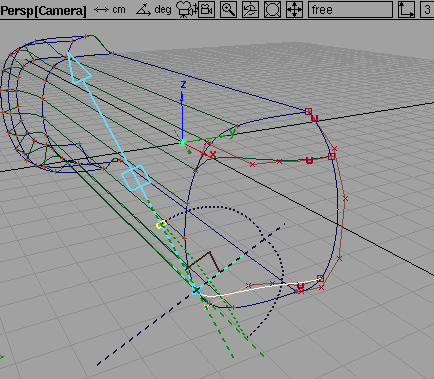
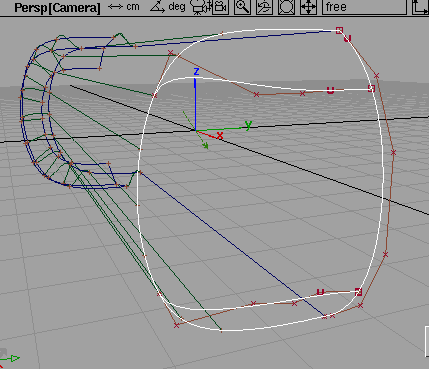
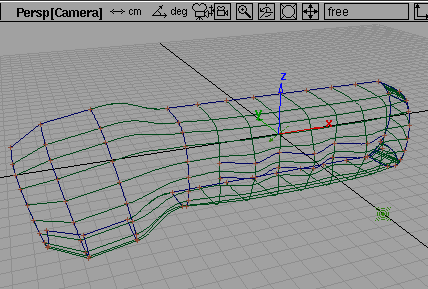
These curves comprise the key character curves that represent the flashlight handle and the flashlight head. These curves do not intersect with other geometry in the scene. The first step is to create intersecting curves to complete the network.
It is crucial, when constructing a curve network, that all the curves properly intersect. If any of the curves do not intersect with other curves in the network, they won't be used in the creation of surfaces.
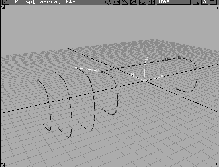
To ensure that all of the flashlight curves are used in the network, start by constructing new curves to connect all the character curves together.
 With nothing picked, select Pick
  Object. Click-drag a pick box around all of the flashlight curves.
 . In the
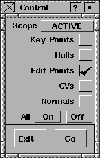
 Control window, set the Scope to Active and make sure that All options are set to Off except for Edit Points.
 Select Pick Nothing.
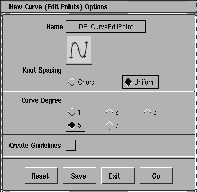
 Select Curves New Curves New Curve (edit pts)-. Make sure that
 Knot Spacing is set to Uniform and Curve Degree is set to 5.
Note: If your version of Alias does not let you use high degree geometry, construct the curves as degree 3 (cubic) and later insert extra edit points. This way, there will be enough geometry for continuity changes. |
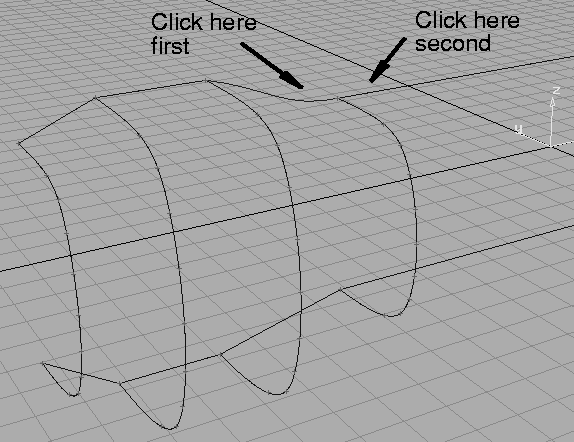
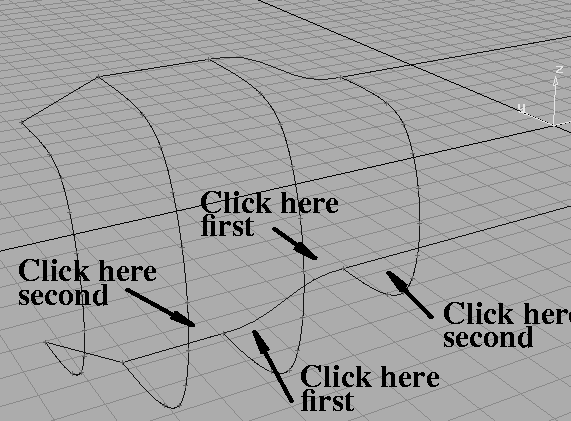
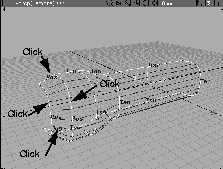
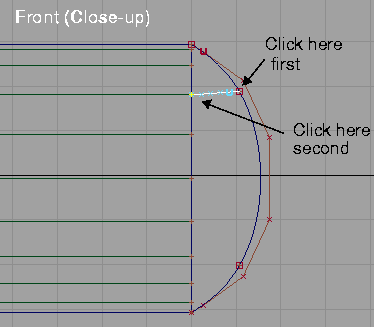
Ctrl key to temporarily turn on magnet snapping and click near the last edit point of the top of the last character line.
Ctrl key and click near the last edit point of the top of the second-to-last character line. This creates a single span edit point curve which intersects both character lines at their ends.
 Select Curves New Curves New Curve (edit pts). This lets you start a new curve. Press the
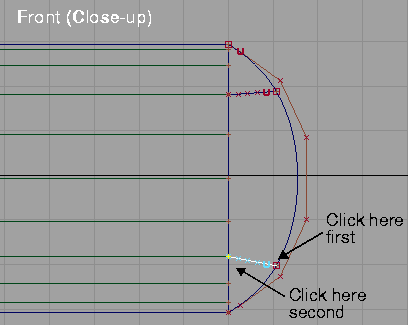
 Ctrl key and click near the last edit point of the top of the second-to-last character line and then its neighboring character line.
 Select Curves New Curves New Curve (edit pts). Press the
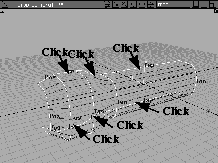
 Ctrl key and click near the last edit point of the next two character lines.
 Select Curves New Curves New Curve (edit pts). Press the
 Ctrl key and click near the last edit point of the last two character lines.
 Select Pick Object and use the middle mouse button to drag a pick box around all of the curves.
Control window from the ObjectDisplay menu should still be open. Confirm that Scope is set to Active and that only Edit points are checked on. Click Go to display the edit points on the curves. Close this window.
 Select Pick Nothing.
To blend surfaces smoothly within the network you must make sure that the network curves have the appropriate level of continuity beforehand. In this lesson, the Align tool ensures that the curves you created previously are curvature continuous wherever required.
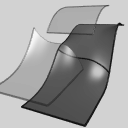 Select Object Edit Align -. In the
 Align Control window menus, set Position to Modify First, Tangent to Modify First and Curvature to On. These settings allow the first curve you click on to be modified in relation to the second, and makes the curves curvature continuous.
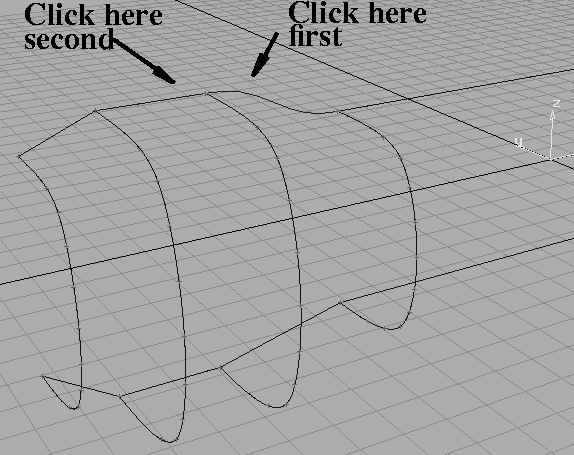
Close this window. The system prompts you to "Select first object near align location".
Select second object near align location".
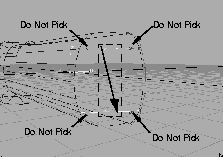
| Tip: Don't align the curves at the front of the flashlight head to be continuous to the horizontal curves on the head. In this case, a sharp transition is required. |
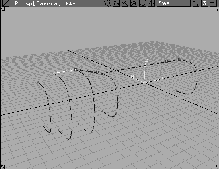
You should now have all the curves that were previously constructed aligned properly for the Curve Network tool.
With the curves intersecting, you can use the Curve Network tools to create surfaces. While the initial surfacing involves a simple selection and click of a button, other steps will be added to ensure the correct continuity within the network and to refine the surfaces.
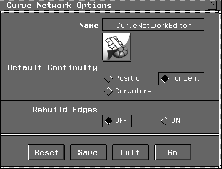
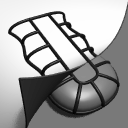 Select Surfaces Curve networks...-. Make sure that the
 Default Continuity is set to Tangent. The Curve Network tool option box lets you change the default continuity settings to either Position, Tangent or Curvature. By default the setting is Tangent. Using all of the curves, you can construct a simple surface network.
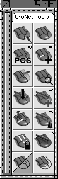
Curve Network tools that you need for your work.
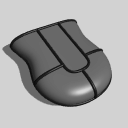 Select CrvNet Tools New network from the
 Curve Network toolbox. Alias prompts you to "Select/Drag-select curve(s) for new network (minimum of 3 curves is needed)."
The surface is created with the top and bottom curves defining the single span density of isoparms along the length. This creates very clean surfaces with no extra geometry. The horizontal isoparms on the surfaces appear more dense. This is because the cross curves all contain edit points that became isoparms in the surfaces.
The Curve Network tool creates a different surface for each bounded area in the network.
Note: If you try to ungroup or transform any of these surfaces, construction history is lost. As a result, you won't be able to edit this network of surfaces using Curve Network tools. |
 Select Pick Object and click on one of the lower network nodes to make it active. Notice in the modeling view that only one of the network sections has been picked.
 Select Pick Nothing and close the SBD window.
The flashlight's head is buckling a little and all the edges are rounded because of tangent continuity. The buckling is because the front edge of the flashlight uses curves that are not aligned to other curves in the network. To change how this front section works, you need to analyze and edit the continuity at the network joints so that it matches how the curves work.
You have seen that the Curve Network tool lets you create a network of surfaces with appropriate surface continuities. The Analyze Network tool provides information about the edge type, the continuity achieved, and a recommended action to take if problems are apparent. This section shows you how to use the Analyze Network tool to determine the degree of continuity achieved along your network boundaries. You'll also see how to interactively analyze and change the type of surface continuity along specific network boundaries.
 Select CrvNet Tools Analyze network from the
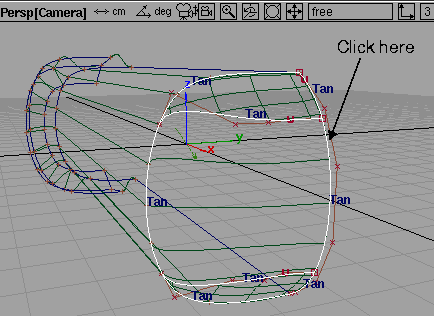
 Curve Network toolbox. Your curve network becomes active and labeled as shown below.
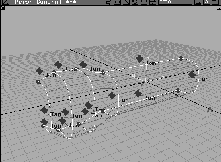
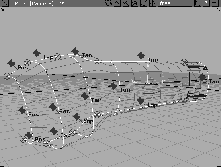
This labeling helps you determine the status of continuity within the active network. The words Tan, Pos, and Curv, when displayed, indicate the type of continuity that has been achieved along each boundary of the resultant surface network. Since you specified "tangent" as the default, all boundaries are indicated as being tangent continuous.
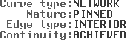
Curve Type, Nature, Edge Type, possibly Continuity and possibly Recommended action. Refer to NURBS Modeling in Alias for an in-depth discussion of these categories.
 Select CrvNet Tools Continuity Positional continuity. Alias now prompts you to
 Select/Drag-select curve(s) across which positional continuity (G0) is required.
 Select CrvNet Tools Implied tangency. Click on the six agent curves that lie along the mirror axis to change these bounding curves to implied tangent.
 Select CrvNet Tools Pick network. This turns off your
 Analyze network labels.
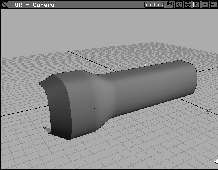
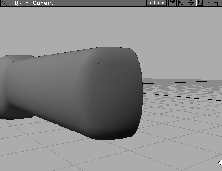
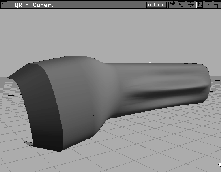
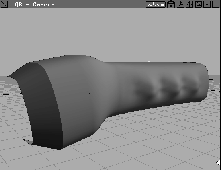
In the Quickrendered image, notice the subtle change at the front of the head of the flashlight resulting from the continuity adjustment. Since the tool has imposed positional continuity only, between specific boundaries, the network at the front of the head of the flashlight shows a crease. This is because tangent continuity no longer exists.
| Note: While you work on your own curve networks, the addition, subtraction, or change of continuity along a boundary may cause the network to bulge unexpectedly, indicating that the specified conditions for continuity are difficult to achieve. If this occurs, you may have to either change the continuity requirements along one or more boundaries, or construct the curve network differently; for example, by adding or subtracting intersecting curves, inserting edit points or aligning curves differently at their edges. |
The Curve Network tools provide several options for modifying the network of surfaces once they have been created. Curves can be added or subtracted individually from the network at any time. Since the network has construction history, the surface network is automatically updated (if auto rebuild is ON) to reflect the change without any surface reconstruction. This section illustrates how to add and subtract curves from an existing network. At the same time, you'll see how the network may fail to construct a surface if one of the original rules for networks is broken.
 Select CrvNet Tools Add/subtract curves Remove curve from network. Your curve network immediately becomes active and prompts you to "
Select/Drag-select curve(s) to remove from current network".
It takes a moment for the network to be updated. The network is rebuilt without this curve defining one of the network boundaries. In this case, one of the network surfaces is removed because the surrounding curves do not properly define a boundary.
 Select CrvNet Tools Add/subtract curves Add curve to network. Alias prompts you to "
Select/Drag-select curve(s) to add to current network"
| Note: Sometimes when you modify, add, or subtract a curve from the network, some or all of the network surfaces will disappear. This occurs when one or more of the rules for curve network construction have been violated (see Curve Network Tips at the end of this lesson for more information). |
Because of Construction history, you can edit the various curves in the network, and the network updates to reflect the changes. You can give the flashlight a tilted head by rotating some curves in the network.
All (Studio). This lets you work with four view windows.
 Select Pick Component. Turn off all the component icons (on the left of the prompt line) except for
 Curves.
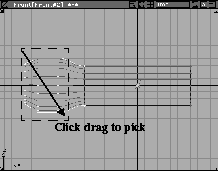
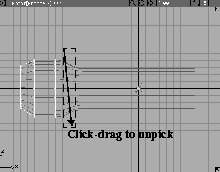
 With the Pick Component tool still selected, click-drag a pick box over the two aligned curves to unpick them.
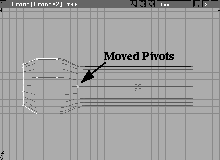
 Select Xform Local Set pivot tool. Type
 -9, 0, 0 to move the pivots.
| Tip: The pivots for all the curves were at the origin. By moving them closer to the head of the flashlight, you can get a better rotational pivot. |
 Select Xform Rotate. In the
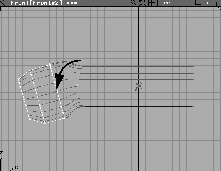
 Front window, click-drag with the middle mouse button to rotate around the Y- axis. Rotate the curves down a little, then release the button.
Because of construction history, the network is updated to reflect the new positions of the curves.
| Note: In this example, the aligned curves also updated to match the rotated curves because the Align tool also uses construction history. This is important so that the curves can maintain intersections at their ends and the network remains intact. Rotating curves that aren't aligned in this manner could break the curve intersections and as a result, the entire network would be broken. |
You have almost completed the flashlight casing. The last step is to create some more curves and create a separate network for the back of the flashlight. To do this, you use the Curve Network tool to create two three-sided regions.
 Select Pick Nothing. In the perspective view window, tumble and dolly the view so that you are looking at the back of the flashlight.
 Select Curves New Curves New Curve (edit pts) -. Set
 Knot Spacing to Uniform and Curve Degree to 5. Click Go.
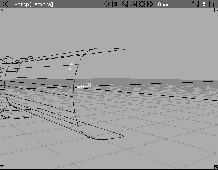
Ctrl key and click near the top end of the flashlight. Next, click near the bottom end of the flashlight to create a single span curve.
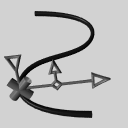 Select Curve Edit Modify Curve editor -. In the control window, set the
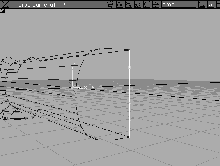
 Parameter value to 1.0. From the control window's Tangent Align menu, select X-axis. This aligns the curve to the X-axis, but in the wrong direction.
Rotation Y value to 90.0 to reverse the direction of the alignment
Parameter value to 0. This moves the Editor to the beginning of the curve. From the control window's Tangent Align menu, select X-axis. This aligns the curve to the X-axis.
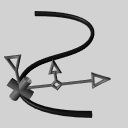 With nothing picked, select Pick Point types CV. Click on the two center CVs on the flashlight's end curve.
 Select Xform Move. In the Front view, click-drag with the middle mouse button to drag the points to the right.
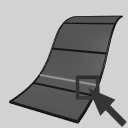 Select Object Edit Insert. Click on the end curve near its top. At the prompt, type
 0.25 and Entery. Click Go to insert a point at this parameter.
0.75 and press Enter. Click Go to insert another point.
 Select Curves New Curves New Curve (edit pts). Press the
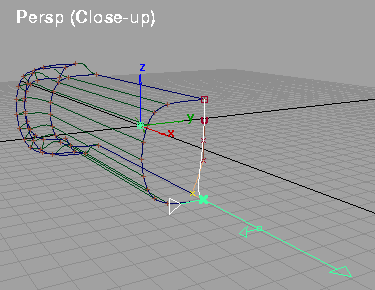
 Ctrl key and click near the first new edit point on the end curve. Next, click near the fourth edit point down on the side curve of the flashlight body.
 Select Curves New Curves New Curve (edit pts). Press the
 Ctrl key and click near the second new edit point on the end curve. Next click near the fourth edit point up from the bottom on the side curve of this region.
 Select Pick Nothing.
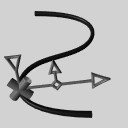 Select Curve Edit Modify Curve editor -. Click on the top cross curve. After clicking, the control window becomes active.
Parameter value to 0. From the control window's Tangent Align menu, select Y-axis. This aligns the curve to the Y-axis.
Control Tools menu in the control window, select Next Crv. Click on the bottom cross curve.
Parameter value to 0. From the control window's Tangent Align menu, select Y-axis. This aligns the curve to the Y-axis.
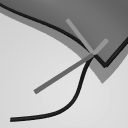 Select Curve Edit Project tangent-. Click on the left end of the top cross curve. Next, click on the adjacent side curve of the flashlight. After the surface is selected, the control window becomes active. From the
 Tangent Align menu select V. This aligns the curve to the V lines of the neighboring surface.
Project Tangent Adjustment window, select Next Crv. Click on the left end of the bottom curve and then click on the adjacent side curve of the flashlight. From the Tangent Align menu select V. This aligns the curve to the V lines of the neighboring surface.
Point types CV. Click-drag a pick box over the center CVs on both of the cross curves. Do not pick the second CVs on either ends of either curve. (These CVs were properly placed by the Curve Editor and the Project Tangent tools.)
 Select Xform Move. In the
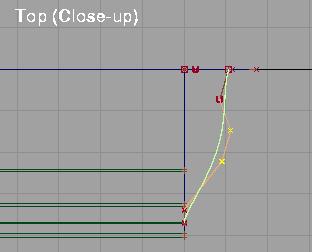
 Top view, click-drag with the middle mouse button to drag the points to the right as shown below. This creates a fuller curve at the ends.
 Select Surfaces Curve networks... This opens the Curve Networks toolbox.
 Select CrvNet Tools New network from the Curve Networks toolbox. Alias prompts you to "
Select/Drag-select curve(s) for new network (minimum of 3 curves is needed)."
 Select CrvNet Tools Implied tangency. Click on the end curve along the mirror axis to change this bounding curve to implied tangent.
 Select CrvNet Tools Pick network. This removes the continuity labels.
Network_01 and click Save wire.
Sculpting Curves are a powerful feature in the Curve network toolbox. Sculpting Curves are curves specially constructed to modify the interior shape of an existing curve network in order to add a modeling feature or detail. Sculpting Curves work with the continuity relationships within the network that have been previously defined and can be added or subtracted from an existing curve network at any time.
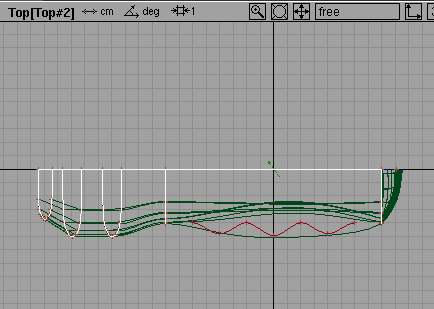
For the flashlight, you can add Sculpting Curves that will help you shape a finger grip on the side of the casing. The curves themselves already exist, though they are currently hidden from view.
 Select Pick Component. Click-drag with the middle mouse button over the whole flashlight to pick all the curves.
. In the Control window, set the
Select Pick Component. Click-drag with the middle mouse button over the whole flashlight to pick all the curves.
. In the Control window, set the Scope to Active and make sure that All options are set to Off except for Edit Points. Click Go to display only edit points on the curves. Close this window.
 Select Pick Nothing.
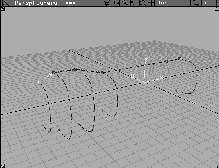
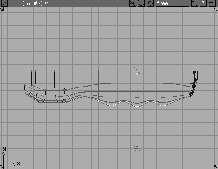
These curves were constructed using degree 3 geometry and have seven spans. The edit points on these curves are aligned with the X-axis grid to create evenly spaced points. Degree 3 geometry is used because it is less complex than higher degree geometry. This makes the Sculpting process more efficient.
 Surfaces Curve Networks to reopen the Curve Networks toolbox. Select
  CrvNet Tools Pick network. Click on one of the curves belonging to the front flashlight network.
 Select CrvNet Tools Add/delete sculpt Add sculpt curve. The system prompts you to "
Select/Drag-select free curve(s) to add to current network as sculpt curves".
| Note: This process may take extra time to complete because the Sculpting Curves are projected into the network and the surfaces are rebuilt accordingly. However, once the Sculpting Curves are mapped into the network, any edits to them update in real time. |
In the QuickRender, you'll notice that the surfaces have been modified out towards the Sculpting Curves, yet none of the detail has been preserved. This is because the density of the geometry in this section of the network is not high enough to react to the new curves.
Curve networks that use Sculpting Curves work best when the surface's geometry is dense enough to react to the Sculpting Curve. Earlier you saw that the density of the geometry is linked to the number of edit points on the surrounding curves. By using Insert on your previously constructed connecting curves, you can add more CVs and isoparms on the surface and achieve the appropriate level of detail.
 Select CrvNet Tools Toggle auto-update. Make sure that the prompt line reads
 "Curve network auto rebuild is now OFF." This ensures that editing the curves will not automatically update the network. This lets you make as many changes to the geometry as necessary without having to wait for the network to update.
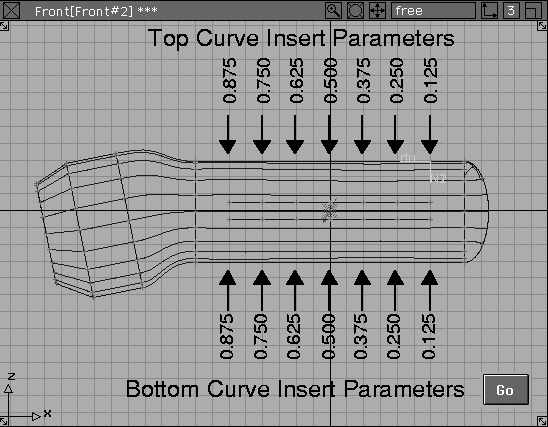
 Select Object Edit Insert. Click on the top connecting curve above the Sculpting Curves. The insert icon appears on the curve.Type
 0.125 and press Enter to move to this parameter on the curve.
0.25 and press Enter. Click Go (or press the Enter key a second time).
0.375, 0.5, 0.625, 0.75, 0.875. This divides the curve into 8 even edit point spans as labeled in the above illustration.
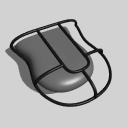 Select CrvNet Tools Build network. The network is rebuilt using the edited curves. The result is the handle's surface has a denser isoparm topology and the Sculpting Curves reshape the surface correctly. Also, the second curve network at the back of the flashlight is rebuilt to reflect the changes to the construction history of its neighbor.
Use the Analyze Network tool to get information about your Sculpting Curves. It tells you information about curve intersections, continuity, boundary pinning, and the presence of Sculpting Curves, to help you determine why the network did or did not build.
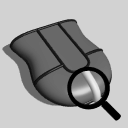 Select CrvNet Tools Analyze network. Your curve network becomes active. The curve intersections have been labeled with an X that indicates that Sculpting Curves are being used.
The default region of influence is set to Large. You can change this using the CrvNet Tools Region of influence tools if you want to change how the Sculpting Curves act on the surface network.
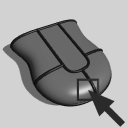 Select the CrvNet Tools Pick network tool to turn off the labels.
Once Sculpting Curves are mapping into a network, you can transform them or reshape them and the network updates interactively. While the initial mapping has a delay involved, these edits can be immediate. You can also remap the curves if you want to move them and experiment with different results.
 Select Pick Component and click on the two Sculpting Curves to pick them.
 Select Xform Move and in the
 Top window, click-drag with the right mouse button to constrain along the Y- axis. The network reacts interactively to its transformation. Move the curves out a little, then release the mouse button.
Move still selected, go to the Front window and click-drag down with the right mouse button to constrain along the Z-axis. Move the curves so that they are sitting just below the axis line where you want to place the handle grip.
This action causes the network to pull down to meet the Sculpting Curves. This may create undesirable "stretch" marks in the final surfaces. You need to remap the Sculpting Curves so they affect the surface in a more natural manner.
 Select CurvNet Reset sculpt curves mapping. This removes the Sculpting Curves from the network and remaps them in new positions. This helps you avoid the stretch marks as you can see in the
 Front view.
Network_02 and click Save wire.
For you to successfully create surfaces using the Curve Network tool, you should remember the following rules:
If a set of curves does not intersect, it won't be used to create surfaces. Curves added to a network, which don't intersect it properly, are still considered to be part of the network, but no surfaces are created that use these curves. If you later edit the orphan curves so they intersect, the network is updated to include these updated curves. In some cases, non-intersecting curves will create gaps in a network and you must fix the intersections to fix the problem.
Curve networks create the cleanest geometry when a region is bounded by four curves. Boundary regions made up of 3 sides are constructed by building a four-sided surface and then trimming it back.
For the flashlight, the closed regions have been constructed to be bounded by exactly four curves whenever possible.
When constructing a curve network that needs to be Tangent continuous along its boundaries, you must ensure that the curves comprising the network have at least Tangent continuity (G1) or Curvature continuity (G2). You can make curves continuous with the curve editor, the align tool, and the project tangent tool.
Sculpting Curves let you affect the CVs on a curve network in order to achieve interesting surface effects. To modify an existing curve network using Sculpting Curves, the network needs a minimum density of CVs. To increase the density of a surface, insert cross section curves, or insert edit points both longitudinally and latitudinally along the surface.
The density of geometry does not change as a result of the Sculpting Curve process. For this reason, the success of the correlation between the surface network and the Sculpting Curves is affected by the density of the original surface network mesh. A denser geometry mesh within the network allows for closer correlation between the Sculpting Curve and the curve network. You can increase the density of information within the curve network by adding edit points to the curves via the Object Edit Insert tool. Edit points added to the network cause the surface network to immediately update taking into account the extra geometry. Remember that increasing the amount of geometry increase the amount of time for Sculpting Curves to map into the network.
This completes the modeling exercise on the Curve Network tool. In this lesson you have learned: