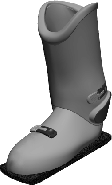
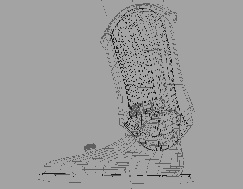
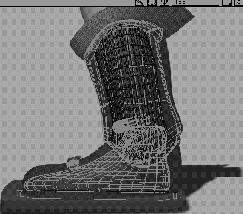
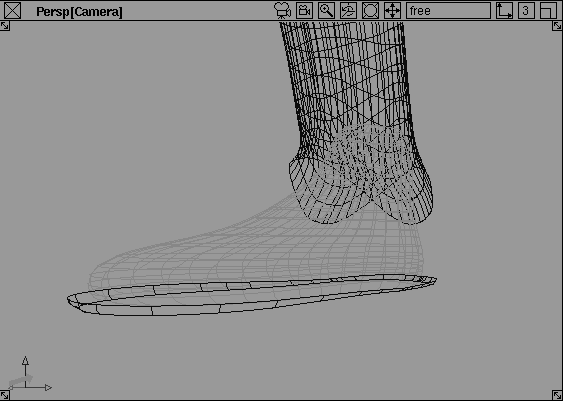
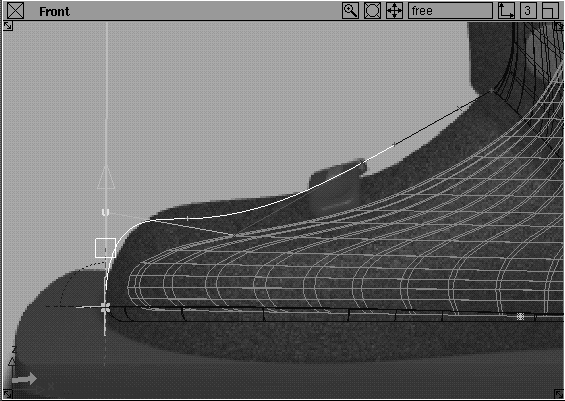
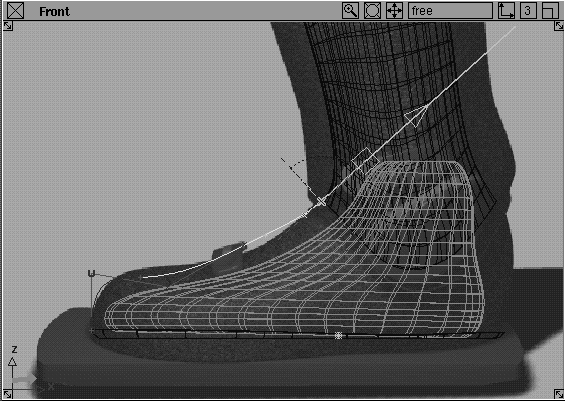
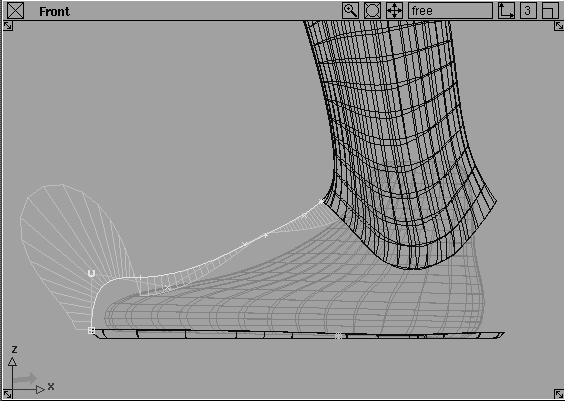
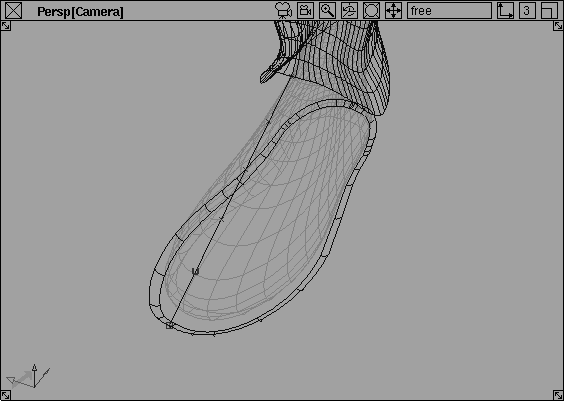
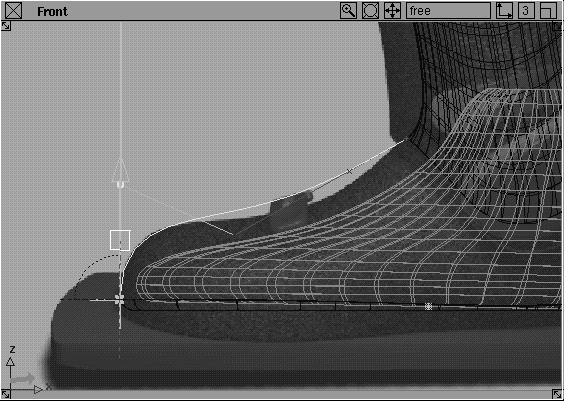
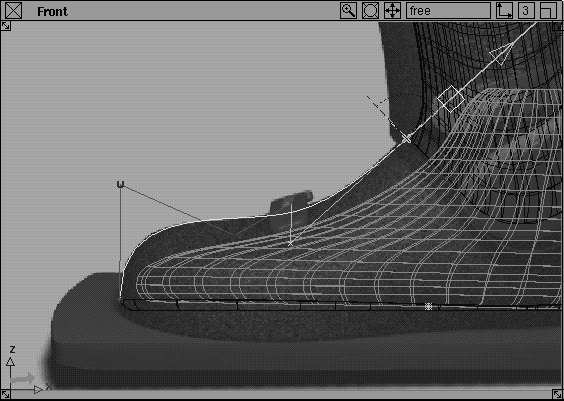
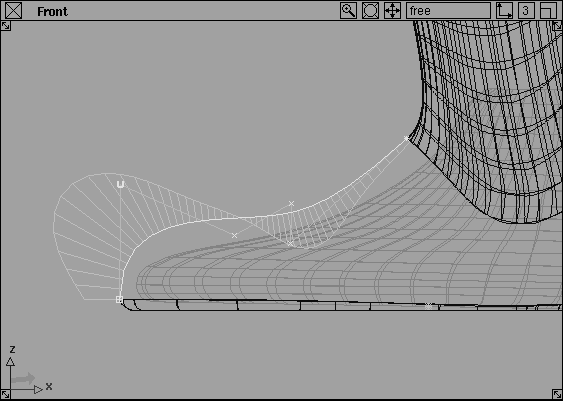
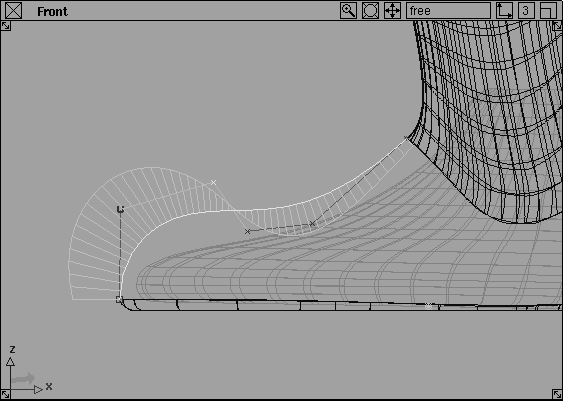
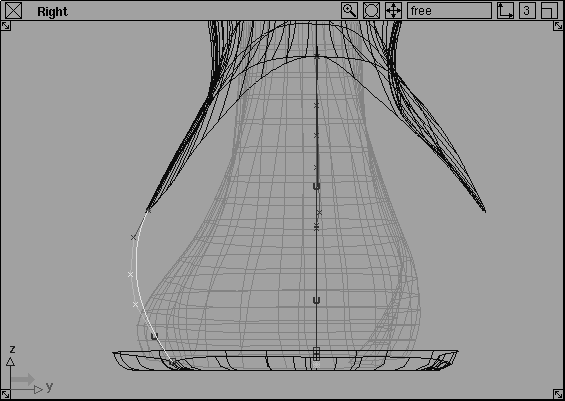
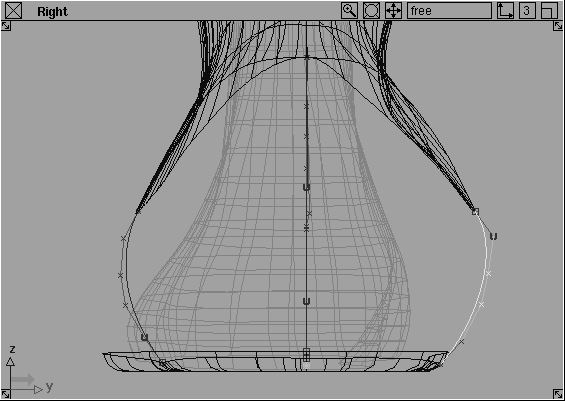
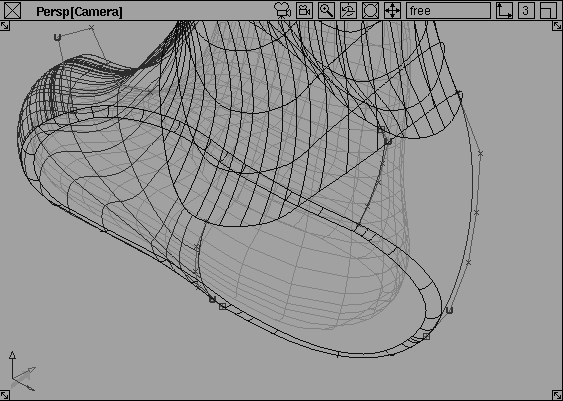
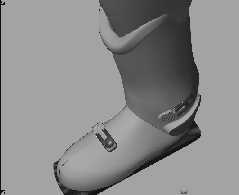
In this lesson, parts of a pre-built ski boot model have been created based on an underlying sketch. Your task is to complete the bottom part of the Ski Boot design using the sketch to help you place boundary curves.
The goal of this lesson is to learn how to establish curves that are capable of yielding continuous surfaces. This means that the surfaces of the Ski Boot will maintain continuity with neighboring surfaces. To establish the necessary level of continuity, the Project tangent tool is required to prepare the curves that will define the surface regions while the Square tool is required to build the surfaces with continuity.
This workflow of preparing curves with the same level of continuity as you require in the upcoming surfaces is an important concept when modeling in Alias. If these curves are not projected properly, tools such as Square cannot achieve continuity when the surfaces are built. As usual, the quality of the curves defines the quality of the surfaces.
Start from an empty workspace.
Show list, then double-click on L30_SkiBoot.
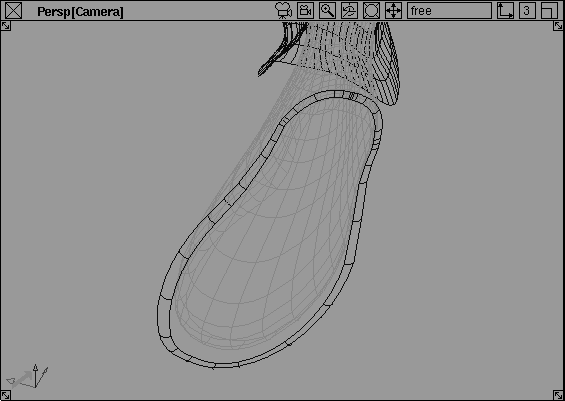
The file shows a partially modeled boot with a leg and foot component on separate layers. The foot and leg serve as guides to help create the boot model.
| Tip: You may need to dolly into the view to see the whole boot and the leg. |
In Alias, image planes let you place reference drawings into the background. Each view window can display many image planes. Images can be sketches, scanned marker drawings, photographic references, or computer renderings. Image planes are used to establish proportions and ensure the spirit of a design translates into the computer model.
 Image plane-
  .
.
New Image Plane Options window, click on Dim Image. Set the RGB Offset to 0.15 and the RGB Mult to 0.5. Click Go.
This dims the image so that the model and manipulators will be more visible in front of the image.
BootSketch.
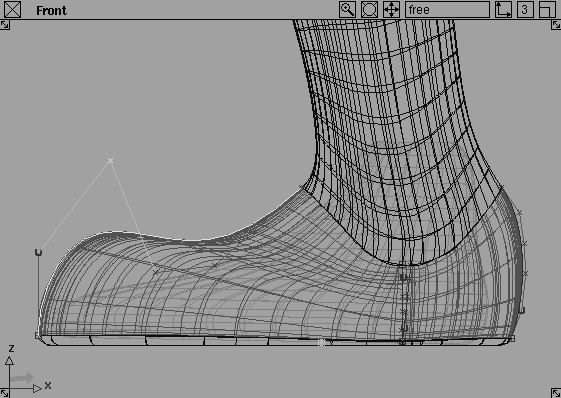
A new image plane appears in the Front window, with the BootSketch image on it. This is a useful reference to develop subsequent surfaces.
 Select Pick Nothing then select Pick Object types Image Plane. Click-drag over the border of the image plane to select it.
 to the wire model, select Xform Move and click-drag the image plane to move it into position behind the SkiBoot.
 If the image appears too large or small, select Xform Scale. Click drag with the left mouse button to scale it to the approximate size.
You may have to Move and Scale the image plane several times to get a good match.
| Note: This image is being used as a visual guide to place curves into the model. There is no "exact" position for this image plane since it is being used for reference only. |
Grid to hide the grid and provide better visibility of the curves and manipulators for the rest of the tutorial.
leg Layer button to bring up the layer pop up menu. Select Visible to hide the outer surfaces and detail components of the boot.
foot Layer pop up menu, select Set state Inactive.
| Note: Changing the layer state to Inactive will prevent the surfaces from being snapped to, while allowing the foot to serve as a visual reference during the construction. |
Next, you trace the curve of the boot sketch using an edit point curve, with Uniform knot spacing. Edit point curves create an edit point every time you click. The advantage to drawing with edit points is that when you manipulate the CVs on the curve later, you get a smoother, more localized effect.
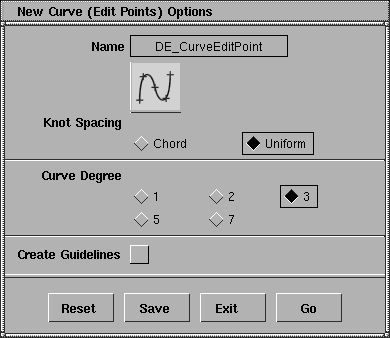
 Select Curves New Curves New Curve (edit pts)- . Click on
 Uniform as the Knot Spacing, and change the degree to 3. Click Go.
Uniform knot spacing is used to help produce clean surfaces, with a minimum number of isoparms.
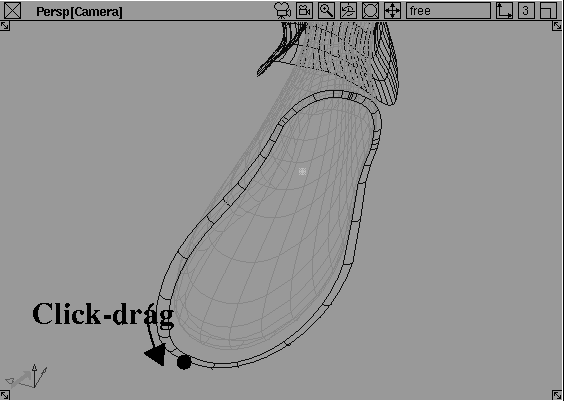
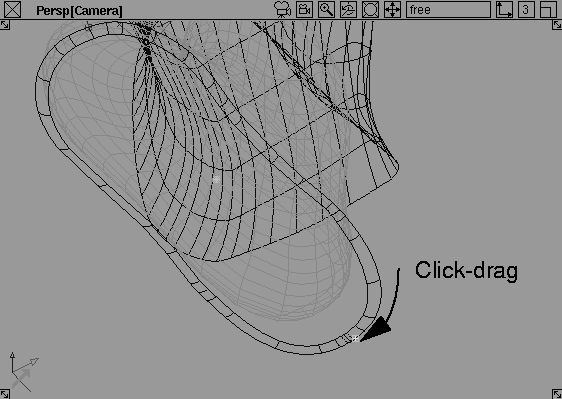
Ctrl and Alt keys together to temporarily turn on Curve snapping and click and hold on the outer rim of the sole base. Without releasing the mouse button, drag the mouse to move the edit point.
Notice how the edit point adheres to the piece of geometry that you selected using Curve snapping.
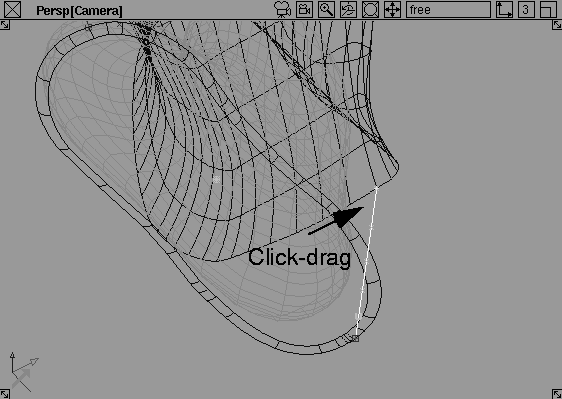
Ctrl and Alt keys together to use Curve snapping again. Click and hold on the lower rim of the inside surface of the boot.
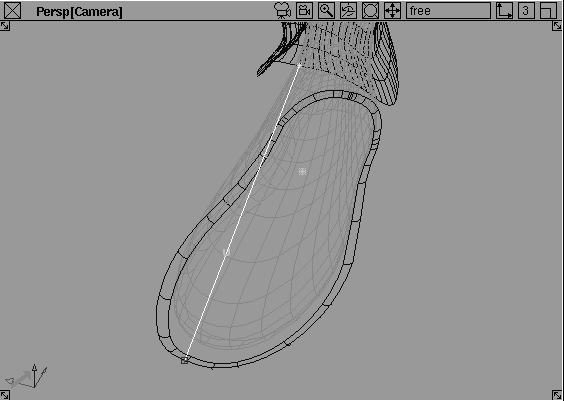
Without releasing the mouse button, drag the mouse to move the edit point until it lies at the exact center of the boot. You'll know that you have the right point when you cannot drag anymore. Note that the sole and inner surface of the boot are broken into four surfaces each.
Place your edit point curve at the end of the quarter pieces. Release the mouse button.
You now have a straight line between the sole and the inner surface of the boot. However, this single span curve still needs modification to match the shape of the boot in the image plane drawing.
 Select Object edit Insert. Pick the new curve. At the prompt type in 0.25 as the curve parameter
Now you have entered a straight curve which has its ends snapped to the existing geometry. You must, however, align the curve with the curvature of the geometry that it is snapped to. The Project Tangent tool can be used to modify the straight curve into a suitable surfacing element that matches the image plane reference, while at the same time aligning with the surrounding surfaces.
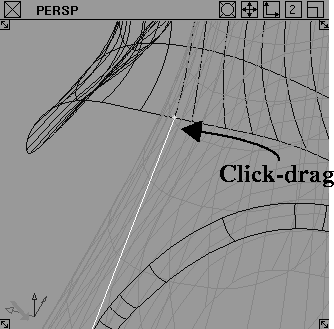
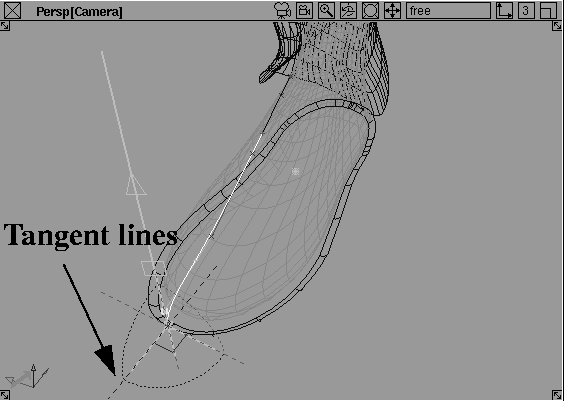
 Select Curve Edit Project Tangent. At the prompt, click on your new curve near where it touches the sole of the boot.
In the Front window you can see that the curve has been modified to become tangent to the sole base but is not projecting enough to match the sketch behind.
The curve is now aligned with the outgoing curvature of the sole base. This makes any future surface tangent with the sole base geometry.
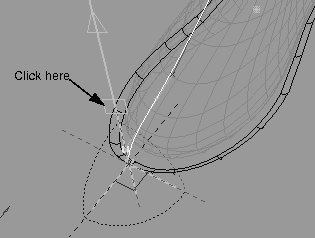
 Select Curve Edit Project tangent. At the prompt, click on the curve near where it touches the inner surface of the boot.
The project tangent manipulator appears and the curve is now tangent to the surface.
 The tangency at this point works well without adjustment, so select Pick Nothing to complete the curve.
The curve does not yet match the profile of the boot sketch, but you will evaluate the curve before continuing to refine its shape.
Curve evaluation is important in determining the quality and eventual success of your curves. The Tgl crv curvature tool allows you to quickly access your curve, graphically showing undesirable characteristics such as dips and bumps.
Image planes to temporarily hide the background boot sketch.
 Select Pick Object and click on the new curve.
 Select Evaluate Tgl crv curvature - .
Density type is set to Per Span and the Display to Comb + outline. Set the Density Value to 20. Click on Go.
At this point, you should notice that there are discontinuances or "breaks" in the comb plot that relate directly to the position of the edit points along the curve.
| Note: The curve evaluation tool produces a graphical comb plot that projects a series of lines perpendicular to the tangency of the curve, the length of which corresponds to the curvature of the curve at the given points. The shape and smoothness of the comb plot are directly related to the quality of the curve and the resulting surface. |
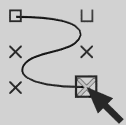 With Nothing picked, select Pick CV and click on the third CV of the curve.
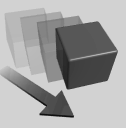 Select Xform move and drag the CV back and forth with the middle mouse button in the front window.
The comb plot updates with the repositioning of the CV. Although through careful manipulation of the CVs, you can eventually smooth out some of the breaks, more successful results can be obtained with a higher degree curve.
In order to simplify the resulting geometry, reconstruct the curve as a degree 5 curve.
 Select Pick Object and click on the curve.
All (Studio).
Select Pick Object and click on the curve.
All (Studio).
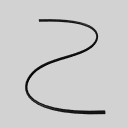 Select Curves New Curves New Curve (edit pts)- . Keep the
 Knot Spacing set to Uniform and change the Curve Degree to 5. Click Go.
Ctrl and Alt keys, click and hold on the outer rim of the sole base, and position the curve point at the same location as with the original curve.
Ctrl and Alt keys pressed, click on the lower edge of the inner surface of the boot to lock to this curve. Move the cursor and position the second edit point to the same location as the original curve.
| Note: Since the degree 5 curve has more CVs than the degree 3 curve, there is no need to insert extra edit points. |
Image planes to show the Boot sketch.
 Select Curve Edit Project Tangent. Click the new curve and then the outer edge of the sole of the boot.
The project tangent manipulator appears and the curve is projected tangent to the sole.
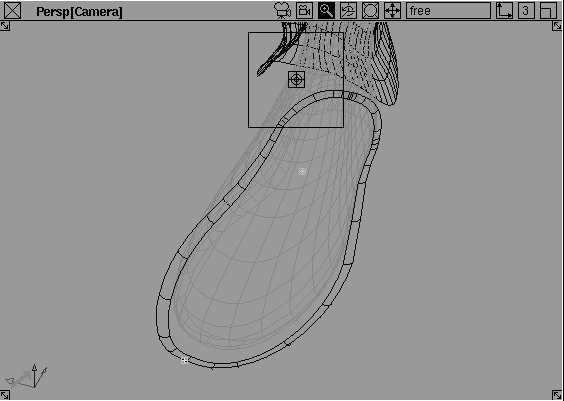
 Select Curve Edit Project Tangent again. Click on the new curve and then on the lower edge of the inner surface of the boot near the end point of the curve. Use the Zoom camera tool in the perspective window to make sure that the edge of the surface is selected and not one of the inner isoparms.
Notice how the degree 5 curve created a better match to the profile without a lot of CV manipulation
Image planes to hide the boot sketch.
With the more complex degree 5 curve, you can now edit it into shape. The goal is to create a curve that matches the image plane and provides a good curve evaluation plot. For this reason you will edit the curve's CVs while the curve plot is active.
 Select Pick Object and click on the new curve.
 Select Evaluate Tgl crv curvature- . Change the
 Density Value to 50 and click Go. Since the degree 5 curve has only one span, a larger density value is needed.
The comb plot is now a lot smoother. This is because the curve has a single span. Single span curves will not have breaks in their curvature plot, but will still need tweaking in order to reduce or eliminate dips and bumps or abnormalities in the curve. Moreover, curves of degree higher than 3 will produce smooth curvature plots even over multiple spans. The plot should be a smooth transitional form representing the gradual increase or decrease in curvature.
 Select Pick Point Types CV and click on the third CV.
 Select Xform Move and move the CV until the comb plot starts to smooth out.
The resulting curve should provide both a good match of the profile of the boot sketch and a smooth comb plot.
|
Note: Do not use this method to change the second and fifth CVs as they are needed to maintain tangency with the corresponding surfaces. If they must be moved, use the Curve Edit Project Tangent tool, and select the square icon of the manipulator to scale the tangency. This will move the CVs along the tangent axes. |
 Select Pick Object and click on the curve to select it.
 Select Evaluate Tgl crv curvature to turn off the comb plot.
All (Studio).
Select Evaluate Tgl crv curvature to turn off the comb plot.
All (Studio).
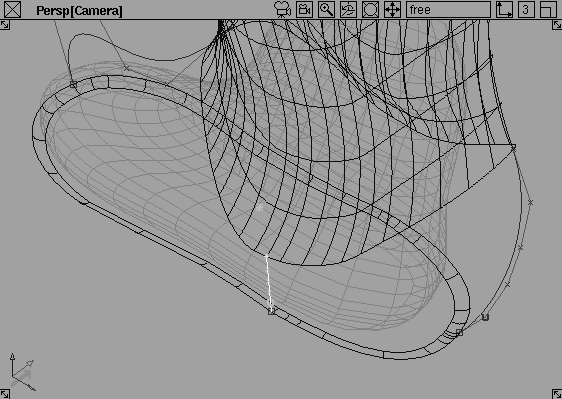
You now draw three more curves so that you can create a series of surfaces for the boot. You draw the back curve first and then delete the image plane. You then draw two side curves. Using Project tangent for each curve insures that surface alignment and tangency can be maintained later.
 Select Curves New Curves New Curve (edit pts). In the Perspective window, press the
 Ctrl and Alt keys together and click and hold on the outer rim of the sole base.
Ctrl and Alt keys, click and hold on the bottom rim of the inner surface of the boot. Drag to the end of the quarter segment and release to enter the second edit point of the degree 5 curve.
Image planes to show the boot sketch.
 Select Curve Edit Project Tangent. Click the new curve near the top, then on the lower edge of the surface near the curve.
Click again on the curve to select it, then on the outer edge of the sole near the curve. The curve is now tangent to both surfaces.
 Select Pick Nothing, then Pick Point types CV. Click the two middle CVs on the new curve.
 Select Xform Move. In the Front window, drag to the right to match the curve to the boot sketch.
Tgl crv curvature (the whole curve must be picked to turn on the curvature plot) and continue to modify the CVs. Do not modify the second or fifth CVs or you will break the tangency.
Select Xform Move. In the Front window, drag to the right to match the curve to the boot sketch.
Tgl crv curvature (the whole curve must be picked to turn on the curvature plot) and continue to modify the CVs. Do not modify the second or fifth CVs or you will break the tangency.
 Select Pick Nothing then select Pick Object types Image plane. Click the image plane in the Front window.
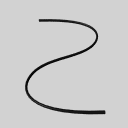 Select Curves New Curves New Curve (edit pts). In the Perspective window, press the
 Ctrl and Alt keys and enter one curve end point at the outer edge of the sole quarter segment and the second end point on the lower edge of the inner boot surface.
| Tip: Remember to click-drag to the ends of the quarter segments. If you don't find the ends, you won't be able to create surfaces later. |
 Select Curve Edit Project Tangent. Click the new curve, then on the lower edge of the leg surface.
 Select Pick Point types CV. Click the two middle CVs of the new curve.
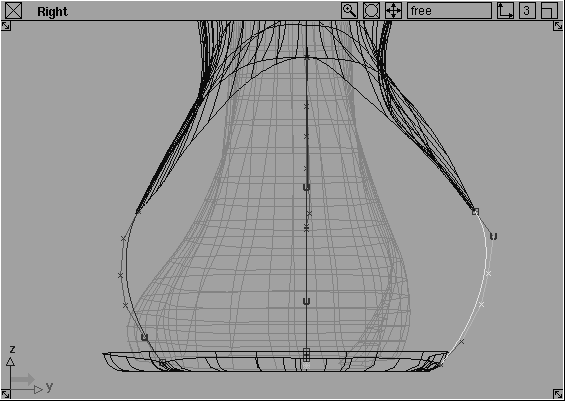
 Select Xform Move and in the Right window, move the CVs to create a smooth round curve.
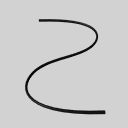 Select Curves New Curves New Curve (edit pts). Construct a curve on this side similar to the other curve
 Select Curve Edit Project Tangent, and project the tangent of the new curve from both surfaces.
 Select Pick Point types CV and select the two middle CVs.
 Select Xform Move. In the Right window, move the CVs to create a smooth round curve.
With the curves in place that describe the form of the boot, you can now use the Square function to create the surfaces. Square is a powerful tool that lets you reconcile four boundary curves into a single surface. With Square, you can ensure that continuity with neighboring surfaces is seamless.
 Select Pick Nothing. In the Perspective window, tumble and dolly the view to see the front of the boot area.
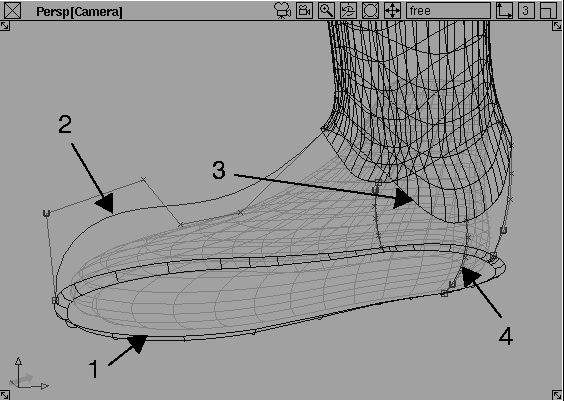
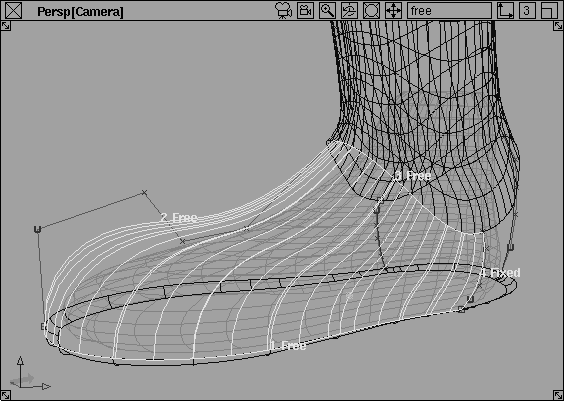
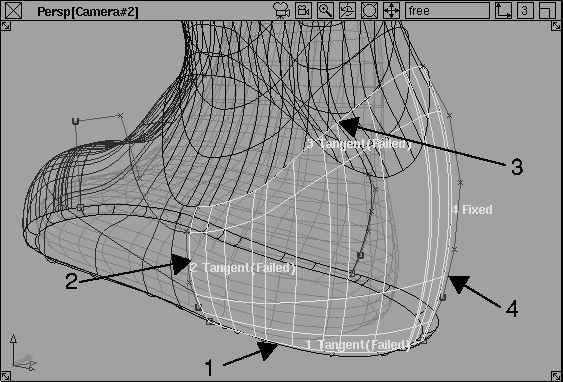
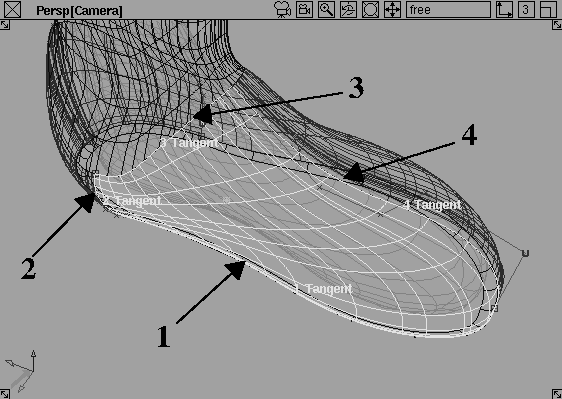
 Select Surfaces Boundary surfaces Square-. Click clockwise on each of the four curves, as shown in the figure above. When you finish, the curves are labeled and the square surface is constructed.
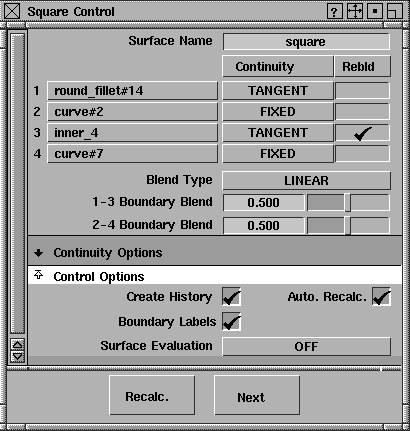
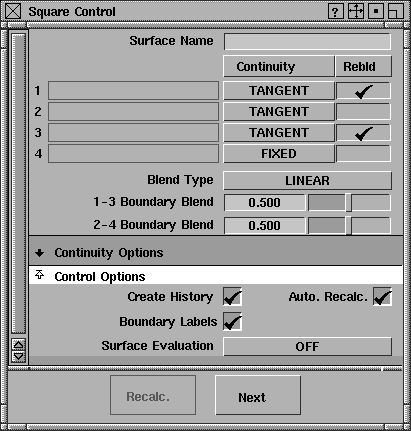
Square Control window, the four selected curves appear in the fields labeled 1 to 4. Since you want the two side edges of the surface to remain on their construction curves, click on the button labeled Free beside curves 2 and 4 and select the Fixed Boundary option.
Tangent for the remaining two curves that are edges of the existing surfaces. The diagram now shows the tangency at the edges and the new surface.
Rebld beside curve 3.
| Note: The Rebuild option allows the specified curves to be modified to account for the difference in parameterization of the opposing boundary curves. This often produces more simplified surfaces, depending on the complexity of the context. |
Rebld beside curve 1 and curve 4.
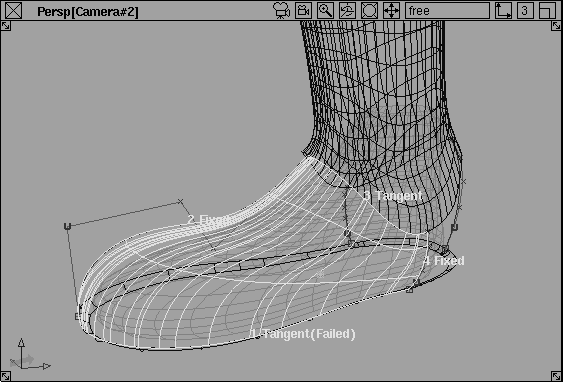
The label on curve 1 indicates that tangent continuity has failed along this boundary. Open the Promptline History window. The Square tool warned that it couldn't achieve continuity within tolerance. To fix this problem, you need to increase the tolerance.
Construction options....Open the Tolerances section then the Continuity section and set Continuity Angle to 0.15. Minimize this control window. You must now delete the square surface and repeat step 2 to rebuild it using the new tolerance.
Because the inner surface of the boot is so complex, it should be rebuilt so that the new surface can better match the various boundary conditions. Rebuilding curve 4 creates cross isoparms and provides a better indication of the shape of the surface.
Note also that the number and concentration of the isoparms of the new surface change with each option selected. The resulting surface is quite complex due to the nature of the existing surfaces to which the new surface is being created tangent to.
 Select Pick Nothing to finish the construction of the square surface.
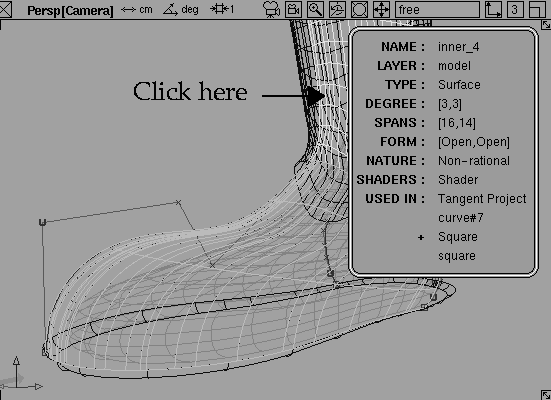
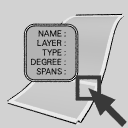 Select Object Edit Query edit.
An information box appears showing the nature of the selected surface. The new surface is highlighted in blue to indicate that it is linked to construction history.
Note that the Degree of the surface is [3,3]. This surface uses only degree 3 geometry, therefore the new surface requires extra isoparms to match. If both were degree 5, cleaner surfaces would result. This explains much of the complexity of the new surface.
During the construction of a model, it may be easier and faster to use degree 3 curves and surfaces. In addition, these curves and surfaces may undergo considerable modification through the development of the design, thereby leading to overly complex surfaces.
These surfaces are adequate for quick design and evaluation, but the model may need to be rebuilt with higher degree curves for further refinement and production.
 Select Pick Nothing. In the Perspective window, tumble and dolly to get closer to the back of the boot area.
 Select Surfaces Boundary surfaces Square-. In the
 Square Control window, change Curve 2 to TANGENT, turn off Rebld beside Curve 4 and leave the other settings as shown.
You can see that once again, Square failed to achieve tangent continuity as indicated by the labels on curves 1, 2 and 3. To fix this, change the Continuity Angle tolerance to 0.9 and rebuild the surface.
|
Note: The necessary tolerance values were determined by using the Evaluate Continuity Surface continuity tool to test the boundaries. See the book Nurbs Modeling in Alias for more details. |
Follow this process to construct the next two square surfaces. Make sure the set continuity and rebuild options correspond to the order that the curves are selected. Set the continuity of the fourth surface to be tangent to the first square surface. This means that all four chosen curves should display tangency.
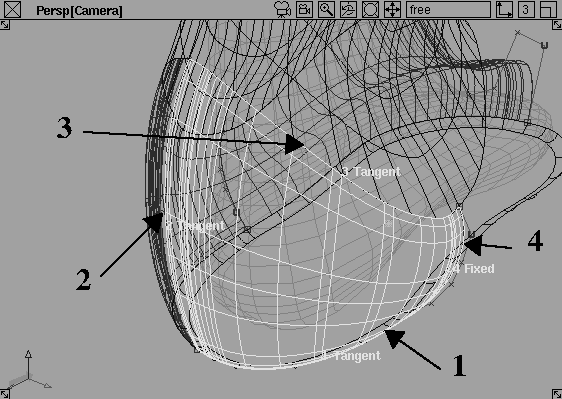
The following diagrams illustrate how the third and fourth surfaces look.
When you have finished, you have a series of continuous surfaces.
As you learned in Lesson 4, Construction History is a function that links a surface to its original construction curves so that an edit made to the curve affects the surface. You can choose whether or not you use history when you build a surface, but after the surface is moved, history is lost. The four Square surfaces you just created are all built with History turned on. By playing with one of the construction curves, you can update the surfaces.
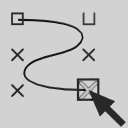 Select Pick Point Types CV and select one of the CVs of the boot's toe.
 Select Xform Move and click drag in the Front window to move the CV up.
When you release the mouse button, Alias begins recalculating History and the Square surfaces update. Also, because the subsequent surfaces were developed from this surface, they update as well.
Now that you have assembled all the elements together, you can reveal and make active all the geometry and Quick render the entire model. Buckles and other finishes have been added.
Leg layer button and select Visible from the pop up menu. Click again and select Set state Pickable. This allows the other parts of the model to be rendered. The foot layer can remain inactive so that it is not rendered.
In this lesson you have learned how to: