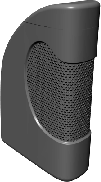
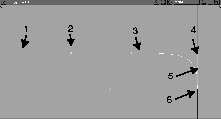
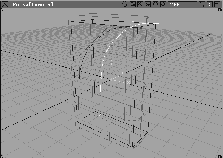
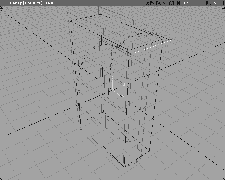
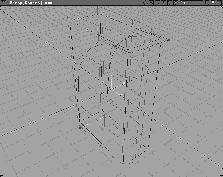
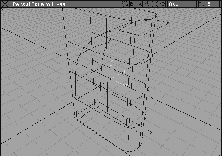
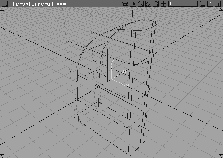
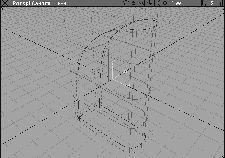
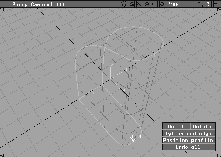
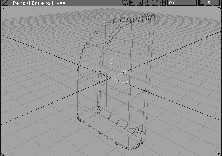
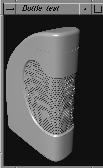
This lesson illustrates how Alias can be used for package design, by constructing a bottle from initial curves to final surfaces. You use the Skin, Birail, and Round surface functions to generate the overall shape of the bottle. You also build the handle and top of the bottle using offsets, trimming, and freeform fillets. The focus of this lesson is to explore how different modeling tools can work together to achieve a final result.
As the model becomes more complex in this lesson, you will template and hide surfaces. This technique helps you keep track of what is happening on the screen and assists you in successfully picking surfaces and curves.
 All (Studio).
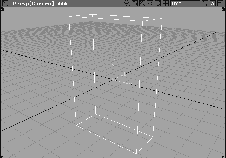
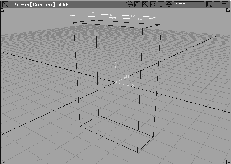
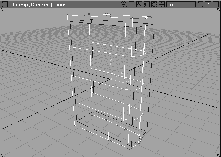
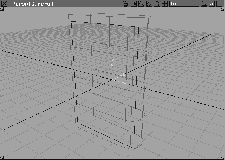
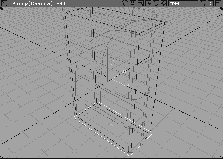
Placing a box into the scene gives you the outer limits of height, width, and depth of the model. By working with a mock-up of the overall bottle shape, you can quickly create the desired proportions of the bottle. The shape can then be used as a design constraint for modeling the bottle.
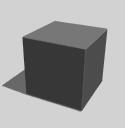 Select Objects Primitives Cube.Type:
 0 0 0 and press Enter to place the cube at the origin.
 Select Xform Nonp scale and enter
 6 2.5 9 to scale it. This shape is useful as the design constraint for creating curves and surfaces.
Using the top of the box as a design constraint, you can create a profile line for the front, back, and right side of the bottle. Then, by creating one side of the curve and mirror-copying, you ensure that both sides have equally numbered and spaced CVs. The two sides are then attached to create a profile curve. Placing a copy of the profile above and below the constraint, you can create a skin that passes through the design area (the box).
 With nothing picked, select Pick Component. Make sure that the
 Surface icon (the wavy square to the left of the prompt line) is turned on (depressed).
Click-drag a pick box around the four side surfaces and the lower surface of the shape.
| Note: It appears as if all the surfaces are picked even though the top surface isn't. |
By isolating this surface you can use it to snap the points of your first profile curve.
 Select Curves New Curves New Curve (cvs). Press and hold the
 Ctrl and Alt keys to temporarily turn on Curve snapping.
 Select Pick Object and click on the new profile curve so that it is active.
| Tip: If you pick the profile at a point that overlaps the plane's edge, a box will appear with the names of both objects. Click on the curve's name. |
 . Set the scaling values to
 1, -1, 1, and click Go. A second copy of the curve appears mirrored along the Y-axis.
 Select Object Edit Attach Attach-. Set the
 Attach type to Blend and click Go. Click on the first curve near the join point.
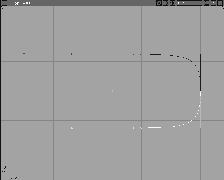
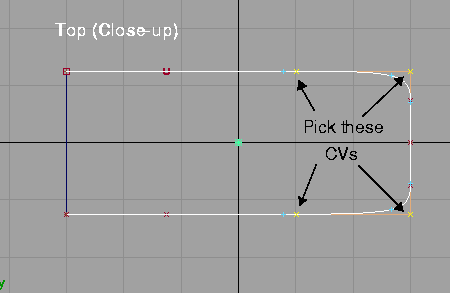
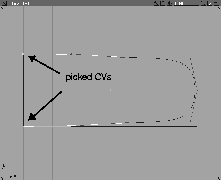
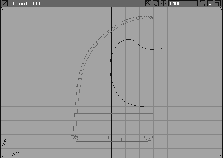
 Select Pick Point types CV and pick the four CVs shown below. The CVs highlight.
 Select Xform Nonp Scale and use the right mouse button to drag down and scale the CVs towards the X-axis.
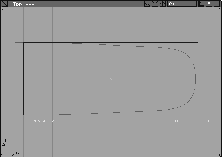
 Select Xform Move. Pick the center CV (the one lying on the X axis). With the middle mouse button, move it to the right until the curve just touches the constraint. This rounds off the end of the bottle.
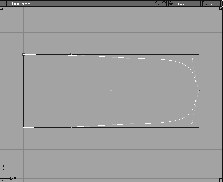
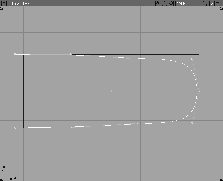
 Select Pick Nothing then Pick Point types CV. Click-drag a pick box around the two end CVs (as shown below).
 Select Xform Move. Using the middle mouse button, move the CVs to the left so they are slightly outside the constraint box.
| Note: The curves are being moved beyond the constraint of the box. The three surfaces you are creating will be intersected and trimmed later, so these extensions will be trimmed away. |
 Select Pick Object and pick the profile curve.
All (Studio) to return to four window views.
Select Pick Object and pick the profile curve.
All (Studio) to return to four window views.
 Select Xform Move. Enter
 r 0 0 0.5 and press Enter to move the profile slightly above the constraint using relative values.
 Select Xform Local Set pivot. Type
 a 0 0 0 and press Enter to place the pivot point at the origin in absolute mode.
. Set the scaling values to 1.000, 1.000, and -1.000. Click Go. A mirror copy of the profile curve is created along the Z-axis around the pivot point.
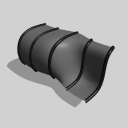 Select Surfaces Skin-. Set the
 Number of Spans to 4 and turn off Create History. Click Go. The extra spans should give the surface some extra detail for future trimming.
 Select Pick Object and click on the profile curves.
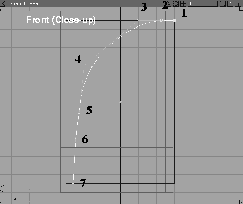
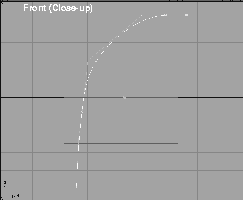
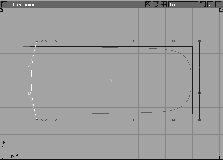
You can now create a profile curve for the top and right side of the bottle using the Front window. The profile curve is placed on either side of the constraint box. A new surface is generated with the Birail tool, using the two profile curves as rails. Two generation curves are needed at the ends of the profile curves to prepare for the Birail.
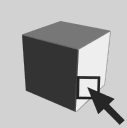 With nothing picked, select Pick Component. Make sure that the
 Surface icon ( is turned on.
By isolating this surface you can use it to snap the points of your next profile curve.
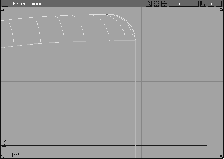
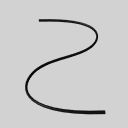 Select Curves New Curves New Curve (cvs). Press the
 Ctrl and Alt keys to temporarily turn on curve snapping and place the first three CVs as shown below.
Ctrl and Alt keys to snap the last CV to the bottom of the cube near the left.
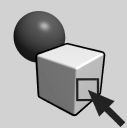 Select Pick Object and click on the curve to see the whole curve.
 Select Pick Nothing, then Pick Point types CV.
 Select Xform Move and click on the first CV at the top of the profile.
Move is still selected, click on the last CV at the bottom end of the profile. With the right mouse button, click-drag down to move the CV in the - Z direction until it lies just below the bottom of the cube.
Select Xform Move and click on the first CV at the top of the profile.
Move is still selected, click on the last CV at the bottom end of the profile. With the right mouse button, click-drag down to move the CV in the - Z direction until it lies just below the bottom of the cube.
 Select Pick Object and click on the profile curve.
All (Studio) to bring up all the model windows. From the Object Display menu, select Visible to reveal the hidden surfaces of the cube.
Select Pick Object and click on the profile curve.
All (Studio) to bring up all the model windows. From the Object Display menu, select Visible to reveal the hidden surfaces of the cube.
 Select Xform Move. Enter
 r 0 -0.2 0 and press Enter to move the profile away from the cube in relative mode.
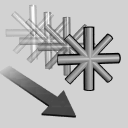 Select Xform Local Set pivot. Enter
 a 0 0 0 and press Enter to place the pivot point at the origin in absolute mode.
, set Scaling to 1.000, -1.000, 1.000, and press Go. A mirror copy of the profile curve is created along the Y-axis around the pivot point.
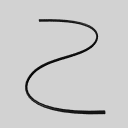 Select Curves New Curves New Curve (edit pts)-. Set
 Knot Spacing to Uniform, and click Go.
Ctrl key to temporarily turn on magnet snapping and click on the edit points at the start of both profile curves.
| Hint: You may have to tumble around in the Perspective window to see the starts of the profile curves. |
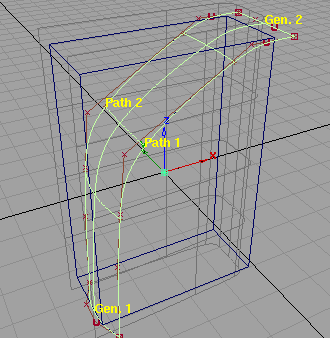
You have created a straight generation curve between the start of each profile curve.
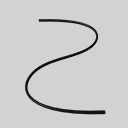 Select Curves New Curves New Curve (edit pts) to start building a new curve. Press the
 Ctrl key and click on the edit points at the end of both profile curves. The result is a second straight generation curve between the end of each profile curve.
All (Studio) to return to four view windows.
 Select Pick Nothing, then Pick Point types CV.
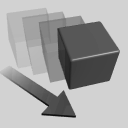 Select Xform Move. In the Top window, use the middle mouse button to click-drag to the left and move the two CVs in the -X direction. This adds curvature to the generation curve.
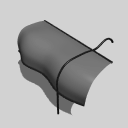 Select Surfaces Swept Surfaces Birail- to open the
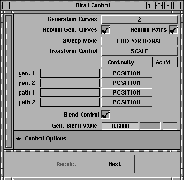
 Birail Control window. Since there are two generation curves, set Generation Curves to 2.
Birail Control window, click Blend Control ON. Type 0.6 in the Gen. Blend Value field, so the curved generation curve has more influence on the surface. The Gen. Blend Value represents the percentage of influence of the first chosen generation curve.
Note: If you picked the straight generation curve first in constructing the birail, the Gen. Blend Value would need to be 0.4. |
Birail Control window.
 Select Pick Object and click on the four profile curves.
| Note: The curves you are about to delete were used to create the birail surface with history, allowing you to update the surface. Deleting the curves also deletes the history, which is fine if you are satisfied with the surface. If you were thinking about changing the surface later, you would need to retain the construction curves. |
You can now create a surface for the bottom of the bottle. It is currently represented by the bottom square of the constraint. By placing a default plane in the same position, you can contain the bottle on all sides. Then, by untemplating the first two surfaces, the three surfaces are ready for trimming.
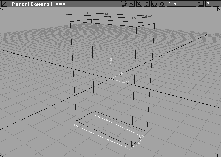
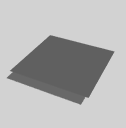 Select Objects Primitives Plane. Enter
 0 0 -4.5 and press Enter to place the plane at the bottom of the constraint.
 Select Xform Nonp scale. Scale the plane by
 typing 6.2 3.0 1.0 and pressing Enter. The plane is now slightly larger than the bottom constraint area and intersects with the first two surfaces.
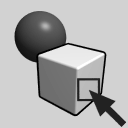 Select Pick Nothing to unpick all surfaces. Select Pick Object and pick the constraint box.
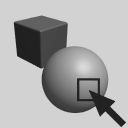 Select Pick Template. Click on the first and second surfaces.
At this point in the lesson, you have three intersecting surfaces that define the outside of the bottle. The surfaces need to be trimmed back at the intersecting lines. Once trimmed back, you can observe the shape, and start rounding off the edges.
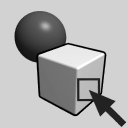 Select Pick Object and click on the first skinned surface.
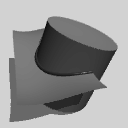 Select Surface Edit Create Curves On Surface Intersect- and set
 Create Curve on Surface to On Both Surfaces. This causes the Intersect function to intersect the first surface with the second and the second with the first. Both surfaces have intersection lines.
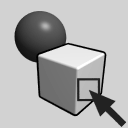 Select Pick Nothing then Pick Object. Click on the first two surfaces.
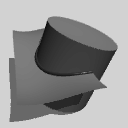 Select Surface Edit Create Curves On Surface Intersect, and pick the third surface (the plane at the bottom of the two surfaces). Because the intersect function is still set for both surfaces, the first two surfaces intersect the third surface and the third intersects the first two.
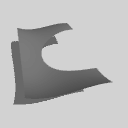 Select Surface Edit Trim Trim.
Keep is selected and click the Go button to confirm the trimming. The geometry outside the picked area is trimmed away.
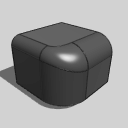 Select Surfaces Fillet Surfaces Round. Pick the intersection line between the first surface and second. A default icon representing a rounding of
 radius 1.0 appears. Type in 0.2 to reduce the radius to 0.2.
0.2.
0.4.
0.4, which is the right amount in this case.
Build button. The Round function calculates the rounded surfaces and the surfaces at the rounded corners. The excess geometry is also trimmed away automatically.
 Select Pick Nothing to see the new surfaces.
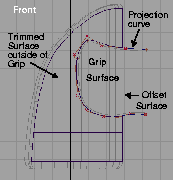
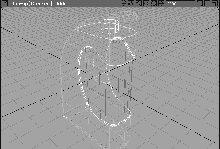
The general shape of the bottle has been completed. You can now add detail to the bottle by trimming and insetting a grip surface. The grip surface is an offset of the first surface so you can use a freeform fillet for the smooth transition between the two. Since you only work on the first surface, you can template all the others.
 Select Pick Object. Click-drag a pick box around all the surfaces to make them active.
 Select Curves New Curves New Curve (cvs).
 With nothing picked, select Object Edit Offset Offset. When prompted to select the object to offset, pick the skinned surface. By default, a green icon of the surface offset by 1.0 appears.
0.1 at the prompt line and press Enter to reduce the offset to 0.1.
If the Offset icon is outside the bottle, enter -0.1 at the prompt line and press Enter.
Click Go. An offset object appears.
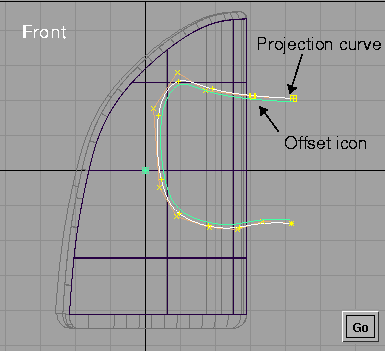
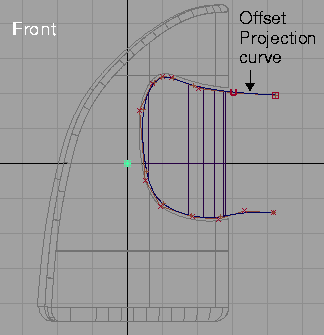
Offset still selected, click on the projection curve. By default, an icon of the curve appears, which is offset by the same positive or negative distance as the previous offset. If the Offset icon appears to the inside of the curve, as below, click Go to create the offset curve.
If it appears outside the curve, enter a value inverse to the default set above -either 0.1 or -0.1. When the offset icon appears to the inside of the curve, click Go to create the offset curve.
 Select Pick Object and click on the skin surface in the Front window.
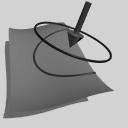 Select Surface Edit Create Curves On Surface Project. Alias prompts for a projection curve to be projected into the active window.
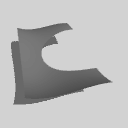 Select Surface Edit Trim Trim. Pick the surface and then pick the area outside the grip, that is, the surface outside of the projection curve. Click Go.
 Select Pick Object and click on the trimmed surface. Select ObjectDisplay Template to template the trimmed surface.
 Select Pick Object and click on the projection curve.
| Note: History is lost by this action. Trimming curves maintain history in Alias. If you anticipate changing the curve, you would have to untrim the surface, edit the curve and then retrim. |
 Select Pick Template and click on the offset surface and offset projection curve.
You will be repeating the same steps as before, except this time you will keep the area within the grip.
 Select Pick Object and click on the offset surface.
 Select Surface Edit Create Curves On Surface Project. Pick the offset projection curve. The offset surface receives a curve on surface offset from the curve on the original surface. A green dot appears at the origin.
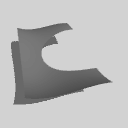 Select Surface Edit Trim Trim. Click on the offset surface and then click on the area within the grip.
 Select Pick Object and click on the projection curve.
 Select Pick Template and click on the first skinned surface.
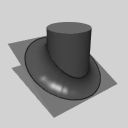 Select Surfaces Fillet surfaces Fillet-, set
 Construction to Freeform and click Go. Pick the trim edge of the first skinned surface, and then pick the trim edge of the grip.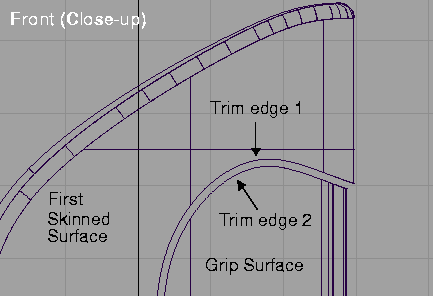
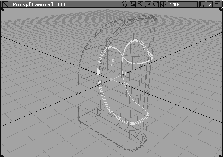
A fillet appears along the two surface edges.
You can now use default planes to trim the bottle, create a gap between the bottle body and top, and then add a cylinder to represent the nozzle. You won't model the nozzle in detail because it is not seen in this model except when you look at the model face on.
 Select Objects Primitives Plane.
1 0 3.5 and press Enter to place the primitive at the location where you want to cut the nozzle.
 Select Xform Nonp scale. Type
 5 3 1 and press Enter to scale the plane to intersect with all the upper surfaces of the bottle.
and click Reset.
Translate values to 0 0 0.01 and click Go. A copy of the plane is put 0.01 in the Z direction relative to the original plane.
 Select Pick Nothing, then Pick Template. Click on the
 Birail surface, its round edge surface, and the first trimmed surface.
 Select Pick Nothing then Pick Object. Click-drag a pick box above the new surfaces to pick all the upper surfaces of the bottle. Do not pick the planes.
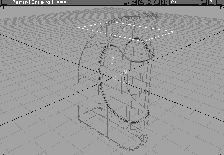
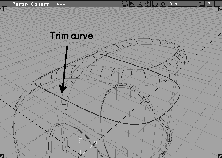
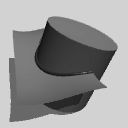 Select Surface Edit Create Curves On Surface Intersect. Click on each plane, one at a time. As you pick the planes, trim curves appear on the bottle and the planes themselves.
| Tip: You may need to dolly into the window to pick the individual planes. |
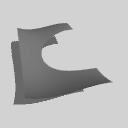 Select Surface Edit Trim Trim. In the Perspective window, click one of the planes (don't click the trim curve).
Trim Trim selected, click the skinned surface between the two trim curves. To place the region cursors, press the Shift key and click once on the surface above the trim curves and once on the surface below the trim curves.
Select Surface Edit Trim Trim. In the Perspective window, click one of the planes (don't click the trim curve).
Trim Trim selected, click the skinned surface between the two trim curves. To place the region cursors, press the Shift key and click once on the surface above the trim curves and once on the surface below the trim curves.
Click Go. The skinned surface between the trim curves is cut away.
| Hint: To confirm your surfaces, you may want to Quick render. You can also dolly in the Front window to verify the gap between the top and bottom of the bottle. |
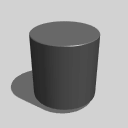 Select Objects Primitives Cylinder-. Set the
 Caps to 0 and click Go.
1.5 0.0 4.0 and press Enter to place the cylinder on the bottom plane.
 Select Xform Local Set pivot. Type
 r 0 0 -0.5 and press Enter. This moves the pivot point relatively to its current position by -0.5 in the Z direction and places it at the bottom of the cylinder.
 Select Xform Nonp scale. Type
 1 1 0.5 and press Enter to reduce the Z-dimension in half.
Nothing.
Next, you create two shaders for the bottle: a smooth matte gray/silver shader for most surfaces and a beaded bump map for the grip. After the shaders are created, you can orient the scene to prepare it for rendering.
Shaders... to open the Shader Multi-lister window.
Shader lister, select Edit New Shader to create a new shader.
Shader editor, set the Shading Model to PHONG. This is usually a good shading model for plastic.
Common Shader Parameters section, click on the patch beside Color.
Color Editor, change the RGB values to 168, 170, 172, so the surface is gray with a slight blue tinge to it.
Color Editor.
Raytrace Parameters section and set the Reflect Limit to 0. This ensures that the bottle does not reflect surrounding objects.
 Select Pick
 Object and click-drag a pick-box around all the surfaces, so that all the surfaces are active.
Shader editor, set Shading Assign Shader to assign the shader to the surfaces.
 With Pick Object still selected, click-drag a pick-box around the complete bottle so that only the grip is active.
Copy to create a copy named
With Pick Object still selected, click-drag a pick-box around the complete bottle so that only the grip is active.
Copy to create a copy named Shader#2.
Assign Shader to assign the new shader to the grip surface.
Shader Editor. In the shader editor, go to the Special Effects section and click on the Map button next to Bump.
Ramp as the Bump texture map.
Ramp Texture Parameters section, set the Ramp Type to Circular. Click on the square ramp marker to remove it.
1.0; at position 0.45, set the intensity to 0. The texture icon shows a white dot fading into black surroundings.
Intensity section, set the Amult to 0.4 to reduce the amplitude of the bump. In the Blur section, set the Blur mult to 0.85 to slightly sharpen the bump map.
Surface Placement section, set Urepeat and Vrepeat to 80 so that the pattern repeats eighty times in each direction.
Stagger to ON, to stagger the bump map repetitions. Set Chord Length to ON so that the bump map ignores the parametrics of the grip surfaces, and places it on evenly. This maintains the integrity of the bump map.
Shader lister and editor.
At this point, rendering a still image can give you a good sense of how your shaders are working. Start by setting up the Render Globals and then raycast the scene. If you like, you can perform a test render before the raycast.
Render Globals window and set the quality and resolution.
Global Quality Level to MEDIUM.
Tip: When you render a final version, remember to increase the quality to HIGH. |
Image File Output section and scroll down to see the Predefined Resolutions table. Select the NTSC resolution. Close the Render Globals window.
Full Screen, or 700 by 1024, since the bottle is tall and thin.
Render status to toggle on the Render status bar. This bar will appear over the prompt line during the rendering to allow you to monitor its progress.
| Note: If you used Quick render to evaluate the model at some point, several lights will have been automatically placed in the scene. If present, (the lights will appear as yellow boxes in the SBD) make sure they are not templated. If the lights are absent, you will need to place lights in the scene or run a Quick render or the rendering will be completely black. |
Bottle and click Save SDL.
1024 x 700.
You have now completed the bottle. This lesson has shown you how to create a package design project from initial curves to final surfaces. In this lesson you have learned how to: